
Check-Off Templates: Daily Apparatus Checks, SCBA Inspections & Equipment Inventories
A check-off template is a reusable checklist your members complete on a set cadence — daily apparatus checks, weekly SCBA inspections, monthly pump tests, quarterly equipment inventories. Build the template once, and your crews run through it every time with a consistent format, clear pass/fail results, and a permanent record of what was checked and by whom.
This article covers creating and managing templates, linking checklist items to inventory, scheduling checks, and reviewing results. For completing a check together from several devices, see Live Check-Offs. To post a checklist where the work happens, see QR Codes + Check-Offs.
Creating a Template
- Go to Check-Offs in the sidebar
- Click Templates, then New template
- Give it a clear, specific name — "Engine 1 Daily Check" is better than "Daily Check" because members should immediately know what they're completing
- Choose a scope (see below)
- Set an optional frequency
- For an apparatus template, decide whether to record meter readings
- Build your sections and items
- Save
Choosing a Scope
Every template is tied to a scope that determines where it appears:
- Apparatus — tied to a specific rig. Best for daily apparatus checks, pump tests, and equipment inventories specific to one unit. Appears on that apparatus's card in the Station Hub and on the Check-Offs tab of the apparatus page, where Manage Checklists lists just that rig's templates.
- Station — tied to a specific station. Best for station facility checks, bay inspections, and equipment that lives at the station (generators, defibrillators, etc.). Appears under the station heading in the Station Hub.
- Department — visible everywhere. Best for checklists that aren't tied to a specific rig or station — department-wide PPE inspections, general safety audits, etc. Appears at the top of the Station Hub.
Setting a Frequency
Optionally set how often the check should be completed: daily, weekly, monthly, quarterly, semi-annual, annual, or a custom interval (1 to 730 days). The frequency is displayed on the template as a reference for your members so they know the expected cadence.
The frequency is a label, not a schedule — on its own, nothing reminds anyone or tracks whether the check happened on time. To make the cadence actually ask someone to run the check, give the template a schedule.
Recording Meter Readings
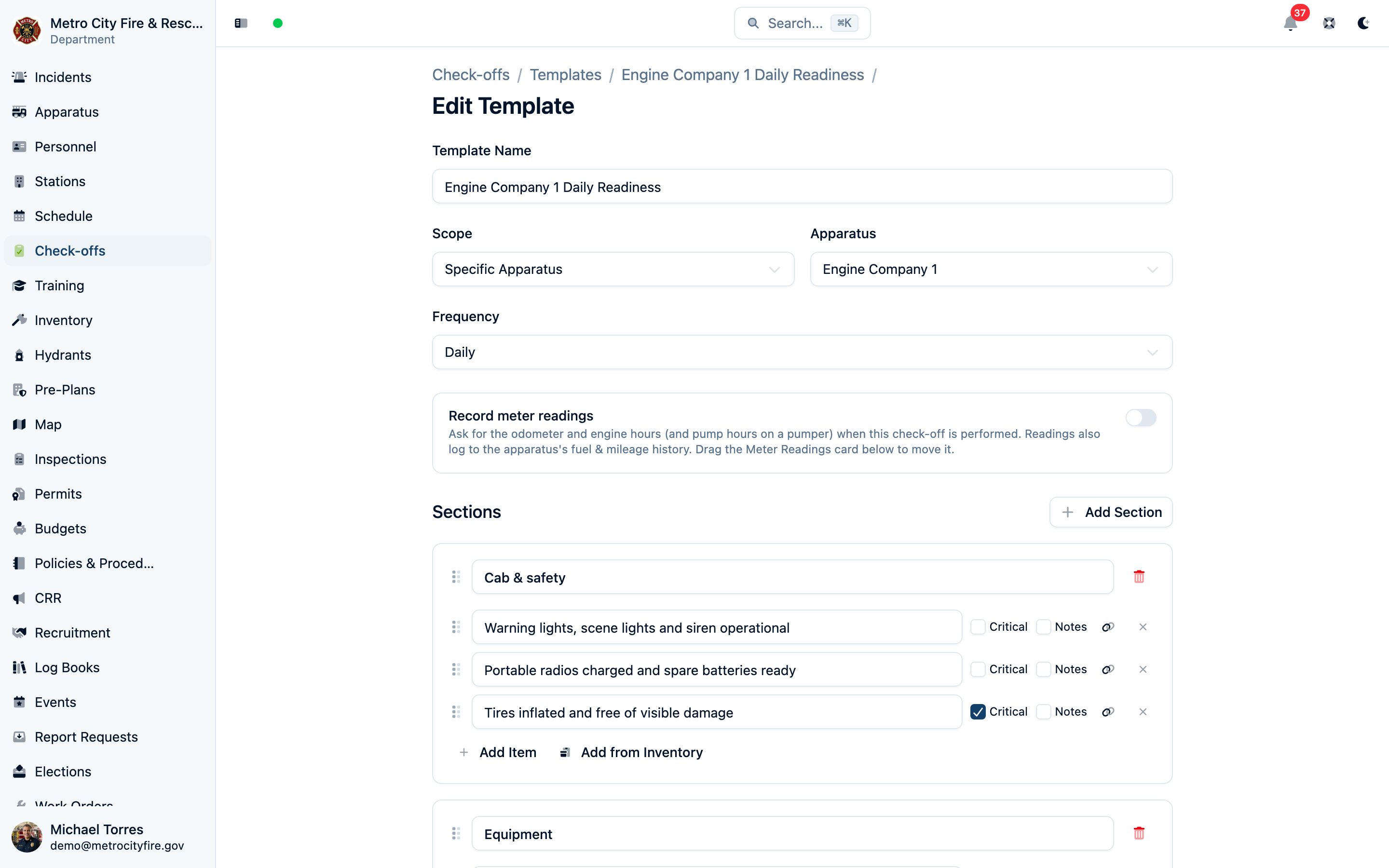
An apparatus-scoped template can ask the crew for the rig's odometer and engine hours each time the check-off is run, and pump hours on a rig with a rated pump. Turn on Record meter readings in the template editor — the switch appears once the scope is set to an apparatus, and it's off until you turn it on, so templates that don't need it stay as short as they are today.
With it on, the check-off form gets a Meter Readings section, after the checklist sections to start with. To have the crew take readings first (or anywhere in between), drag the Meter Readings card in the template editor to where you want it, just like a section. The fields are optional on every check-off: a crew that doesn't have the numbers handy can still submit. The odometer field shows the rig's last recorded reading and warns if the new one is lower, which catches a transposed digit before it's saved.
Readings entered on a check-off do two things:
- They're kept on the completed check-off, so the record shows what the meters read when the rig was checked.
- They're written to the rig's fuel & mileage log as a mileage-only entry, and the apparatus's current odometer and hours update from it — the same way they do from a fuel fill-up. Maintenance schedules keyed to mileage or hours see the new reading immediately.
This replaces the older workaround of a notes required item labeled "odometer": a typed number the system can trend, rather than a note it can only display. If you have templates set up that way, turn on meter readings and delete the note item.
Scheduling a Check-Off
A schedule is a recurring work order pointed at the template. It comes due on the cadence you set, lands in someone's queue, and closes itself when the check-off is done.
Setting one up
- Open the template from Check-Offs → Templates
- Find the Schedule card and click Schedule recurring work order
- Set the cadence, the first due date, and the lead time — how many days ahead of the due date the work order should appear
- Optionally assign it to the group or the member who runs the check
- Save
Assigning is worth doing when a specific group owns the check, because that's what sends a notification. It isn't required: an unassigned schedule shows the check as due on the Station Hub, and whoever runs it closes it. For a daily rig check that whoever-is-on-duty picks up, that's often the better fit than naming one member who may be off shift.
Most of the form is prefilled from the template: the template name becomes the work order title, the category is set to inspection, and an apparatus- or station-scoped template links the work order to that rig or station so the job also shows on its card.
Once a schedule exists, the Schedule card shows the cadence and the next due date instead of the create button, with a Paused badge if the schedule has been deactivated. Manage → opens it in Work Orders → Recurring, where you can change the cadence, reassign it, pause it, or delete it. A template can have one schedule at a time.
Running a scheduled check
When a scheduled work order comes due, it behaves like any other work order — it's on the board, and if the schedule is assigned, it appears in the assignee's queue and sends them a notification. The difference is a Start check-off button at the top of the work order, which opens the template's check-off form directly.
The check also shows as due on the Station Hub, on the template's button for that rig or station: Due today when it comes due, Overdue if it's still outstanding after that, and the date when lead time has put it on the board early. This is what makes an unassigned schedule useful — the crew sees the rig is due where they already look, without anyone being paged.
The badge appears for the people who can actually clear it: anyone, when the schedule is unassigned; the assignee and their group when it isn't; and officers with permission to update work orders either way. A member outside an assigned group doesn't see a badge, because running the check wouldn't close that group's order and the badge would never go away.
Submitting the check-off completes an eligible work order and records a Completed via Check-off card on it, showing the template, who ran it, when, and a link to the check-off itself. You don't have to use the button for this to happen — starting the same check-off from the Station Hub, the templates list, or a QR code on the rig works the same way. With a shared check-off, the person who submits must be allowed to close the scheduled order, as described below.
What to know before you rely on it
- An assigned order closes for the people it belongs to. The work order completes automatically for the member it's assigned to, for anyone in the assigned group, and for members with permission to update work orders. If someone outside that group runs the check-off, the check-off is recorded normally but the work order stays open — closing it would take the job out of the assigned group's queue on the word of someone with no claim to it. An unassigned order has no such owner, so whoever runs the check-off closes it.
- One open order at a time. If the last work order from a schedule is still open, the next cycle doesn't create a second one — a daily check left undone on Monday won't have a duplicate waiting on Tuesday. The schedule keeps its calendar and picks back up once the outstanding one is closed, so the board reflects work that's genuinely outstanding rather than one row per missed day.
- The template is fixed at creation. A schedule can't be repointed at a different template later. To schedule a different check, delete the schedule and create one from the other template.
Building Sections and Items
Templates are organized into sections, each containing individual items. For example, an engine daily check might have:
- Cab — fuel level, warning lights, mirrors, seat belts
- Engine compartment — oil level, coolant, belts, leaks
- Pump — primer, intake valves, discharge valves, pressure gauge
- Equipment — irons, pike poles, cribbing, hand lights
- SCBA — bottle pressure, mask seal, regulator function
Sections keep the checklist organized so members work through it logically — compartment by compartment, system by system.
Reordering sections and items
Every section and every item in the template editor has a grab handle on its left edge. Drag a section handle to move the whole section (and everything in it) up or down the sheet. Drag an item handle to move it within its section, or drop it into a different section — items are not locked to the section they were created in.
This is what makes a wholesale reorganization a drag rather than a retype. Say your sheets were built as "Driver side" and "Passenger side" and you want one section per compartment instead: add the new compartment sections, then drag each item out of the old sections into the compartment it actually lives in. When the destination section already has items, drop onto the item you want to land next to — the dragged item slides in above or below it. A section with no items is still a valid drop target: drop anywhere on the empty section and the item becomes its first entry. Delete the old sections once they're empty.
The handles work without a mouse too: tab to a handle, press Space to pick it up, use the arrow keys to move it, and press Space again to drop it.
Marking Items as Critical
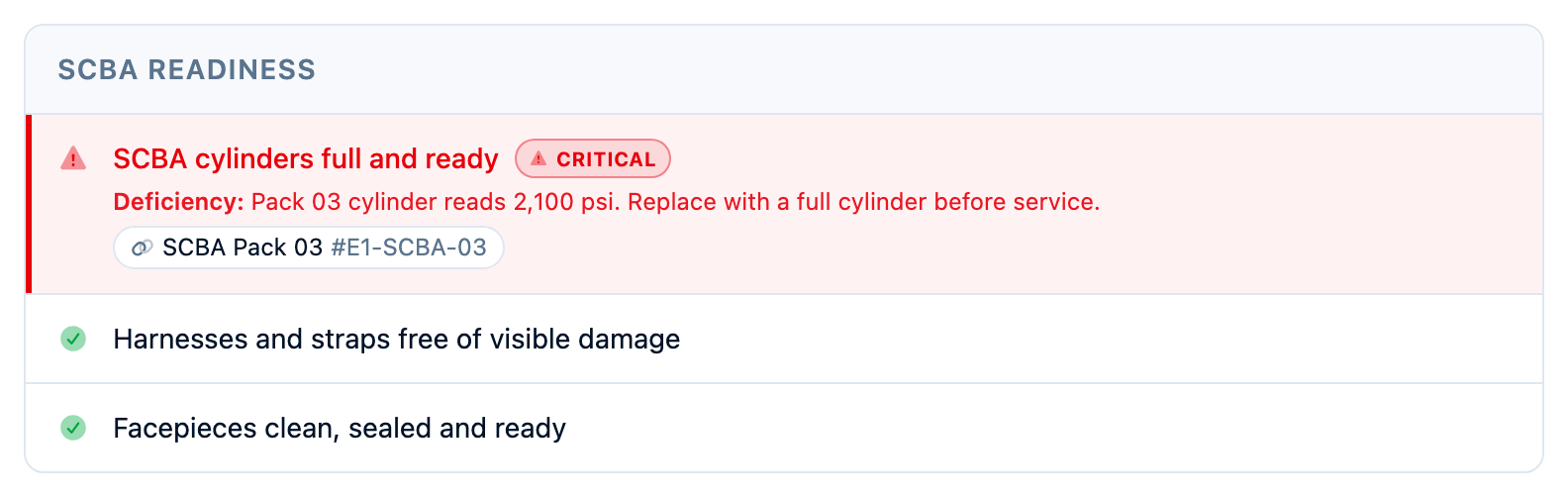
Toggle the critical flag on items that represent safety-critical functions — brake operation, SCBA bottle pressure, low-fuel warnings, structural damage. When a critical item fails, it's prominently highlighted in the results so officers can act immediately. A failed critical item signals the rig or equipment may need to be taken out of service until the issue is resolved.
Requiring Notes
Toggle notes required on items where you want an actual reading or value recorded — not just a pass/fail. Oil level, pump pressure, battery voltage, fuel percentage. This forces members to record real data rather than just checking a box. (For the odometer and hour meters, use meter readings instead — those go to the rig's mileage history as numbers, not notes.)
Items with notes required work in both directions:
- On pass — the member must record the reading (e.g., "2200 PSI")
- On fail — the member must describe the deficiency (e.g., "Bottle below 1800 PSI, requires fill")
Linking Items to Equipment
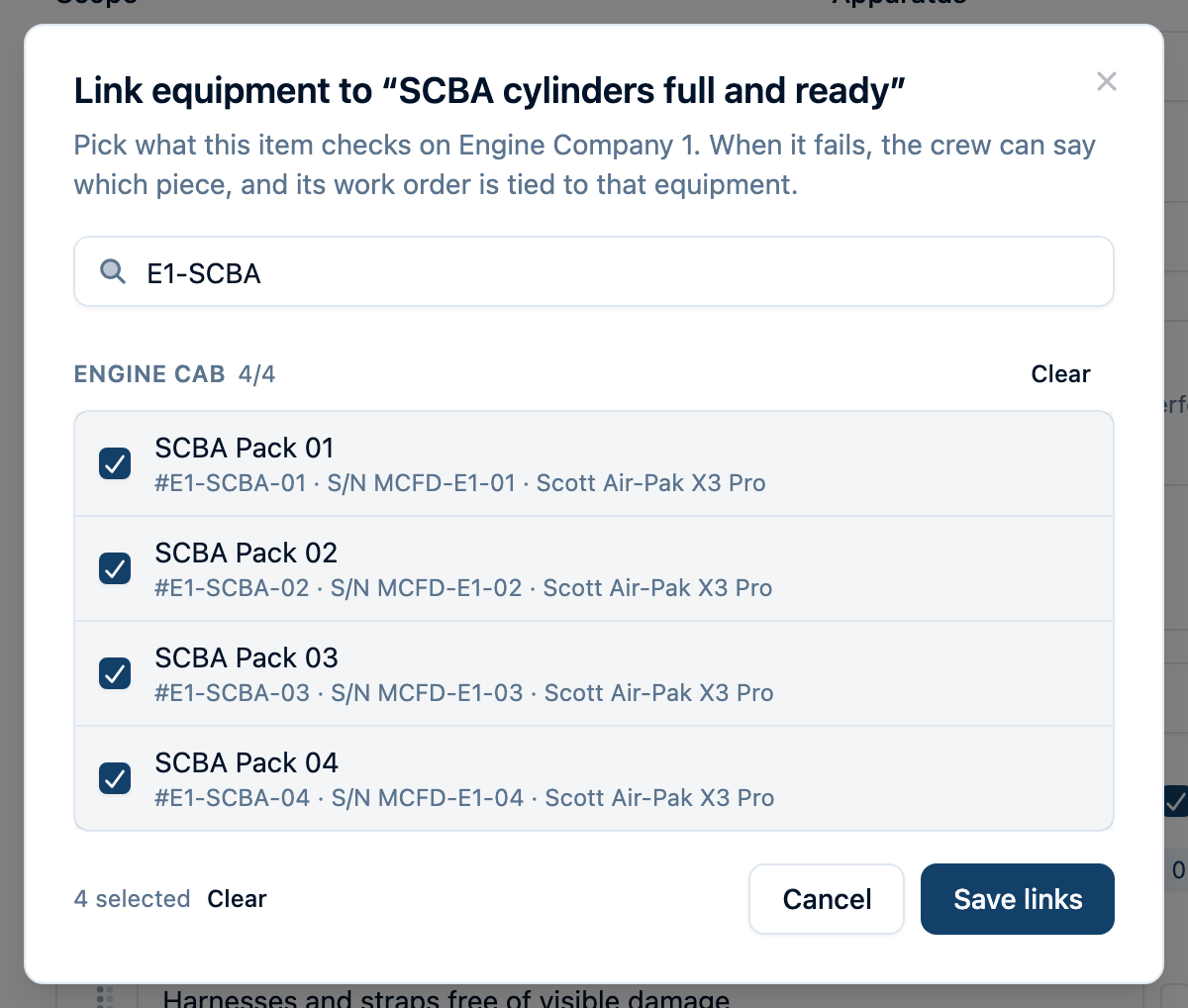
Connect a checklist item to the actual inventory records it checks. For example, link "Ladder ready for service" to the rig's ladder, or link "SCBA bottle pressure" to several packs. The crew can identify the affected piece when a check fails, and a work order for that piece can follow its inventory record.
Start with an Apparatus or Station template and select the rig or station. Its equipment must already be assigned there in Inventory, including equipment stored in its compartments, locations, bags, or kits. Inventory must be enabled and you need permission to read it. Department-scoped templates do not offer equipment linking.
Link an existing checklist item
- Open the template editor and find the item you want to connect.
- Choose the chain-link Link equipment button beside that item.
- Select one or more pieces, then choose Save links. The picker groups equipment by compartment or location and shows items inside containers. Search by name, asset tag, serial number, make, model, compartment, or container to find the right piece.
- Check the equipment labels beneath the item, then save the template.
Items inside a bag or kit have their own indented rows in the picker. Select those rows too if the check should cover the contents; selecting only the container links only that container.
Use one link for a check of a specific ladder or tool. Link several pieces when a single check applies to all of them, such as checking the bottle pressure on every SCBA pack. The checklist item still has one pass/fail result; the crew identifies the faulty pieces if it fails.
Build a section from inventory
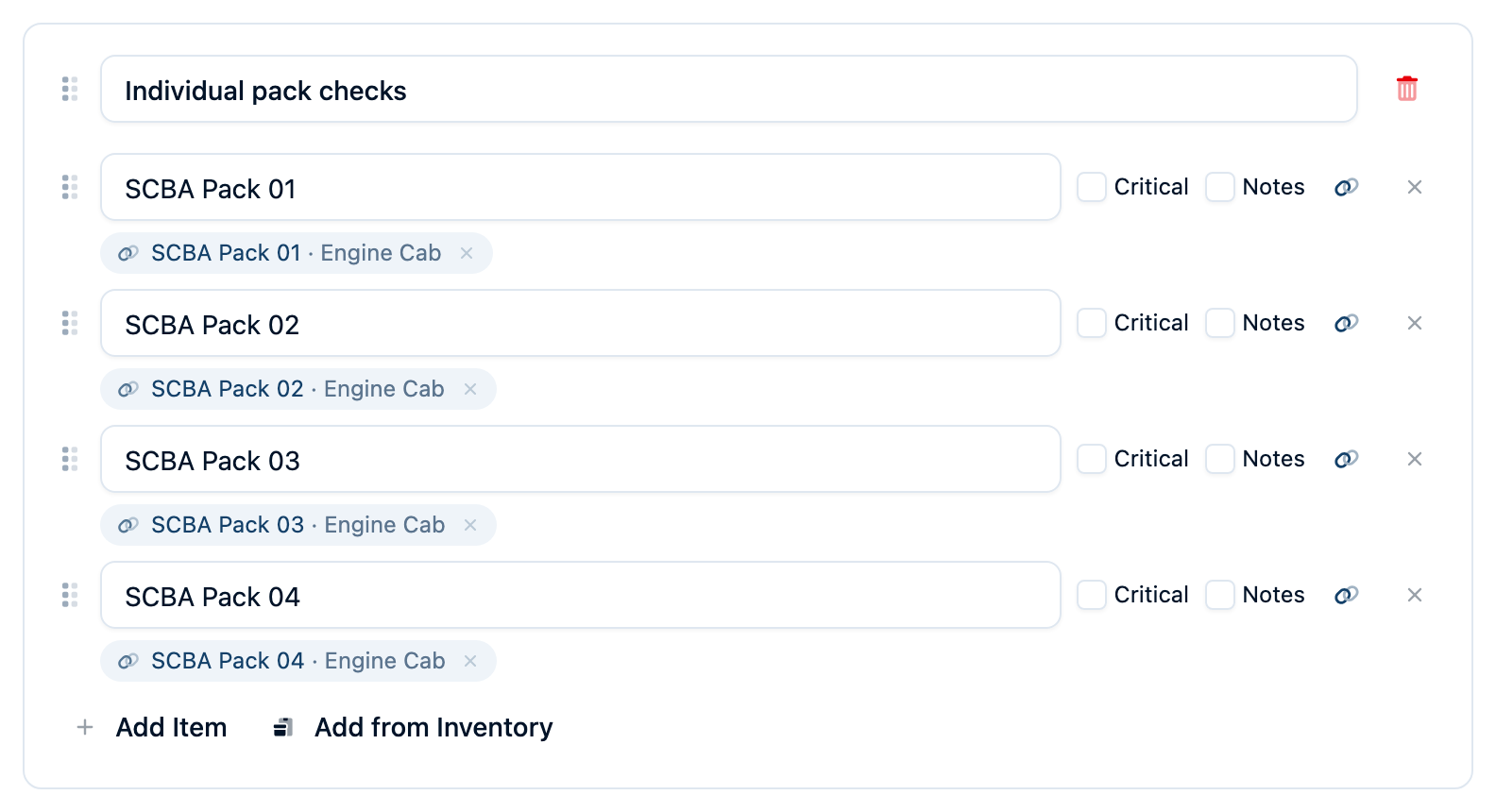
- In the template editor, add or open a section and choose Add from Inventory.
- Pick individual pieces, or use Select all beside a compartment to select its equipment.
- Choose Add N items. Each selected piece becomes a separate checklist item named after the equipment and already linked to its record.
- Adjust the item wording, critical flags, and note requirements, then save the template.
Choose this approach when each tool or pack needs its own result, instead of one result for the group. If an unnamed section's selections all come from one compartment, the section takes that compartment's name. Equipment already linked elsewhere on the template is labeled On checklist in the picker so you can review it before adding it again.
Identify the failed piece and follow up
During a check, equipment details beneath the item help the crew identify what they are checking. A failure linked to one available piece records that equipment automatically. If several pieces are linked, use Which equipment? to select the ones with the problem — for example, the one SCBA pack with low pressure.
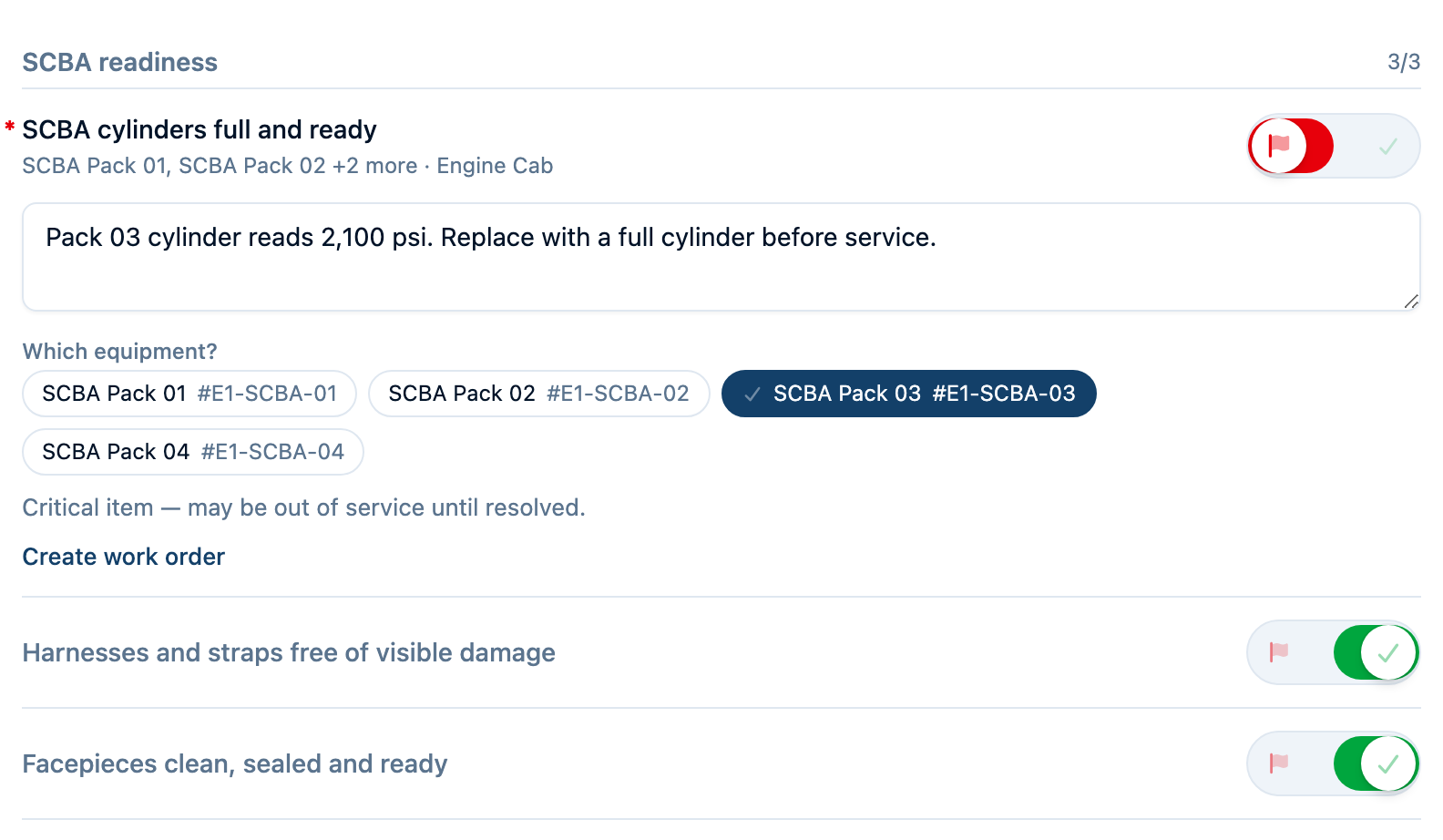
Choose Create work order when work orders are available to you. With one affected piece, the order links directly to that inventory item. With several affected pieces, the order stays linked to the rig or station and lists the selected equipment in its description. You can leave Which equipment? unselected if you cannot identify a specific piece; the order then stays on the rig or station. The completed check-off links each recorded failed piece to its inventory page for members who can view Inventory, even if the equipment later moves.
Keep links current
The template editor labels equipment that has moved away or been archived as Unavailable item. Remove its link with the × beside the equipment label, then use Link equipment to select its replacement. Equipment no longer assigned to the rig or station is not offered when the crew identifies a failure.
Changing the template's scope, including selecting a different rig or station, clears its equipment links. Copying a template to another rig or station also drops the original links; choose the destination's equipment before using the copy.
Completing a Check-Off
Open a template and click Start check-off, choose it from the apparatus's Check-Offs tab or Station Hub, or scan its QR code. Anyone opening the same template joins the check-off already in progress, so several crew members can split the sections and work together.
Each item uses a three-way control:
- Swipe right (or tap right) — mark as pass (green check)
- Swipe left (or tap left) — mark as fail (red flag)
- Center — pending (not yet checked)
When you mark an item as failed, a required What's wrong? note appears. If the item is marked critical, a warning reminds you that the equipment may be out of service until resolved. Linked equipment appears beneath the item; choose the affected pieces when Which equipment? is offered.
After inspecting a section, Mark all good or Mark N remaining good marks only its unanswered items as passed, with an Undo option. The bottom N items left action takes you to the next unanswered item. It becomes Submit check-off when every item has a result; required notes still need to be filled in.
If the template records meter readings, a Meter Readings section appears wherever the template places it. Enter the odometer and hours off the dash; leave any you don't have blank.
Answers, notes, and readings save as the crew works. Have one person submit when everyone is finished. For photos, returning to saved progress, tablet attribution, and the difference between Cancel and Discard, see the Live Check-Offs guide.
Completing One on a Shared Tablet
On a paired device — a tablet mounted in the apparatus, say — the completed check-off names the crew member who submits it. The tablet asks who that is when you submit if nobody is selected. A person may already be selected, signed in with their tablet PIN, or set as the default for a single-operator tablet.
A completed check-off shows a check mark when the person proved who they were with their PIN. Without one, it simply records who was picked.
Attaching Photos
Use Add photos during the check-off to take or select photos. The crew shares a limit of 50 photos, and uploads from every participant appear on the shared sheet. Let uploads finish before submitting so the completed record includes them. A clear photo of a fraying belt, leaking fitting, or cracked lens helps explain the maintenance request.
Creating Work Orders From Failures
When a check-off item fails and work orders are available to you, choose Create work order below its note. Equipment links direct the order to the piece that needs attention. The order links back to the check-off when it is submitted.
If the failed item already has a matching open order, the sheet offers to add today's note to it on submission. Use Don't add to skip the note or New work order for a separate problem. Orders created by another participant appear on the same shared check, helping the crew avoid duplicates.
Reviewing Results
Station Hub
The default view when you open Check-Offs is the Station Hub — a dashboard organized by station and apparatus. At a glance, you can see:
- Which rigs have been checked and which haven't
- The most recent check-offs for each apparatus
- Department-wide and station-scoped checklists with quick-start buttons
Use the station picker dropdown to switch between stations if your department has more than one.
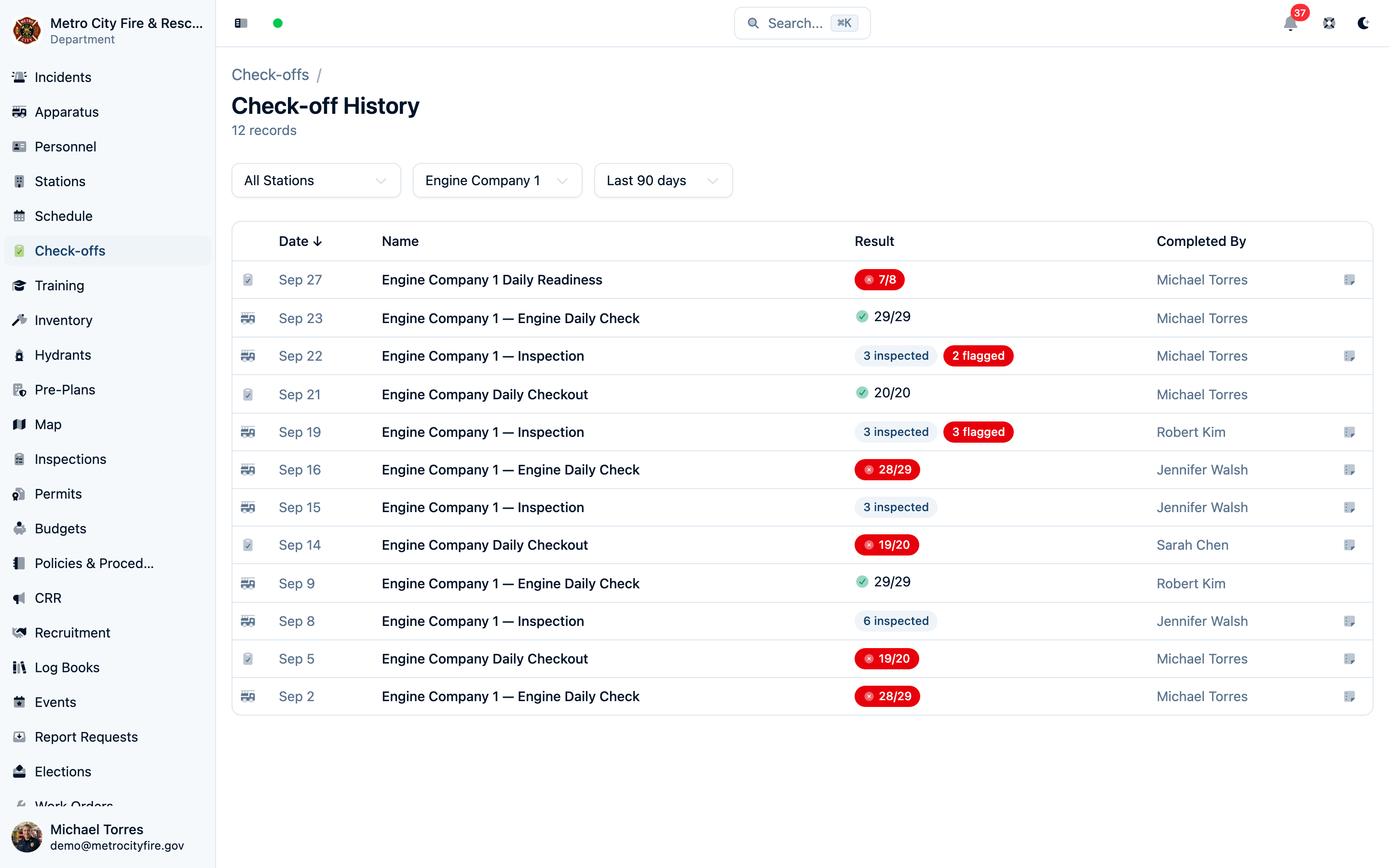
Check-Off History
Click History for a full table of all completed check-offs across the department. Filter by:
- Template name — narrow to a specific checklist
- Completed by — see a specific member's work
- Date range — look at a specific time period
Click any entry to see the full results — which items passed, which failed, notes recorded, meter readings, photos attached, and related work orders. When several members worked on a shared check-off, each item also shows who checked it and when.
The Completed by filter matches the member who submitted the check-off, not everyone who checked items on it.
What to Look For
- Recurring failures on the same item — a pump valve that fails every other week needs maintenance, not another check-off
- Missing checks — if Engine 1's daily check hasn't been completed in three days, something's falling through the cracks
- Sparse notes on required items — if oil level items just say "ok" instead of an actual reading, have a conversation about what the template is asking for
Copying Templates
If you need a similar template for a different apparatus or station — Engine 2's daily check is almost identical to Engine 1's — use the Copy action on an existing template. This duplicates the sections and items, and lets you change the name and scope on the copy. Edit from there rather than rebuilding from scratch.
Best Practices
Organize sections by physical location
Structure your sections the way a member would physically walk through the check. For an apparatus: start at the cab, move to the engine compartment, then each compartment in order, then the pump panel. For a station: start at the front, work through each bay, then the living quarters. Members who can work through the checklist in a natural flow will complete it faster and more thoroughly.
Keep templates focused
A 100-item checklist that takes 45 minutes discourages compliance. Better to have a focused daily check (15-20 items, 5 minutes) and a separate monthly deep inspection (50+ items, thorough). Different frequencies for different depths.
Use critical flags sparingly
If everything is critical, nothing is. Reserve the critical flag for items where a failure genuinely means the equipment shouldn't be used until the issue is resolved — brake function, structural integrity, SCBA air supply. Routine items (cleanliness, minor cosmetic issues) don't need the flag.
Post QR codes where the work happens
Print the template's QR code, laminate it, and mount it where the check happens — on the dashboard, on the pump panel, next to the SCBA rack. See QR Codes + Check-Offs for detailed guidance on placement and best practices.
Frequently Asked Questions
What happens if I edit a template after check-offs have been completed?
A check-off keeps a snapshot of the template from when that shared check started. Editing the template affects the next fresh check-off; it does not rearrange a check already in progress or change completed records.
Can I reorder sections and items?
Yes. Every section and item in the template editor has a grab handle — drag it to a new position, or drag an item into a different section entirely. See Reordering sections and items. Reordering affects the next fresh check-off; an in-progress or completed check keeps its original layout.
Is there a limit on sections and items?
Each template supports up to 50 sections with up to 100 items per section. For most check-offs, you'll use far fewer than this.
Can a member partially complete a check-off and finish later?
Yes. Changes save to the shared check-off while members work. Cancel leaves the page without discarding saved progress, and reopening the same template rejoins it. After six hours without saved changes, the next person to open the template starts fresh. Submit check-off is still required to create a completed record. See Live Check-Offs.
The check-off form doesn't ask for the odometer. How do I turn that on?
Open the template, choose Edit, and turn on Record meter readings. The switch is only offered on apparatus-scoped templates, since readings belong to a specific rig. The next fresh check-off shows the Meter Readings section. See Recording Meter Readings.
Who can create and complete check-offs?
Creating and managing templates requires the checklist permission. Completing check-offs requires the check-off create permission. See Understanding Permissions & Groups for details.
I completed the check-off, but its work order is still open. Why?
If the work order is assigned, it closes automatically for the member it's assigned to, for members of the assigned group, and for anyone with permission to update work orders. A member outside that group can record the check-off, but the order stays open — otherwise anyone could clear another group's board. An unassigned order closes for whoever runs the check-off.
So the usual cause is an order assigned to a group the person isn't in. Either assign the schedule to the group that actually runs the check, or leave it unassigned so anyone can clear it. See Understanding Permissions & Groups for how work order permissions are granted.
My daily schedule skipped a day. Where's the missing work order?
A check-off schedule keeps only one open work order at a time. If yesterday's order was never completed, today's cycle doesn't add a second one for the same check — you'd end up with a stack of identical rows, and completing the check-off once would close them all as though each day had been done. The schedule stays on its calendar and creates the next order once the outstanding one is closed.
How do check-offs relate to inspections?
Use check-offs for repeatable crew checks such as daily apparatus checks and equipment inventories. The apparatus page's Check-Offs tab offers its templates, history, and Manage Checklists. Older apparatus inspections remain available there under Past inspections as read-only history. Fire inspections of properties and hydrant inspections have their own workflows and pages.