
How Work Orders Keep Your Fire Department Running
Whether it's a one-time repair or a recurring inspection that needs to happen every 30 days, work orders give your department a single, trackable system for managing the maintenance and operational tasks that keep your people safe and your equipment ready.
Think of a work order as a task card for your department — but one that's smarter than a sticky note on the whiteboard. Each work order captures what needs to be done, who's responsible, when it's due, what it's related to, and what it costs when it's finished. Work orders can be tied directly to a specific piece of equipment, an apparatus, a station, a hydrant, a pre-plan, an SOP, a fire code inspection, or an incident — giving you a full maintenance history at a glance.
One-Off Work Orders: Handling the Day-to-Day
Something breaks, someone notices a problem during a check, or a task comes up that needs to be assigned and tracked — you create a work order for it.
Creating a Work Order
From the Work Orders module in the sidebar, you can create a new work order in seconds. Give it a title, set the priority, pick a category, and assign it to the right person.
Pro tip: You don't have to be in the Work Orders module. Press Cmd+J (Mac) or Ctrl+J (Windows) from anywhere in the app to create a work order on the spot — "J" for job (the shortcut is available when the inventory module is enabled). If you press it while viewing a record a work order can link to — an incident, inventory item, apparatus, station, hydrant, pre-plan, SOP, or fire code inspection — the Related item field is already filled in with the record you were looking at. It's a starting point, not a lock: clear it or pick something else if the work is about something different. From any other page, the field starts empty.
- Priority Levels — Mark it as low, medium, high, or critical so your team knows what to tackle first. A burned-out station light is low priority. A malfunctioning PASS device is critical.
- Categories — Classify the work as an inspection, maintenance task, repair, replacement, calibration, or cleaning. This helps you spot patterns over time — if you're seeing a lot of repairs on the same apparatus, that's a data point for capital planning.
- Due Dates — Set a deadline so the task doesn't just sit forever. Command Established will track whether work orders are completed on time.
- Linked Entities — Tie the work order to a specific inventory item, apparatus, station, hydrant, pre-plan, SOP, fire code inspection, or incident. The link works both ways: every one of those records shows its own work orders right on its detail page, and you can create a new work order from there — already linked. This builds a maintenance history that lives right alongside the asset itself.
Tracking Progress
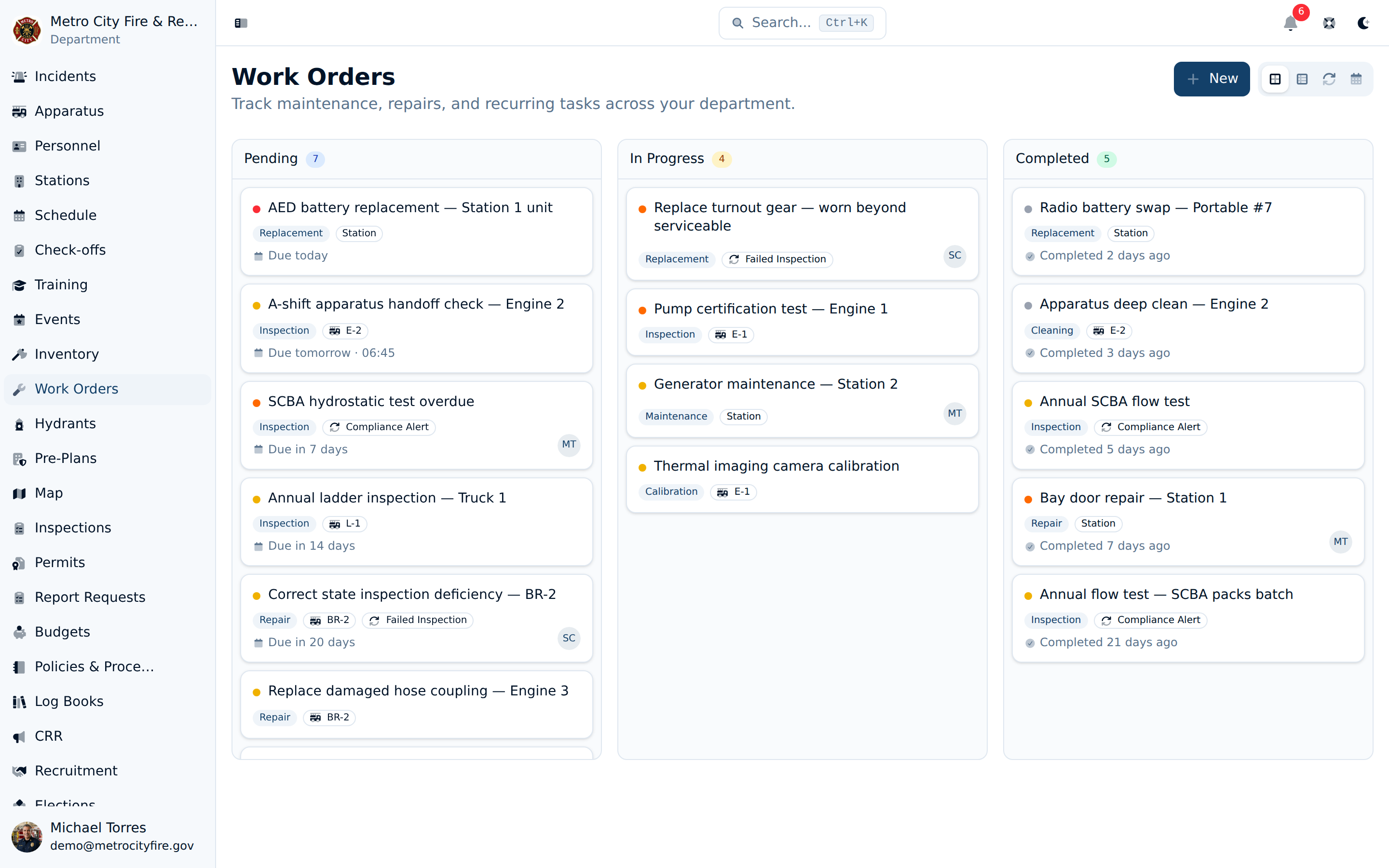
Every work order moves through a simple, clear lifecycle: Pending, In Progress, and Completed (or Cancelled if it's no longer needed).
- Kanban Board — The Kanban board view gives you a drag-and-drop interface to move work orders across stages. Visual and intuitive — your team can see the state of all active work at a glance.
- List View — Prefer a more traditional view? The list view lets you sort and filter by status, priority, category, or assignee.
- Completing Work — When work is done, mark it complete — add resolution notes, log what parts were used, and record any costs. This turns every completed work order into a useful maintenance record.
Collaboration and Accountability
Every work order has an activity feed where team members can leave comments, upload photos of the issue or the completed work, and track the full history of status changes.
Tip: Need to document the condition of equipment before sending it out for vendor repair? Snap a photo and attach it directly to the work order. When it comes back, attach the after photo. You now have a documented record without digging through anyone's camera roll.
Vendor Tracking
When you send equipment to an external vendor for repair or calibration, you can track the vendor name, contact information, reference number, and expected return date right on the work order. No more separate spreadsheets or sticky notes tracking what's out for service.
Linking a Work Order to an Incident
Not every call is finished when the last unit clears. A structure fire can leave the fire marshal with a re-inspection to schedule, an abatement order to follow up on, or a citation to write. Those are real tasks with a real owner and a real deadline — and they're about that specific incident. Linking the work order to the incident keeps the follow-up attached to the record it came from instead of living in someone's head.
Say your department runs a kitchen fire at a restaurant on a Friday night. The crew finds the hood suppression system never activated, and the marshal issues a correction order on scene with a 30-day deadline. Here's how to hang the follow-up off the incident:
- Open the incident and go to its Basic Info tab. Below the incident details you'll find a Work Orders card.
- Click New. The work order sheet opens with the Related item already set to this incident — no searching required.
- Give it a title like "Re-inspect hood suppression system", pick the Inspection category, set the due date to the correction deadline, and assign it to the fire marshal.
The marshal now has the re-inspection in their queue, it shows up on the board (and, for departments with the inventory module, on their My work orders dashboard widget), and it's overdue-tracked like any other work order. When they mark it complete, the resolution notes and any photos they attach stay on the work order — and the work order stays on the incident.
You can also link from the other direction. When creating a work order from the Work Orders module or with Cmd+J, choose the Incident chip in the Related item field and search by the nature of the call (for example, "Structure Fire") to find the incident.
Seeing every work order for an incident
Open the incident's Basic Info tab. The Work Orders card lists the work orders linked to that incident, grouped by status — Pending, then In Progress, then Completed, newest first within each group — with a count in the header, so you can tell at a glance whether the follow-up from a call has been closed out. The card shows up to 100 work orders; an incident with more than that (rare in practice) shows only the 100 most recent. Each work order also shows the incident it's linked to on its own detail panel, so the connection is visible from either side.
Note: This is for discrete follow-up tasks an incident generates. Origin-and-cause investigations have their own case file under the incident's Investigation tab — that's the right place for investigative work, not a work order.
Recurring Work Orders: Automate the Routine
Fire departments have a mountain of routine, predictable maintenance — SCBA flow tests, ladder inspections, hose testing, apparatus PM schedules, station generator checks. These tasks happen on a fixed schedule, and missing them can mean compliance violations or equipment failure when it matters most.
Setting Up a Recurrence
A recurring work order is a template plus a schedule. Define what the work order should look like — title, description, priority, category, assignee, and linked asset — then tell the system how often to create it.
- Daily — For tasks that need to happen every day or every N days.
- Weekly — For weekly checks — every week, every 2 weeks, etc.
- Monthly — For monthly inspections or maintenance cycles.
- Yearly — For annual certifications, tests, or inspections.
Lead Time: Stay Ahead of Deadlines
Lead time tells Command Established how many days before the due date to create the work order. If your annual ladder test is due on July 1st, setting a 14-day lead time means the work order appears on June 17th — giving your team two weeks to schedule and complete the work before the deadline.
Note: This is particularly valuable for tasks that require coordination, like scheduling a vendor visit or gathering multiple pieces of equipment for batch testing.
Smart Date Handling
If you schedule something for the 31st of every month, Command Established adjusts to the last day of the month in shorter months — and snaps back to the 31st when the next long month comes around. Your schedule stays consistent without manual intervention.
Pause and Resume
Apparatus going out of service for an extended period? Pause a recurrence without deleting it. When the apparatus is back in service, reactivate it and it picks up right where it left off.
Best Practices for Recurring Work Orders
- Mirror your compliance calendar. Start with your mandatory inspections and testing schedules — SCBA, ladders, hose, pumps, ground ladders, PPE. Set these up as recurrences first. This is your compliance backbone.
- Link every recurrence to an asset. Always tie recurring work orders to the specific apparatus, inventory item, or station they relate to. This builds a maintenance history on the asset itself — invaluable for lifecycle planning and proving compliance during audits.
- Set realistic lead times. Think about how long the task actually takes — including scheduling, parts ordering, and vendor coordination. A simple station check might need 0 days. An annual pump test that requires a vendor visit might need 30.
- Assign a default owner. Every recurrence should have an assignee. Even if the work gets handed off, having a default owner means someone is notified and accountable from the moment the work order is created.
- Use priority levels consistently. Compliance-driven inspections should generally be high or critical priority. Routine cleaning tasks can be low. When your team opens the board in the morning, they should immediately see what matters most.
Bringing It All Together
The real power of work orders isn't any single feature — it's the compound effect of having everything in one place. When your team consistently uses work orders for both one-off tasks and recurring maintenance, you build something that no whiteboard or spreadsheet can give you:
- Complete History — A full maintenance record for every piece of equipment your department owns.
- Proof of Compliance — Ready when the auditor or insurance inspector shows up.
- Cost Visibility — Labor, parts, and vendor expenses — broken down by apparatus, station, or category.
- Pattern Recognition — When the same apparatus keeps generating repair work orders, it's time to have the replacement conversation backed by data, not gut feel.
Work Orders on Your Dashboard
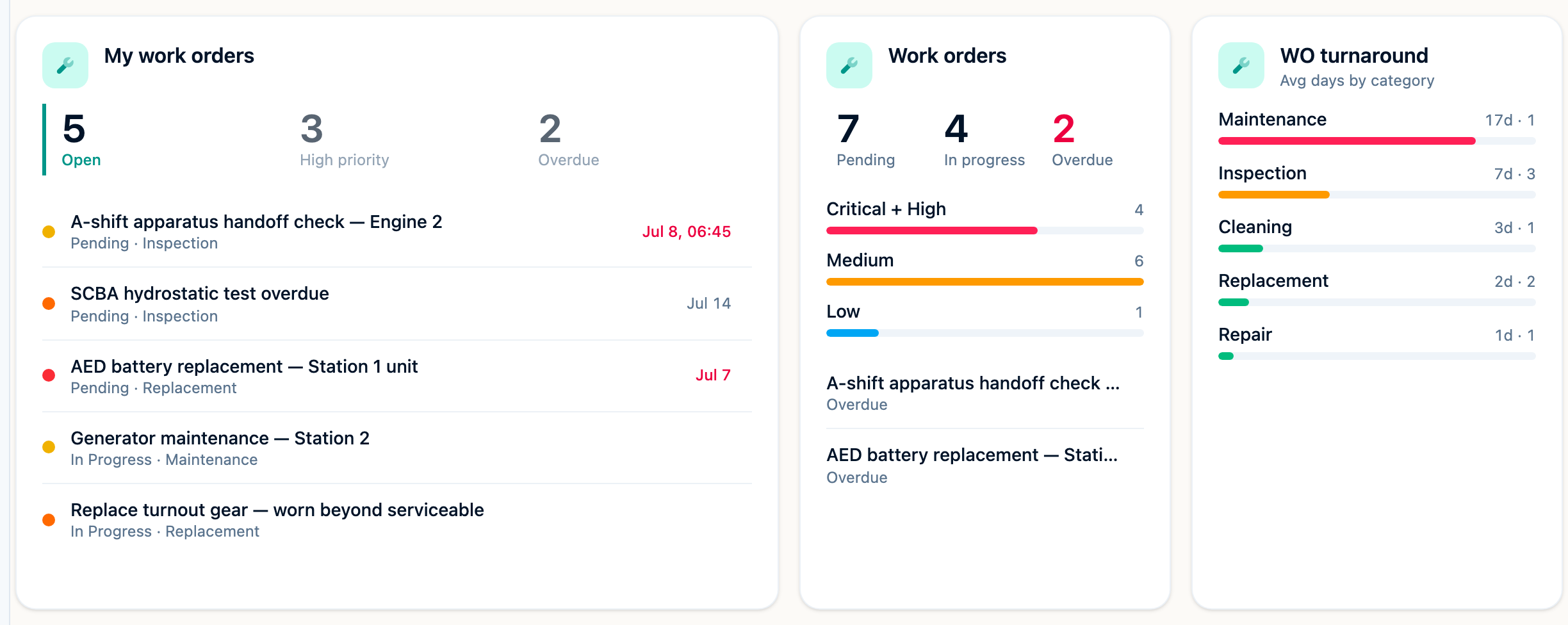
Your home dashboard is customizable, and three widgets bring work orders front and center the moment you sign in. Open the dashboard, tap Edit, then Add widget:
- My work orders — the open work orders assigned to you, with quick counts of what's high priority or overdue, so your personal queue is the first thing you see.
- Work orders overview — a department-wide status snapshot with a priority breakdown and a peek at anything overdue.
- Work order turnaround — average days to complete work orders, broken down by category, so you can spot where work is piling up.
Getting Started
If your department is new to Command Established, here's a practical way to roll out work orders:
- Start with your apparatus. Create recurring work orders for your most critical compliance items — SCBA inspections, pump tests, ladder tests, and regular PM schedules.
- Get your team in the habit. When something breaks or needs attention, create a work order instead of sending a text. It only takes a few seconds and creates a record.
- Review the board weekly. Make it part of your officer's routine to pull up the Kanban board and check on overdue or stalled work orders. Adding the work orders overview widget to the dashboard keeps overdue tasks visible every day in between.
- Close the loop. When work is completed, fill in the resolution details. Future-you will thank present-you when you need to look up what was done to that apparatus six months ago.
Frequently Asked Questions
Where do I find work orders?
Work orders have their own module in the sidebar (look for the wrench icon). You'll see a dedicated Work Orders page with board, list, and recurring views. To see work order due dates laid out by day alongside your other department deadlines, open the Calendar module in the sidebar.
Can I see all work orders for a specific apparatus or other record?
Yes. Every record a work order can link to — apparatus, stations, inventory items, hydrants, pre-plans, SOPs, fire code inspections, and incidents — shows its own work orders, past and present, right on its detail page. You can also create a new work order from there, pre-linked to that record.
I'm a fire marshal — how do I hang a re-inspection follow-up off the incident?
Open the incident, go to the Basic Info tab, and click New on the Work Orders card. The work order is created already linked to that incident, so all you need to add is the title, category, due date, and assignee. If you're already on the incident page and your department has the inventory module enabled, Cmd+J (or Ctrl+J) does the same thing — the incident is prefilled as the Related item. Without the inventory module, the shortcut is off; use the card's New button. See Linking a Work Order to an Incident for a walkthrough.
Where do I see all work orders spawned by an incident?
On the incident itself. Open its Basic Info tab and scroll to the Work Orders card, which lists the work orders linked to that incident (up to the 100 most recent) with a count in the header. Completed ones stay listed, so the card doubles as a record of what follow-up was done.
What happens when a recurring work order is generated?
The system automatically creates a new work order based on the recurrence template, with the due date calculated from the schedule. The assigned person is notified and the work order appears on the board in the Pending column.
Can I track costs across work orders?
Yes. When completing a work order, you can record parts used and costs. This data rolls up so you can see total maintenance spend by apparatus, station, or category over time.
Who can create and manage work orders?
Any member with appropriate permissions can create and manage work orders. See Understanding Permissions & Groups for more on how roles work.