
Paired Devices: Put a Tablet on the Rig
A tablet bolted in an engine, or a screen on the day-room wall, is hardware the whole crew touches. It is not a person, and it should not hold anyone's login. In Command Established it becomes a paired device: it signs in as itself, an administrator decides what it can reach, and the work recorded on it names the crew member who did it.
Three shapes of the same idea:
- A rig tablet. Run check-offs, log apparatus work, start and update incidents, and look up hydrants and pre-plans on the apparatus.
- A station board. A read-only screen showing weather, announcements and readiness. See Set Up a Station Board Wall Display.
- A command vehicle tablet. One driver, broader access, in a locked vehicle.
The screenshots below use the fictional Metro City Fire & Rescue department.
Add the Device
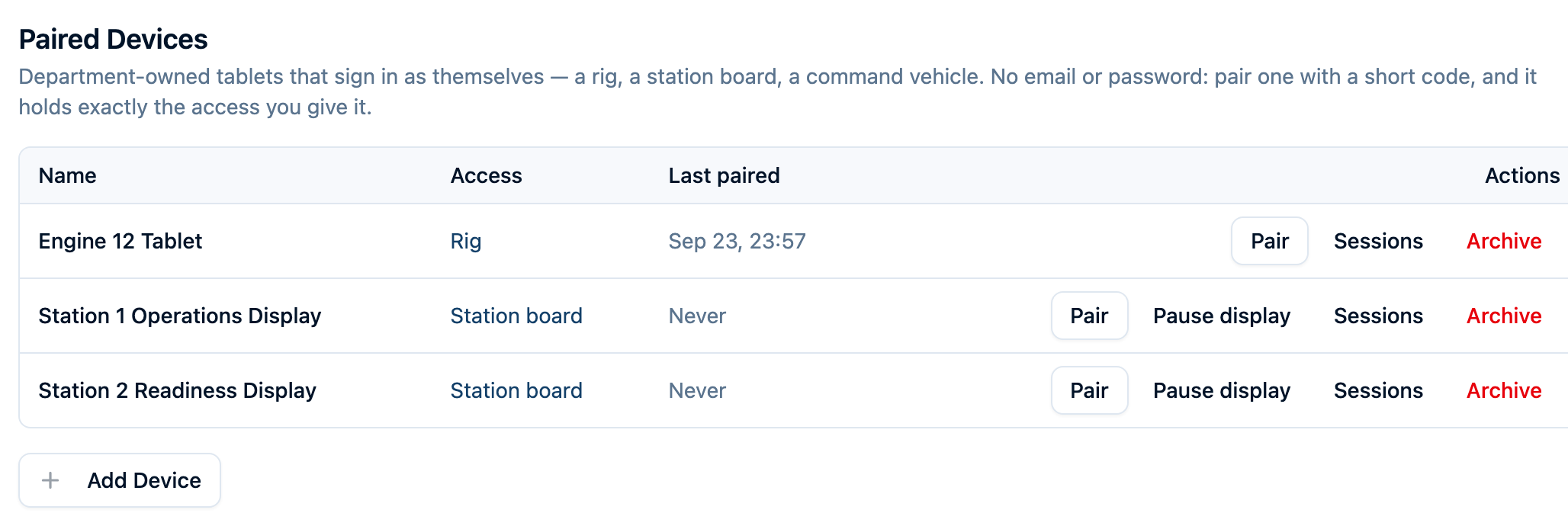
An owner or administrator does this once per screen, from Department Settings → Paired Devices.
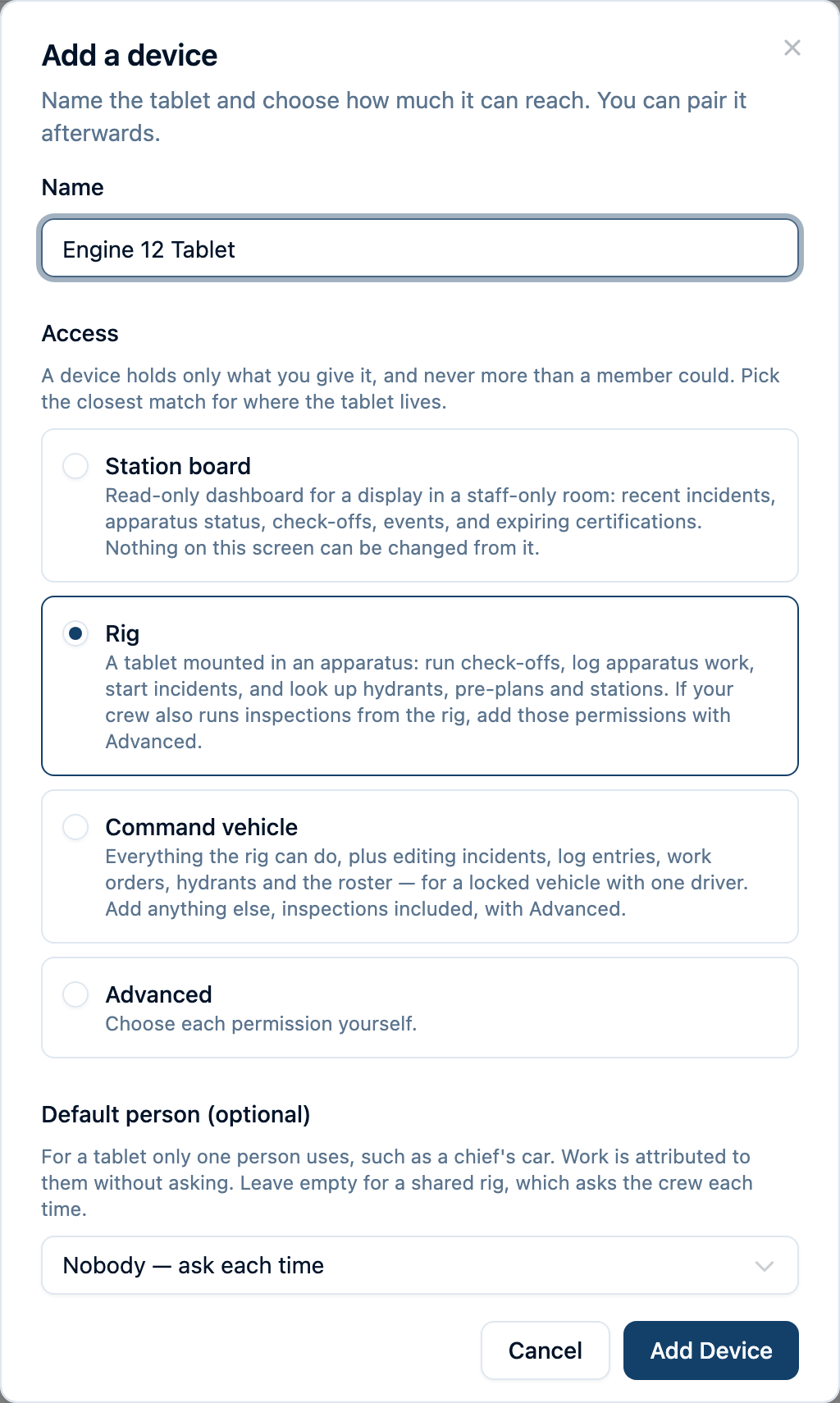
Select Add Device and name it for where it lives:
Engine 12,Watch Desk Display,Chief 1.Choose what it can do:
- Station board — read-only, for a screen nobody types on.
- Rig — run check-offs, log apparatus work, start and update incidents, look things up.
- Command vehicle — everything the rig can do, plus log entries, work orders and the roster.
- Advanced — choose each permission yourself.
A preset is a starting point, not a ceiling. If your crew does something the preset leaves out — inspections from the rig is the common one — choose Advanced and add those permissions. You can widen a device later without re-pairing it.
Optionally set a default person for a single-operator tablet, such as a chief's car. The tablet records work as them without asking.
Select Add Device.
A paired device can never be an owner or an administrator, whatever you grant it. Department administration is done from a person's own phone or computer.
If you grant a device access to fire investigations or applications, the page warns you first. Anyone holding the tablet can read what it can read.
Pair It
Keep the tablet and the administrator's phone or computer together for this step.
- On the tablet: open Command Established. On the login screen, below the Login button, select Pair this device.
- On the administrator's device: open Department Settings → Paired Devices, select Pair on the correct device's row, then Show pairing code.
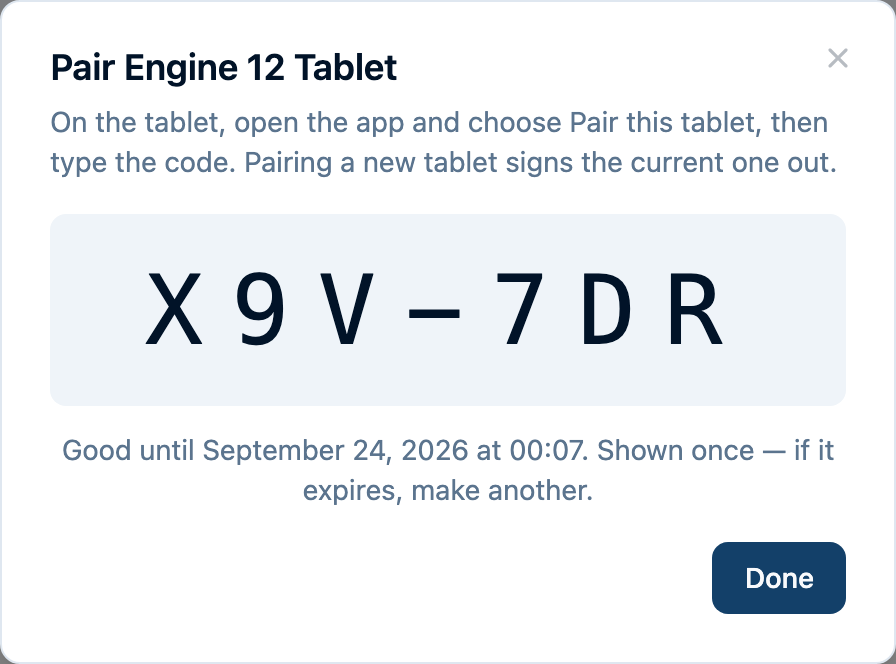
- Back on the tablet: enter the six-character code and select Pair. Use the code you just generated; the one shown here is an example.
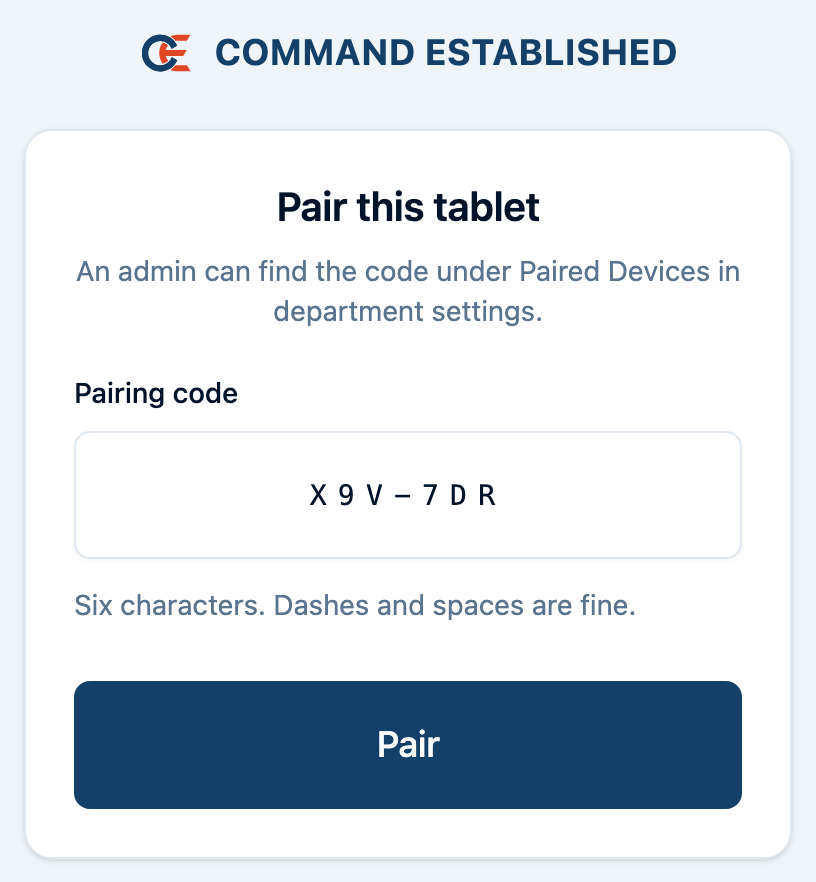
The pairing screen is reachable from the login screen on purpose: a tablet that has been installed as an app has no address bar to type a web address into, so the link is the way in.
Pairing the same device onto a new tablet signs the old one out, which is what you want when a tablet is replaced.
For an app-like installation on the tablet, see Install as an App.
Who Did the Work
A paired device has no name worth putting on a check-off, so it asks. When someone saves work on a shared tablet, the tablet asks who is completing it and shows a crew list sized for a gloved finger. The person's name goes on the record, not the tablet's.
- Members who set a tablet PIN must enter it. While they are signed in, the tablet acts as them, with their own access (and still able to create anything the tablet can), and the work is marked as verified.
- The rest of the crew are picked from the list. The record names them, and the activity log also names the tablet.
- A single-operator tablet with a default person skips the question.
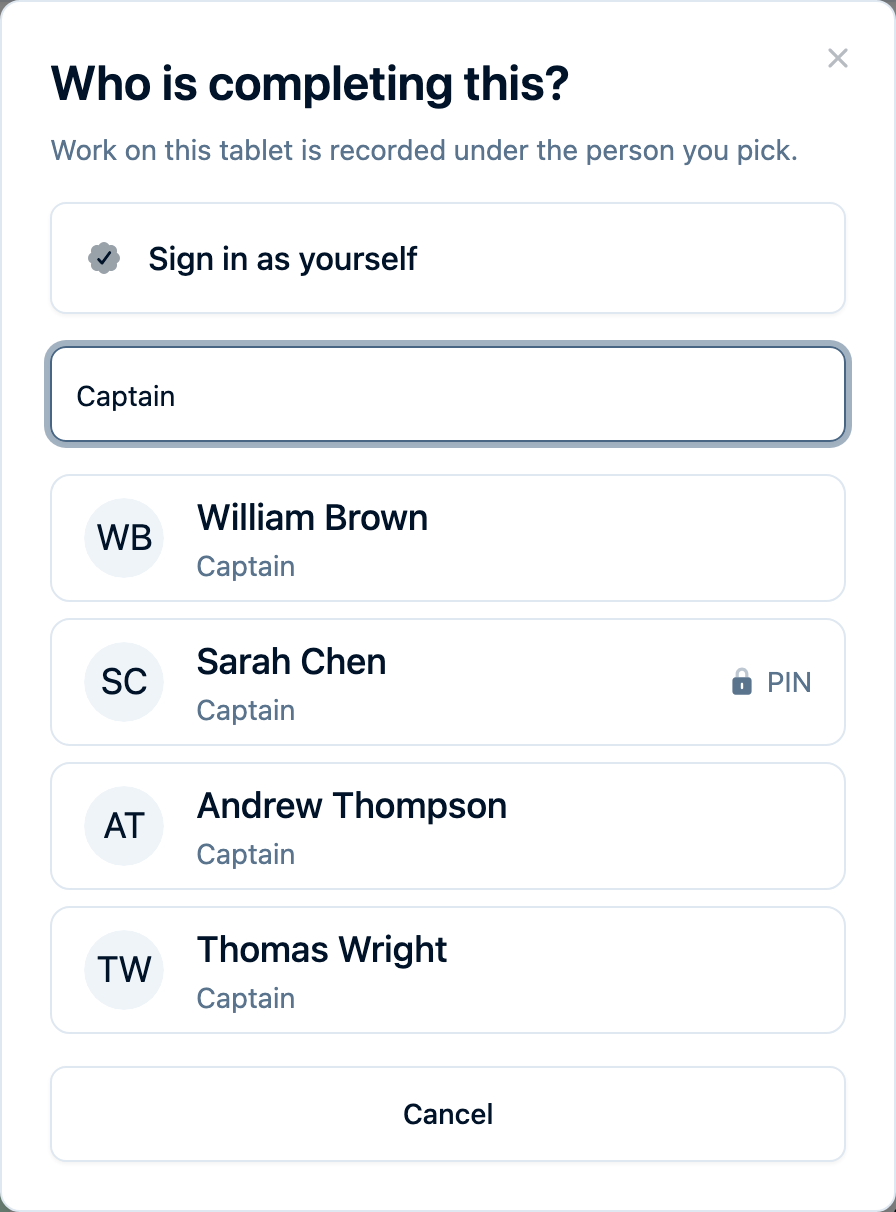
Nobody has to be a member with an account: anyone on the department's personnel roster can be picked, which is how volunteers without logins still get credit for the work they do.
Handing the Tablet Back
The name at the top of the screen shows who the tablet is acting as. When you're finished, tap Done next to it, or tap your name and choose Done, stop acting as you at the top of the list. The tablet clears the name, and the next person picks themselves when they save. If nobody taps Done, the name clears on its own after 30 minutes without use.
On a single-operator tablet, the default person is always selected, so Done only appears while they are signed in with a tablet PIN.
Setting Your Availability at the Station
If your department uses member availability, the Who's available widget on a station tablet shows Set my status. Pick yourself, enter your PIN or a one-time code, and choose your status. It's recorded under your name, the same as setting it from your own phone. Tap Done when you're finished.
Keeping a Device Signed In
A paired device stays signed in as long as it keeps being used, so a tablet in daily service is never re-paired on a schedule. One that is put away, or left off for a long stretch, eventually needs pairing again, and the screen explains how when that happens.
To stop a device, open Department Settings → Paired Devices:
- Sessions → Sign out ends its session now. The next person to pick up the tablet sees the pairing screen.
- Archive retires a device you no longer use, and signs it out too.
Signing out also ends any PIN sign-in on the tablet.
What a Tablet Should and Shouldn't Hold
- Grant the narrowest preset that works. A rig tablet rarely needs the roster or the budget.
- Keep the tablet physically sensible. Mounted in an apparatus, or in a staff-only room. Use the device's own screen lock.
- Personal information stays off shared screens. Dates of birth, home addresses, licences and emergency contacts are never reachable from a paired device, even by someone signed in with their PIN.
- Sign out a lost tablet immediately. From Paired Devices, on any phone or computer. Its cached data is cleared the next time it reaches the network.
Troubleshooting
The tablet says it isn't paired any more
Its session ended: an admin signed it out, the device was paired onto another tablet, or it went unused long enough for the pairing to lapse. Ask an administrator for a fresh code and pair it again.
Someone's name is missing from the crew list
The list comes from active personnel records. Check that the person has one and that it is active.
A page says this tablet doesn't have access
The device's permissions decide what it can open. An administrator can widen them under Advanced on the device's row; the page comes back without rebooting the tablet.
An incident is read-only on the tablet
An incident with assigned users can be edited only by those users, and the tablet is never one of them. Tap Sign in as yourself at the top of the incident and use your tablet PIN or a sign-in code. If you are assigned to the incident, it opens for editing. For the same reason, the tablet asks you to sign in before you change who an incident is assigned to.
Can two people use the tablet at once?
No, and they don't need to. The tablet acts as one person at a time; picking someone else switches it. Each person's unsaved work is kept separately, so switching does not hand your half-finished form to the next person.
Need Help?
If you're planning tablets for a station or a fleet, contact support.