
Sign In as Yourself on a Shared Rig Tablet with a Tablet PIN
Many departments keep a tablet in each apparatus or at the watch desk. These are paired devices: they sign in as the tablet, not as a person, and an administrator decides what each one can do. When you record work on one, the tablet asks who did it.
A tablet PIN lets you prove that it is really you. Set it once in your own account, and it works on every shared tablet in your department. While you are signed in with your PIN, the tablet acts as you, with your own access, and the work you record is marked as verified.
The screenshots below use the fictional Metro City Fire & Rescue department.
Set Your Tablet PIN
Do this on your own phone or computer, not on the shared tablet.
- Open the user menu and select Account.
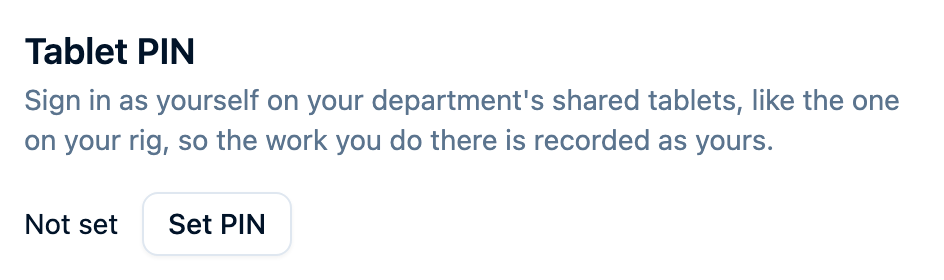
- Under Tablet PIN, select Set PIN.
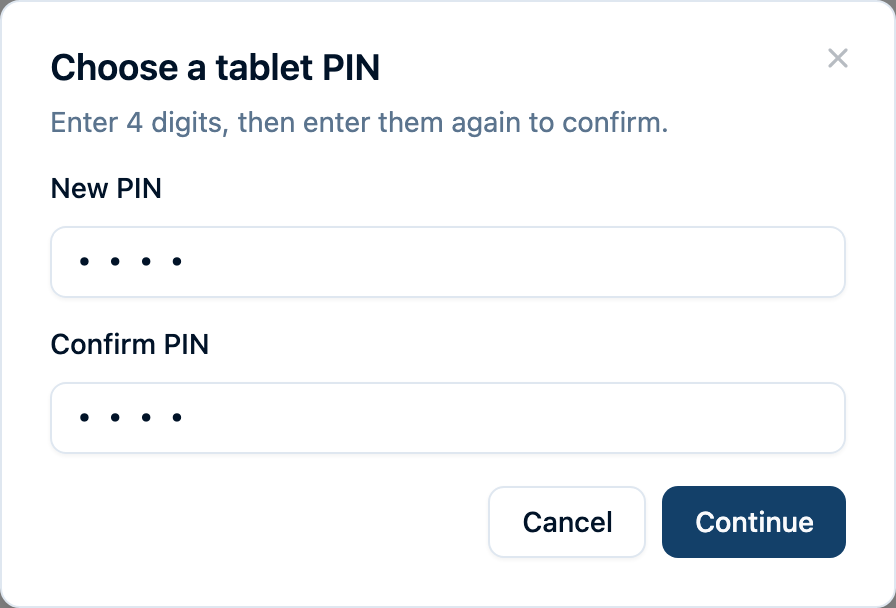
- Enter any 4-digit PIN in New PIN, enter it again in Confirm PIN, then select Continue.
- Confirm it's you with your password or Google. For password confirmation, enter your current password and select Save PIN. If your account uses two-factor authentication, you'll be asked for that next.
You get an email whenever your tablet PIN is set, changed, or removed. If you didn't make the change, contact support.
Once you have a tablet PIN, no shared tablet lets anyone record work under your name without it. Anyone can still assign you an inspection from a shared tablet; you enter your PIN when you review and sign it.
Use Your PIN on a Shared Tablet
- On the tablet, tap the person button at the top of the screen (it reads Nobody selected, or the name of whoever is using the tablet), or just save your work and the tablet will ask who did it.
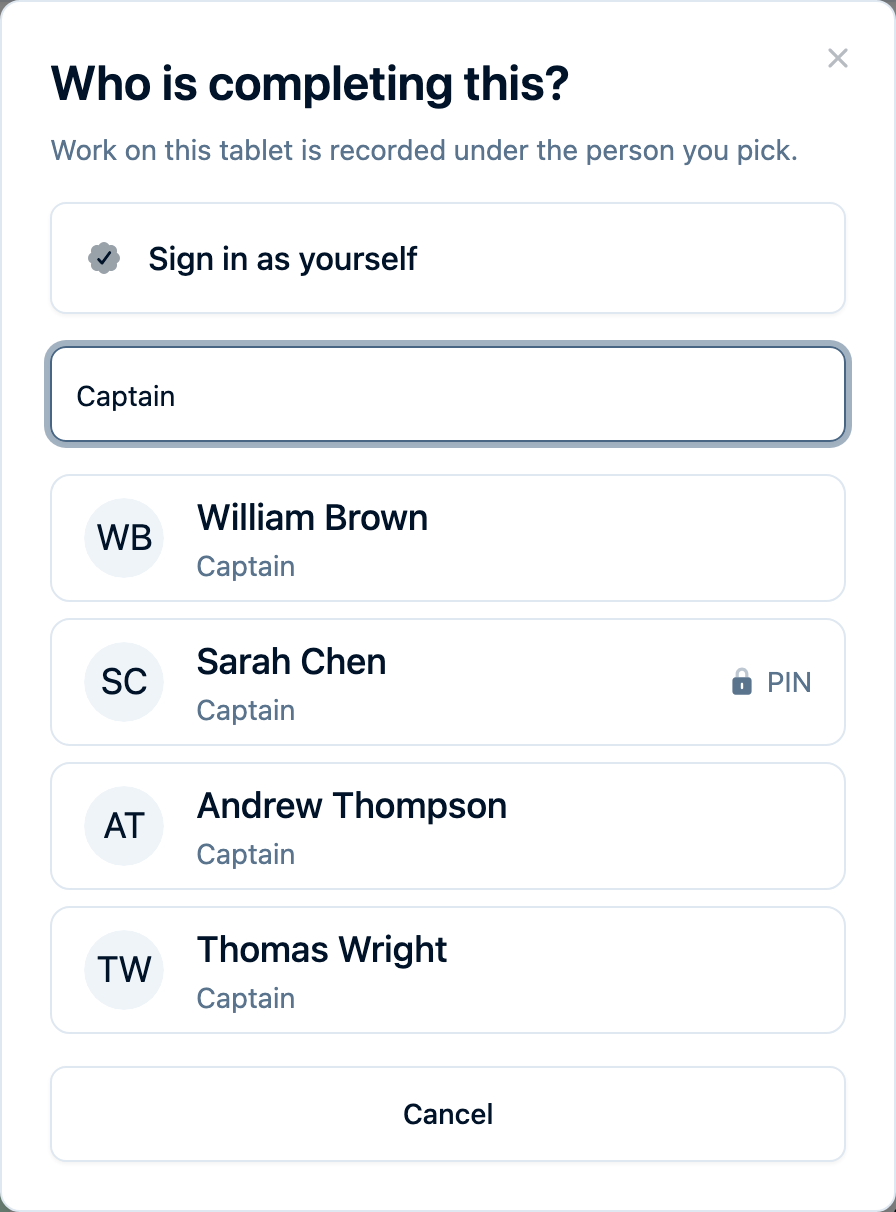
- Pick yourself from the list. People with a tablet PIN show a PIN badge.
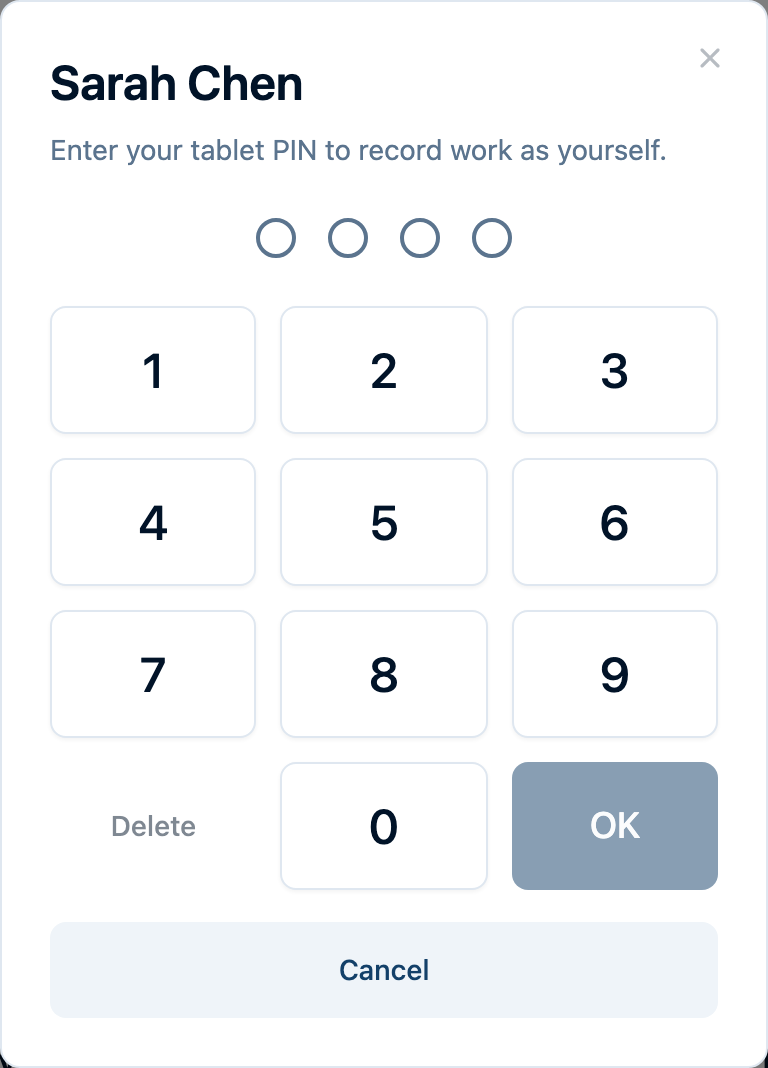
- Enter your PIN and tap OK. The keypad never submits on its own, so you can tap Delete to fix a digit before you finish.
The button now shows a check mark next to your name. Until you are done, the tablet can do what you can do in your department, and it can still create anything it could create on its own, like starting an incident. Everything you save is recorded as yours.
No PIN, or Forgot It? Get a Code
If you haven't set a tablet PIN, or can't remember it, the tablet can send you a one-time code instead.
- Forgot your PIN: on the PIN keypad, tap Forgot your PIN? Get a code instead.
- No PIN: tap the person button at the top of the screen, select Sign in as yourself, and pick your name. The tablet also sends the code on its own when it needs you signed in, for example to record patient care.
The code goes to your own devices: a notification on any phone or computer where you've turned on notifications, an email, and a text if you use a phone number for two-step sign-in. Enter the 6 digits on the tablet and tap OK. The code works once, only on the tablet that asked for it, and expires after 10 minutes. You can tap Send a new code if it doesn't arrive.
Once you're in, it works exactly like a PIN sign-in: the tablet acts as you, your work is marked as verified, and you tap Done when you're finished. If you get a code you didn't ask for, ignore it: nobody can sign in as you without it.
Patient Care on a Shared Tablet
Patient information stays hidden on a shared tablet until someone signs in as themselves. On an incident's Medical Details, tap Sign in and use your PIN or a code. The tablet then shows the incident's patients and lets you add and edit them, recorded as you.
Assigning an Incident on a Shared Tablet
Once an incident has assigned users, only they can edit it, and a tablet is never one of them. So a shared tablet asks you to sign in as yourself before you change Assigned Users on an incident. Being picked from the crew list is not enough.
If the tablet shows an incident as read-only, tap Sign in as yourself at the top of the incident. If you are one of its assigned users, it opens for editing.
When You're Done
Tap Done next to your name, or tap your name and choose Done, stop acting as you at the top of the list. The tablet ends your PIN sign-in, goes back to its own access, and waits for the next person.
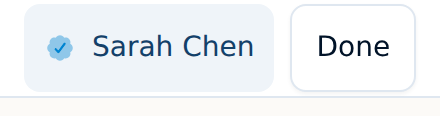
If you forget, the tablet signs you out on its own after a period with no activity, and after a longer limit no matter what. If you pick someone else from the list, your sign-in ends right away. When your sign-in ends before you save, the tablet asks for your PIN again; whatever you had entered stays on the form.
What Changes While You're Signed In
- Your access, and never less than the tablet. The tablet can reach what you can reach in your department, and you can still create anything the tablet could create on its own, like starting an incident, so signing in never takes that away. The tablet's other access stays with the tablet: it does not open records, like patient details, that you could not see yourself. Things outside your department's work, like your personal information and your account settings, stay off the tablet.
- No administration from a tablet. Owners and administrators work as regular members while signed in on a shared tablet. Manage the department from your own phone or computer.
- Verified in the activity log. Work recorded after signing in with your PIN or a code shows a check mark and the tablet's name in the activity log, and a check mark on completed check-offs. Work recorded by picking a name without signing in shows the tablet's name without the check mark.
Change or Remove Your PIN
Open Account on your own phone or computer. Under Tablet PIN, select Change PIN or Remove. Both ask you to confirm it's you.
Only you can change or remove your PIN. Department administrators cannot clear it for you.
Setting, changing, or removing your PIN signs you out of any tablet where you are currently signed in, whether you signed in with your PIN or a one-time code. Changing your password or your email address does the same, and a code that was already on its way to you stops working. Removing your PIN means a shared tablet will once again let anyone pick your name without a PIN.
Troubleshooting
The tablet says my PIN is locked
After too many wrong tries, your PIN locks on every tablet. You get an email when this happens. You can still sign in on the tablet with a one-time code (Get a code instead). To unlock your PIN, open Account on your own phone or computer and choose a new one; it works right away.
I forgot my PIN
On the tablet, tap Forgot your PIN? Get a code instead to sign in right away with a one-time code. To set a new PIN, open Account on your own phone or computer. You don't need the old PIN, only your normal sign-in.
My sign-in code didn't arrive
Check your email, including spam, and any phone where you've turned on notifications. Codes go only to your own account's email and devices, never to the tablet. If codes don't show up as notifications on your phone, turn notifications off and back on in your notification settings there; codes only go to phones set up that way from your own sign-in. Wait a minute, then tap Send a new code; only the newest code works. If nothing arrives, ask an administrator to check that your personnel record is linked to your account.
My name isn't on the tablet's list
The list comes from the department's active personnel records. Ask an administrator to check that your personnel record is active and linked to your account.
The tablet won't accept my PIN, but I'm sure it's right
Your PIN only works on tablets paired to a department you belong to. If you belong to more than one department, use a tablet from the department you're working for.
For Administrators
- What a tablet can do with nobody signed in. Each paired device has its own access, chosen with a preset (Station board, Rig, or Command vehicle) or set permission by permission under Advanced. See Set Up a Station Board Wall Display.
- Signing a tablet out. In Department Settings → Paired Devices, select Sessions on the tablet's row and then Sign out, or Archive a tablet you no longer use. Either one ends any PIN sign-in on it.
Need Help?
If you have questions about shared tablets or tablet PINs, contact support.