
Member Availability: Who Can Respond Right Now
In a volunteer department, the schedule only tells part of the story. A member who isn't on shift may be ten minutes from the station and ready to go, and a member who is on the schedule may be stuck at work or out of town. Member availability lets each member say where they stand right now, such as Available, Out of District, or At Training, and shows the whole department's picture on the dashboard and the station TV.
A status always ends on its own. A member picks how long it lasts, from an hour up to a day, so the board never shows yesterday's answer.
Availability works with or without the schedule. If your department schedules in another tool, the board runs on what members tell it. If you schedule in Command Established, the board shows both: who's on duty and who has said they're available.
Turn It On
Availability is off until an owner or administrator turns it on:
- Open Department Settings and choose Availability.
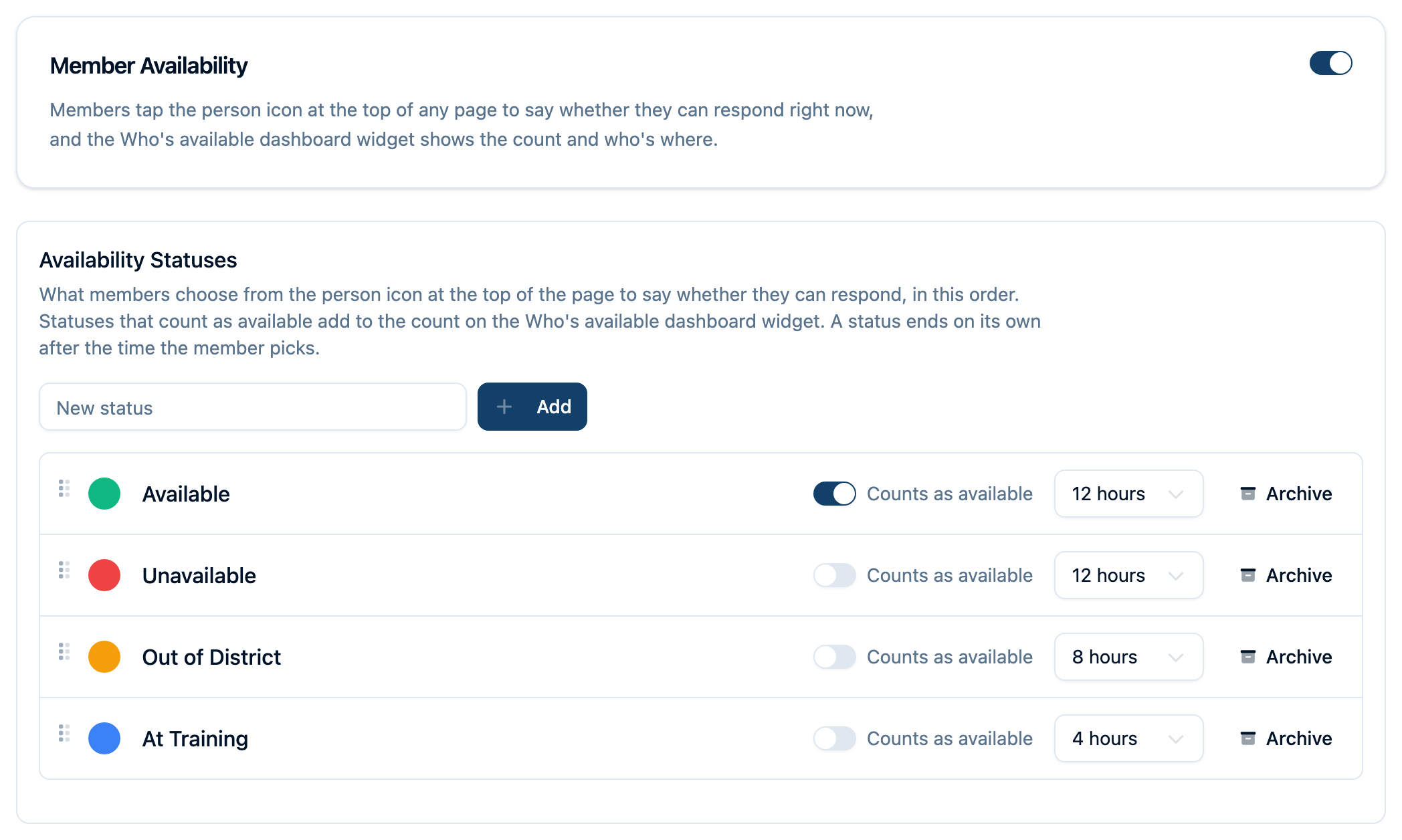
- Turn on Member Availability at the top of the page.
You can set up your statuses first and turn availability on when you're ready. While it's off, members don't see the person icon and the Who's available widget isn't offered. Turning it off later keeps your statuses for next time.
Set Up Your Statuses
Every department starts with four statuses: Available, Unavailable, Out of District, and At Training. Change them to match how your members talk. At Training at TFACA or Covering Station 2 work as well as the defaults.
On the same Availability settings page, under Availability Statuses:
- Add a status: type its name and select Add.
- Rename a status: select its name, type the new one, and press Enter.
- Change its color: select the colored dot and pick a color. The color is what members see on the board and in the header.
- Counts as available: turn this on for statuses where the member can respond. Those members are added to the Available count on the board. Leave it off for statuses like Out of District that you want to see but that shouldn't count.
- Default duration: how long the status lasts unless the member picks something else.
- Reorder: drag a status by its handle. Members see them in this order.
- Archive: retire a status you no longer use. Members who are already in it keep it until it ends, and you can restore it later from the Archived list.
Set Your Status
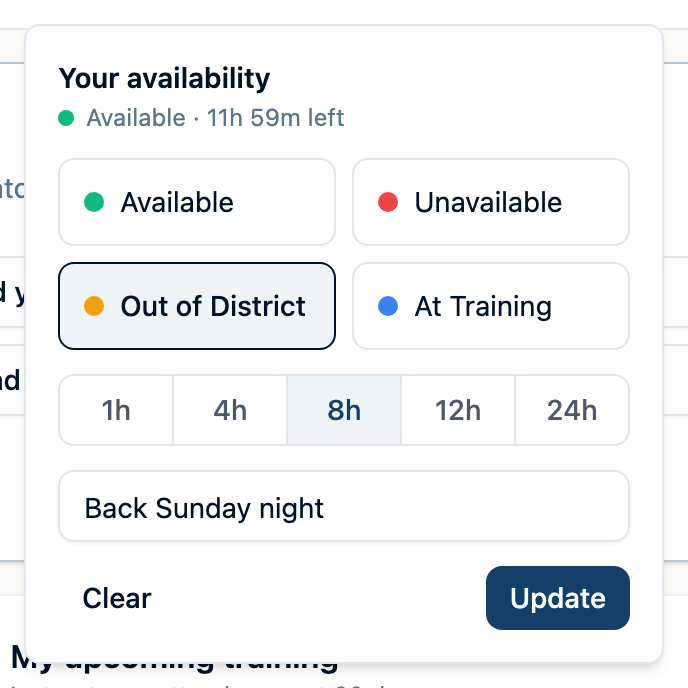
Select the person icon at the top of any page. The small dot on it shows your current status color, or gray when you haven't set one.
- Choose a status.
- Choose how long it lasts: 1, 4, 8, 12, or 24 hours. It starts on that status's default.
- Optionally add a short note, such as
Back by 1700. - Select Set status.
To change your status, open the person icon again, choose the new one, and select Update. To end it early, select Clear.
The person icon appears only for members who have a personnel record in the department. If you don't see it and you think you should, ask an administrator to link your account to your personnel record.
See Who's Available
Add the Who's available widget to your dashboard, or to a station TV's board:
- Open the Dashboard and select the edit button in the lower-right corner.
- Select Add widget and choose Who's available.
- Select Save.
The widget shows:
- How many can respond right now, split into officers and firefighters.
- Everyone grouped by status, with the statuses that count as available listed first, how long each person's status has left, and their note.
- On duty: members the schedule has on shift right now who haven't set a status of their own. They count as available.
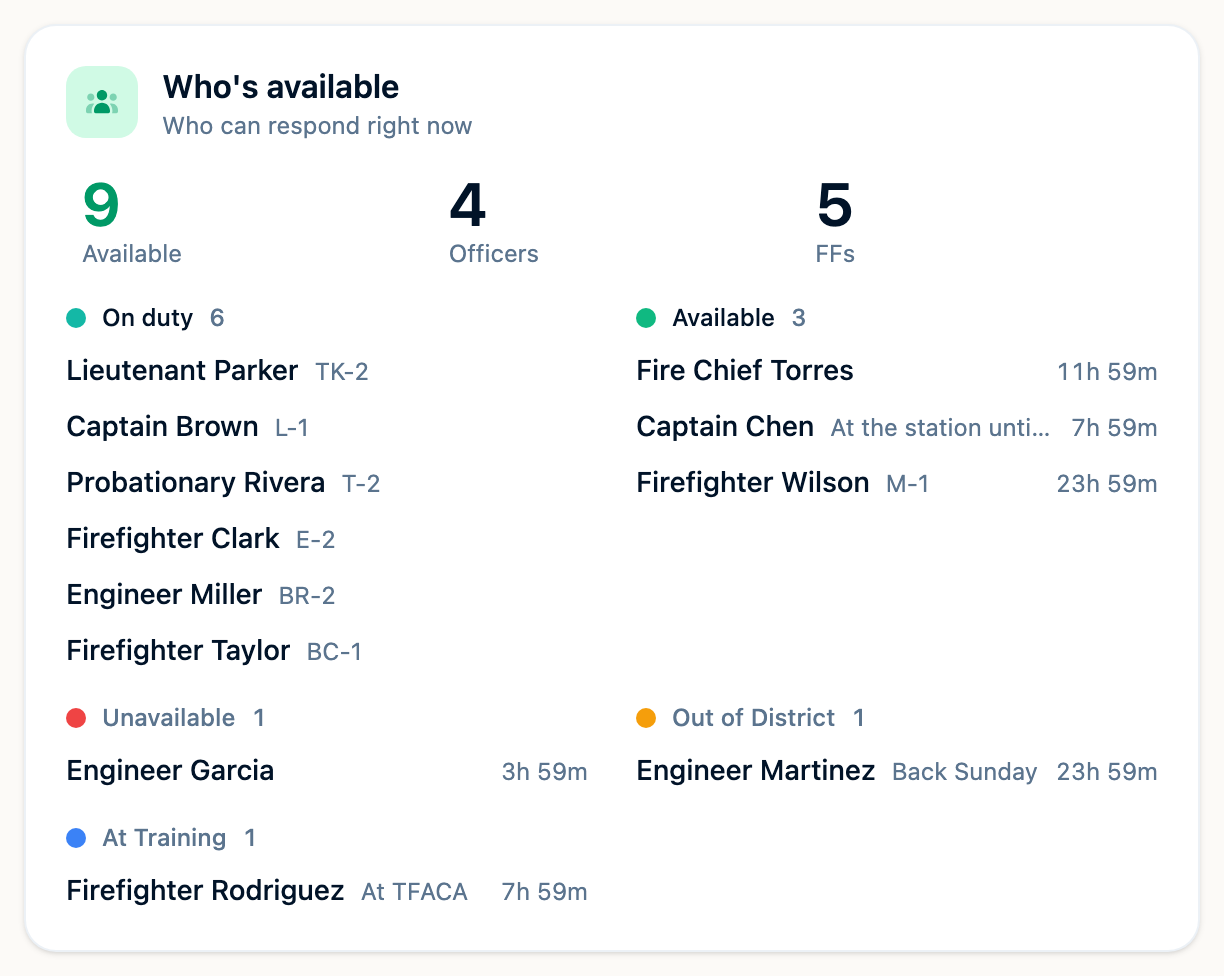
The widget updates as members change their status. On a station TV, a change shows up within about a minute.
A member's own status wins over the schedule until it ends. If someone on shift sets Out of District, the board shows them as out of district, not on duty. Members on the schedule but off for time off or training aren't shown unless they set a status.
Each group shows its first six names, with a count of anyone else (+2 more). The numbers at the top always count everyone, including on a station board in Display mode. Give the widget a larger size to fit more names side by side.
Set Your Status from the Station Tablet
A paired tablet at the station isn't any one person, so it has no person icon. Instead, the Who's available widget on the tablet shows Set my status:
- Select Set my status.
- Pick yourself from the crew list.
- Enter your tablet PIN, or the one-time code sent to your phone or email if you haven't set a PIN.
- Choose your status, how long it lasts, and an optional note, then select Set status.
The status is yours, recorded under your name, exactly as if you'd set it from your own phone. When you're finished, tap Done next to your name at the top of the screen so the next person starts fresh.
A member signed in on the tablet can set or clear only their own status.
Displays and Tablets
A station board paired with the Station board preset can show the Who's available widget. A display paired before availability was added doesn't have access to it yet, so the widget doesn't appear on that display. To add it, open the device under Department Settings → Paired Devices, choose Advanced, and turn on Read for Availability.
Troubleshooting
I don't see the person icon at the top of the page
Availability may be turned off for your department, or your account may not be linked to a personnel record. Ask an administrator to check both.
Administrators previewing the department as another member or group won't see the icon either. Return to your own view to set your status.
The Who's available widget says this module has been disabled
An administrator turned availability off for the department. The widget comes back as soon as it's turned on again.
The widget doesn't appear on a station TV
The display was probably paired before availability was added. See Displays and Tablets above.
My status disappeared
Statuses end on their own after the time you chose. Set it again from the person icon.
Someone on shift shows as unavailable
They set a status of their own, and it takes priority over the schedule until it ends. They can clear it from the person icon.
Need Help?
If you're setting up availability for a station TV or have questions about statuses, contact support.