
QR Codes + Check-Offs: A Best Practices Guide for Fire Departments
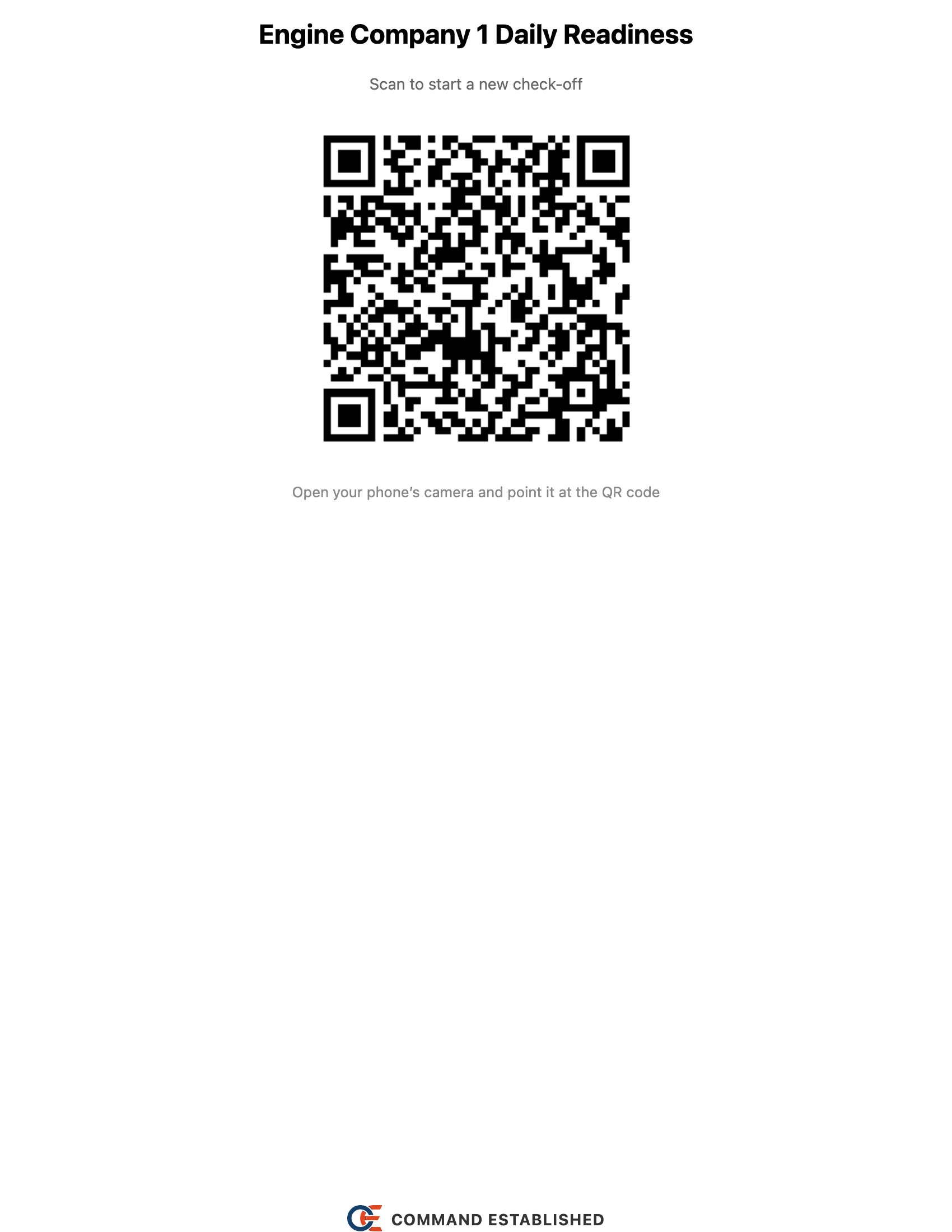
Your apparatus checks need to happen every day whether you have 5 members or 50. The problem isn't the checks themselves — it's getting people to actually find and fill out the right form. QR codes paired with Command Established's check-offs feature solve that by putting the checklist exactly where the work happens.
When several people scan the same code, they join one live check-off. Split the sections across the crew, watch answers appear as each person works, and submit once when everyone is finished. Existing checklist QR codes work with live check-offs.
Why QR Codes Work for Fire Departments
Fire departments are a natural fit for QR-based checklists:
- Apparatus live in fixed locations. Engine 1 is always in Bay 1. A QR code on the dash or compartment door doesn't need to move.
- Checks are repetitive. Daily apparatus checks, weekly SCBA inspections, monthly pump tests — the same checklists, over and over. QR codes eliminate the "where's the clipboard" problem.
- Members can use their phones. Scan the code and sign in if needed to open the checklist right there. A paired rig tablet can open the same check alongside them.
- Results are digital from the start. No deciphering handwriting, no lost paper forms.
Setting It Up
1. Create a check-off template
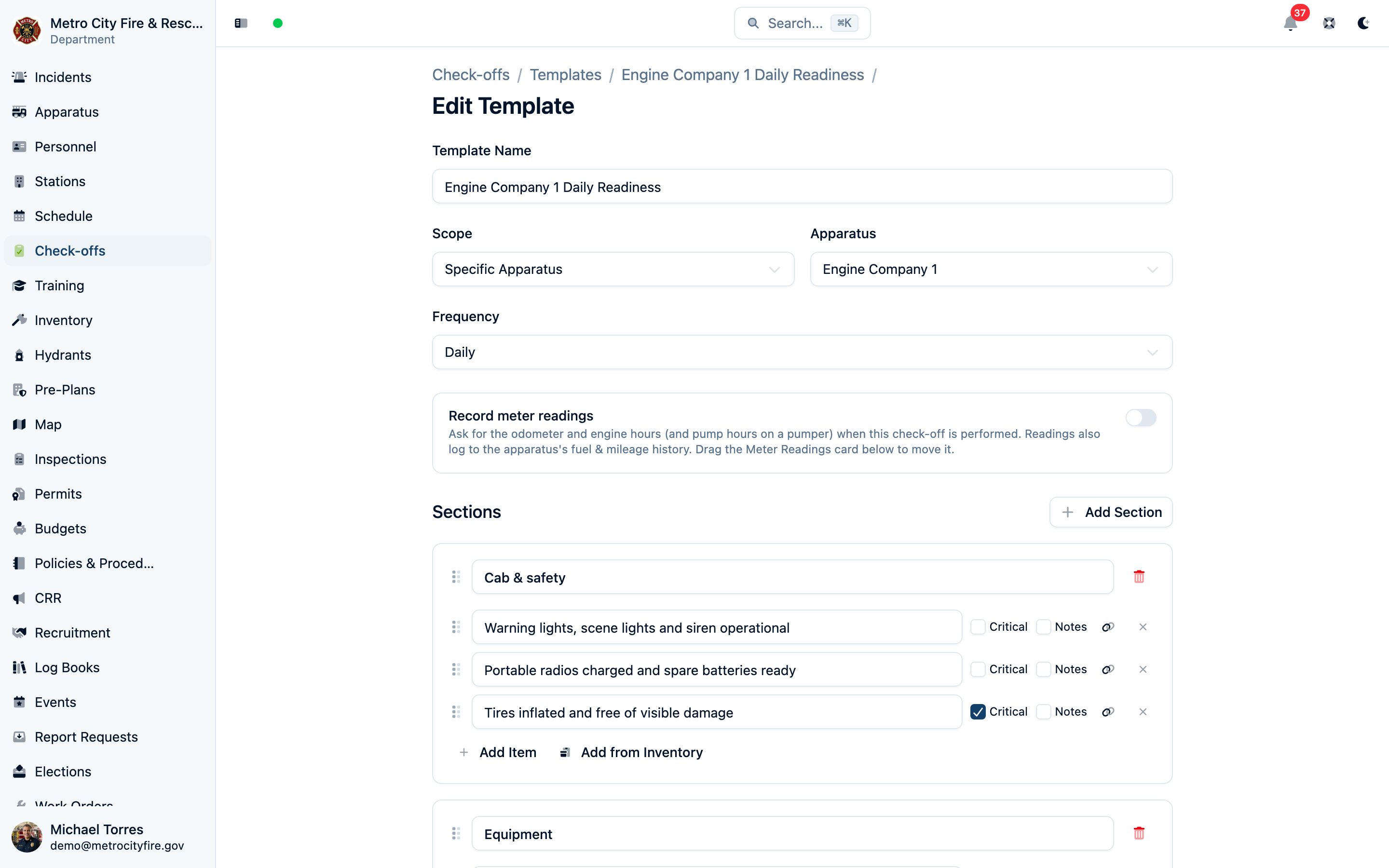
In Command Established, go to Check-Offs > Templates and create a new template. Give it a clear, specific name — "Engine 1 Daily Check" is better than "Daily Check" because members scanning the code should immediately know what they're completing.
2. Choose a scope
Each template is tied to a scope: a specific apparatus, a station, or the department as a whole. Pick the one that matches. An apparatus check belongs to that apparatus. A station house inspection belongs to the station.
3. Build your checklist
Templates are organized into sections, each containing individual items. Both can be dragged into whatever order matches how a member walks the rig — see Reordering sections and items. For example, an engine daily check might have:
- Cab — fuel level, warning lights, mirrors, seat belts
- Engine compartment — oil level, coolant, belts, leaks
- Equipment — irons, pike poles, cribbing, hand lights
- SCBA — bottle pressure, mask seal, regulator function
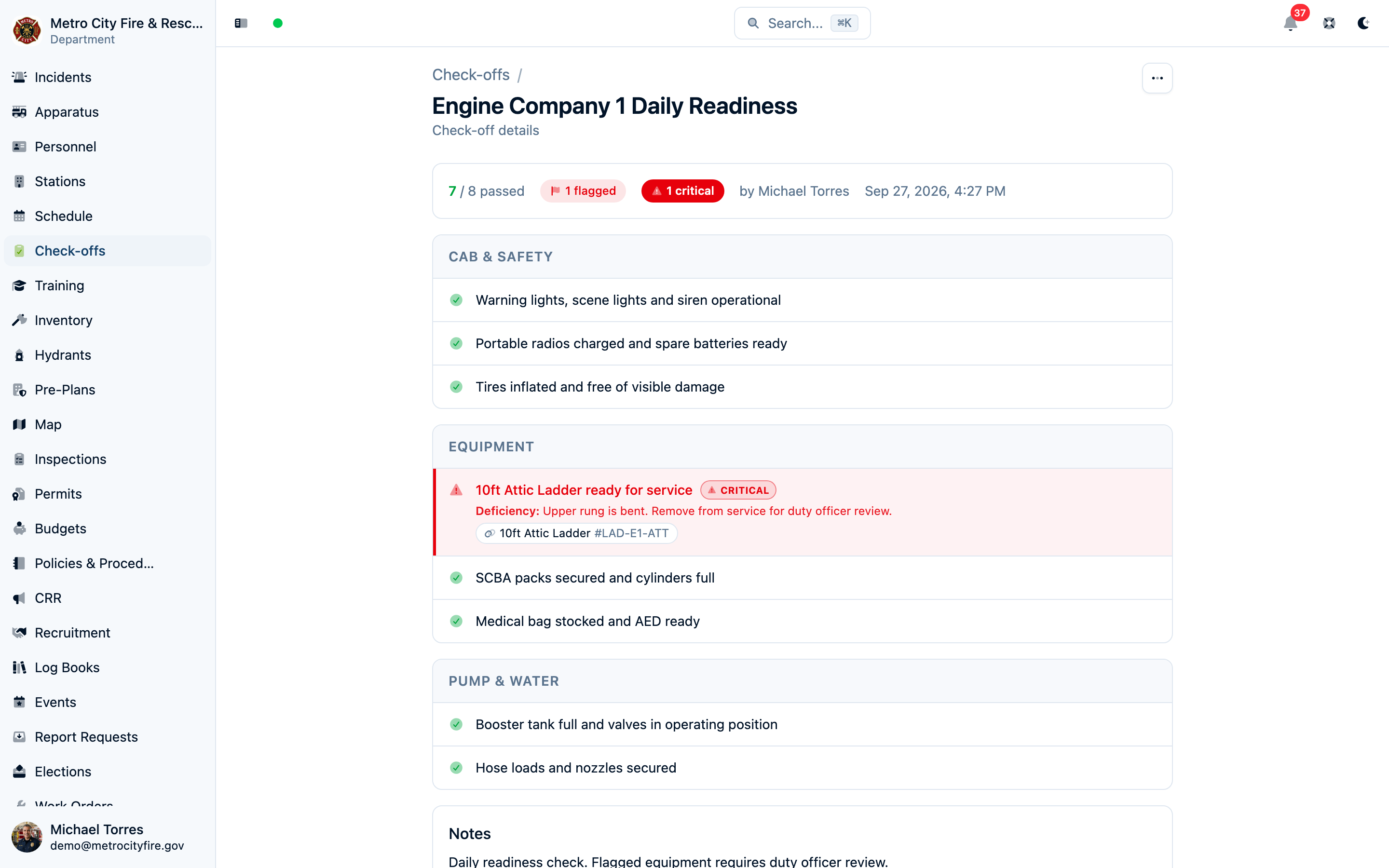
For each item, you can mark it as critical — failed critical items get highlighted in the results so nothing important slips through. You can also require notes on specific items, which is useful for things like fluid levels or meter readings where you want an actual value recorded.
For apparatus and station templates, link items to equipment or use Add from Inventory to build a section from the gear assigned there. The crew can then identify which piece failed and attach its work order to that inventory item.
4. Set a frequency
Optionally set how often the check should happen: daily, weekly, monthly, quarterly, semi-annual, annual, or a custom interval. Frequency is a label. Add a recurring work-order schedule if the check should appear as due and close its work order when an eligible crew member submits.
5. Print and post the QR code
Open the template and click the QR code button. The app generates a printable QR code with the checklist name and scanning instructions. Print it, laminate it, and mount it where the check happens.
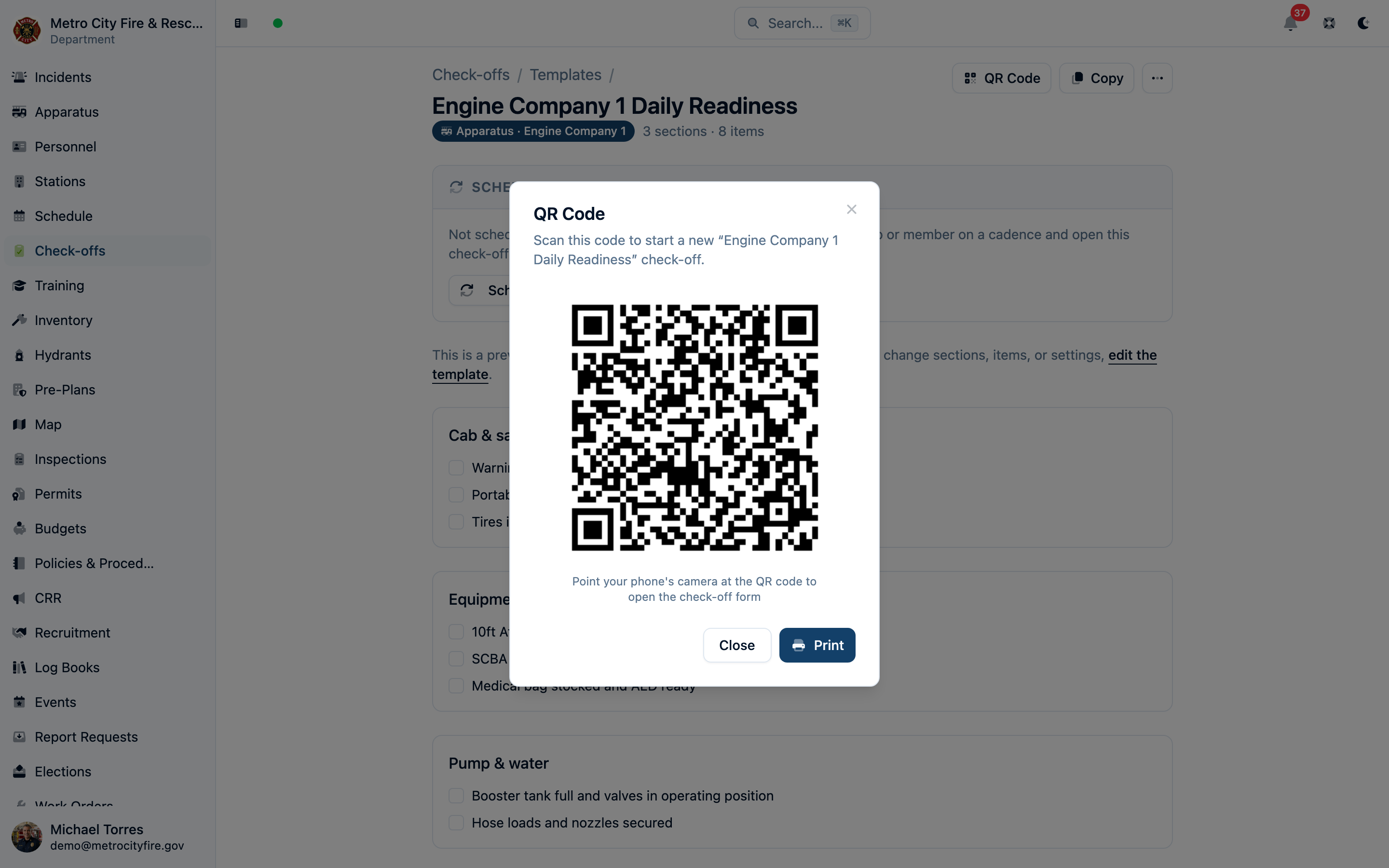
6. Run the check together
Have each crew member scan the code and open the same template. The first person starts the check; the others join it automatically. Use different sections to divide the work, add notes and photos as needed, then have one person choose Submit check-off when the crew is finished.
Cancel leaves saved progress available to the crew. Discard ends the unfinished check for everyone. For returning to a check, the six-hour inactivity limit, shared tablets, and final submission, see Live Check-Offs.
Best Practices
Put QR codes where the work happens
The whole point is convenience. Mount codes:
- On the dashboard or driver's door for daily apparatus checks
- On the pump panel for pump tests
- Next to the SCBA rack for SCBA inspections
- On the generator for generator checks
- Inside compartment doors for equipment inventories
If someone has to walk across the bay to scan a code, you've lost half the benefit.
Laminate everything
Fire stations are tough environments. Laminate your QR codes or use waterproof badge holders. A smudged or torn code is a code nobody scans.
Use descriptive template names
"Engine 1 Daily Check" tells a member exactly what they're about to fill out. "Check 3" does not. When someone scans a QR code, the checklist name is the first thing they see — make it count.
Mark critical items
Use the critical flag on items that matter most — things like brake function, SCBA bottle pressure, or low-fuel warnings. When a critical item fails, it stands out in the review so officers can act on it immediately.
Require notes where readings matter
For items like "oil level" or "pump pressure," toggle notes required so members record the reading alongside the result. Use the template's meter readings option for odometer and hour values that should also update the apparatus's mileage history.
Review completed check-offs regularly
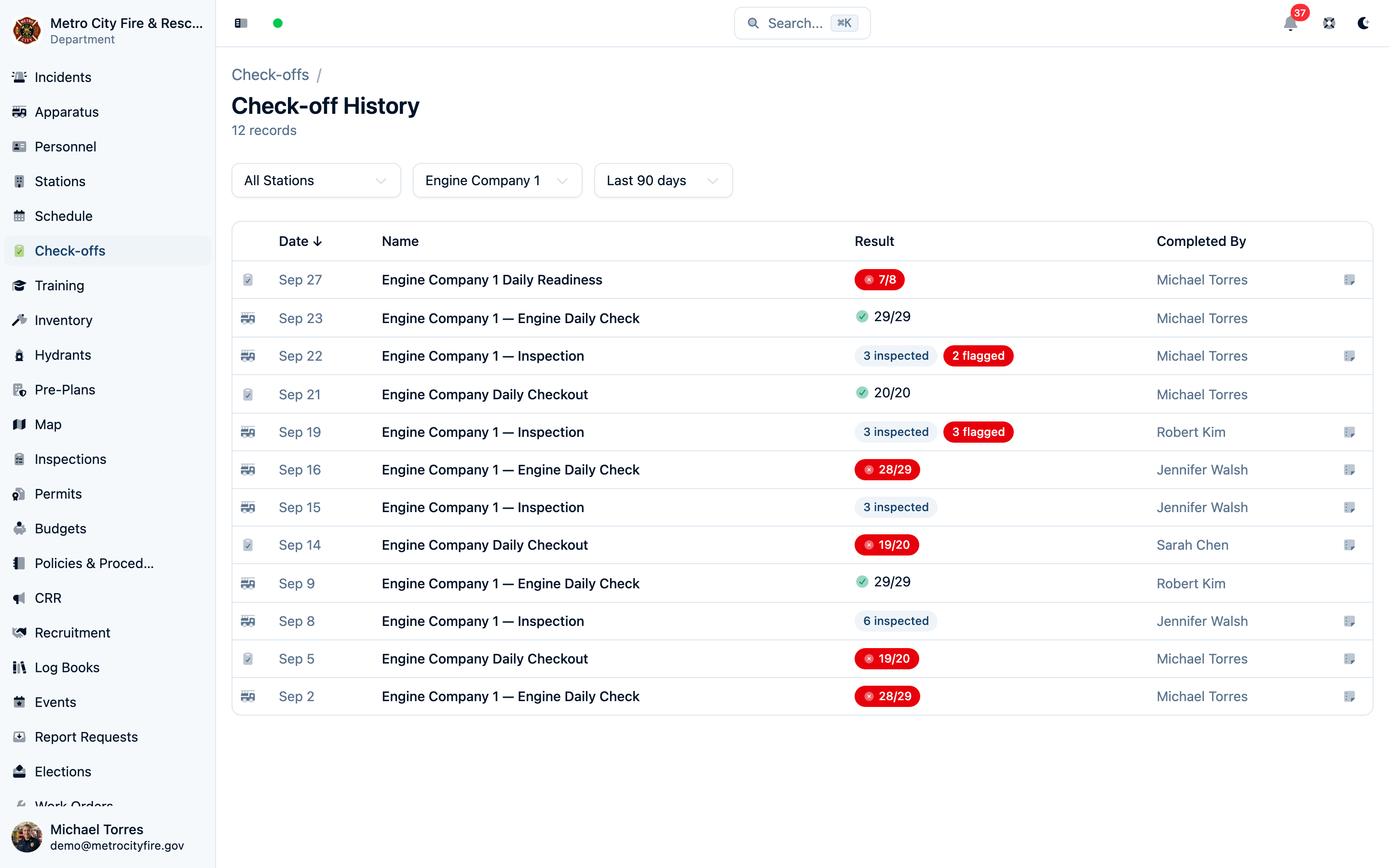
The Check-Off History view shows all completed checks sorted by date. The Station Hub organizes them by station and apparatus so you can see at a glance which rigs have been checked and which haven't. Use this to:
- Spot recurring failures on a specific piece of equipment
- Verify checks are happening on schedule
- Identify members who may need additional training on inspection procedures
Attach photos when something's wrong
Members can use Add photos while the check-off is in progress. The crew shares a limit of 50 photos; photos saved from any device are included when someone submits. Encourage clear photos of the problem and let uploads finish before submitting.
Real-World Examples
Daily apparatus check
Template: "Engine 1 Daily Check" Scope: Engine 1 (apparatus) Frequency: Daily QR location: Inside the cab, driver's side visor
Sections: Cab, Engine Compartment, Pump, Hose & Appliances, Equipment, SCBA. The first-due crew scans the code at shift start and divides the sections among themselves. Each person's answers appear on the shared sheet; one member submits when everyone is finished. Officers review any failures before the rig goes in-service.
Weekly SCBA inspection
Template: "Station 1 Weekly SCBA Inspection" Scope: Station 1 Frequency: Weekly QR location: On the wall next to the SCBA storage rack
Items: bottle pressure (notes required), regulator function, mask seal and strap condition, PASS device activation, low-air alarm test. Critical flags on bottle pressure and regulator.
Monthly portable pump / generator test
Template: "Portable Pump Monthly Test" Scope: Department Frequency: Monthly QR location: On the pump/generator housing
Items: fuel level, oil check, start and run for 10 minutes, flow test, inspect pull cord and housing. Notes required on run time and flow readings.
Start with one well-organized template and a code posted where the check begins. The crew's changes save as they work together, and Submit check-off creates the completed record. See Live Check-Offs for the full workflow.