
Inspection Documents: Set Up, Issue & Email
Create reusable templates for your department's certificates and notices of violation, then issue a populated PDF from a completed fire inspection. You review the document before issuing it and choose separately when and to whom to email it. The saved PDF, document number, and delivery history stay with the inspection.
This guide covers template setup, issuing a certificate, preparing a notice, sending the email, and document history.
Before You Start
Your department needs a published document template and an inspection completed and signed in Command Established. The inspection must have a Passed or Failed result. Imported inspections and older inspections without a saved signing record cannot issue new documents.
Permissions for templates, reviews, and issued documents
An administrator can grant access through member or group permissions:
- Inspection Document Templates: Read opens the library, Create adds templates, Update edits and publishes versions, and Archive retires templates.
- Inspection Document Review: Allows selected reviewers to approve drafts and record periodic reviews of published wording.
- Issued Inspection Documents: Read opens saved documents and their PDFs, Create issues documents, and Update allows emailing and voiding.
Set Up a Document Template
Go to Inspections > Templates to open Document templates, then select New template. Create a separate template for each document type and purpose, such as an annual inspection certificate or a fire code notice of violation.
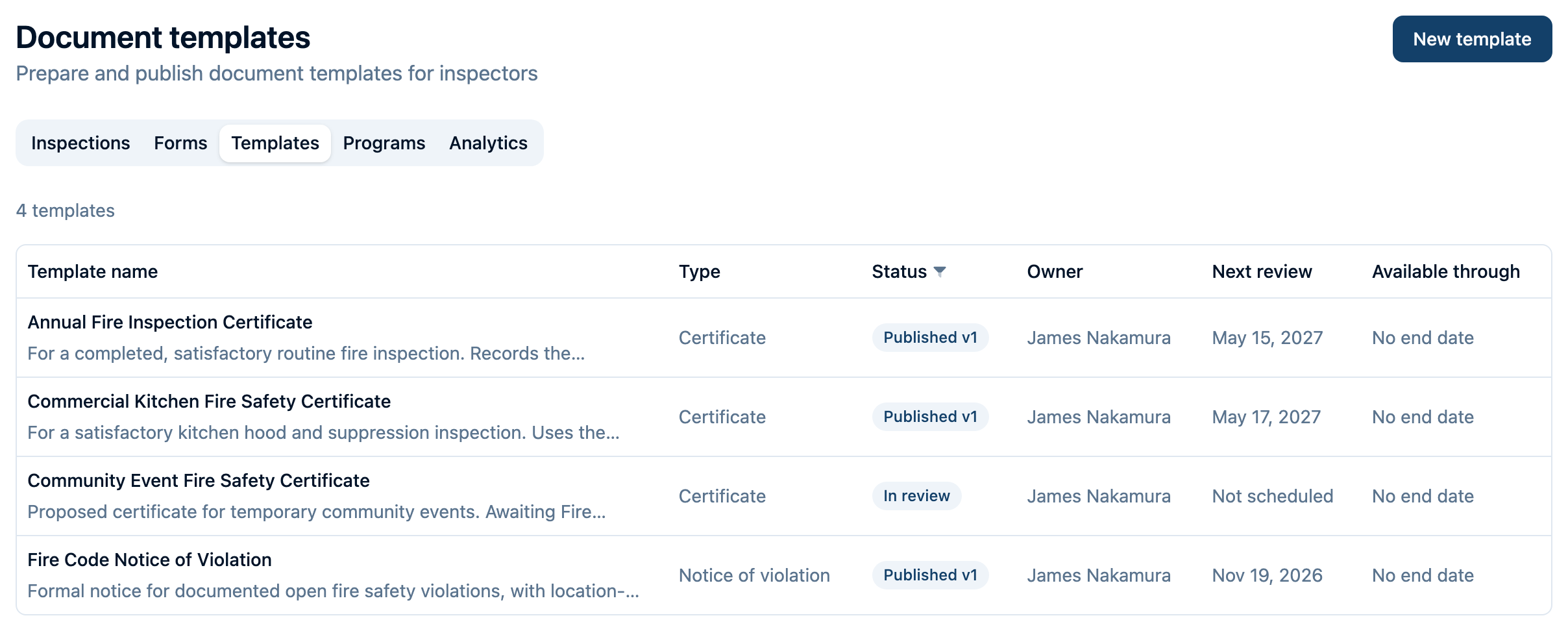
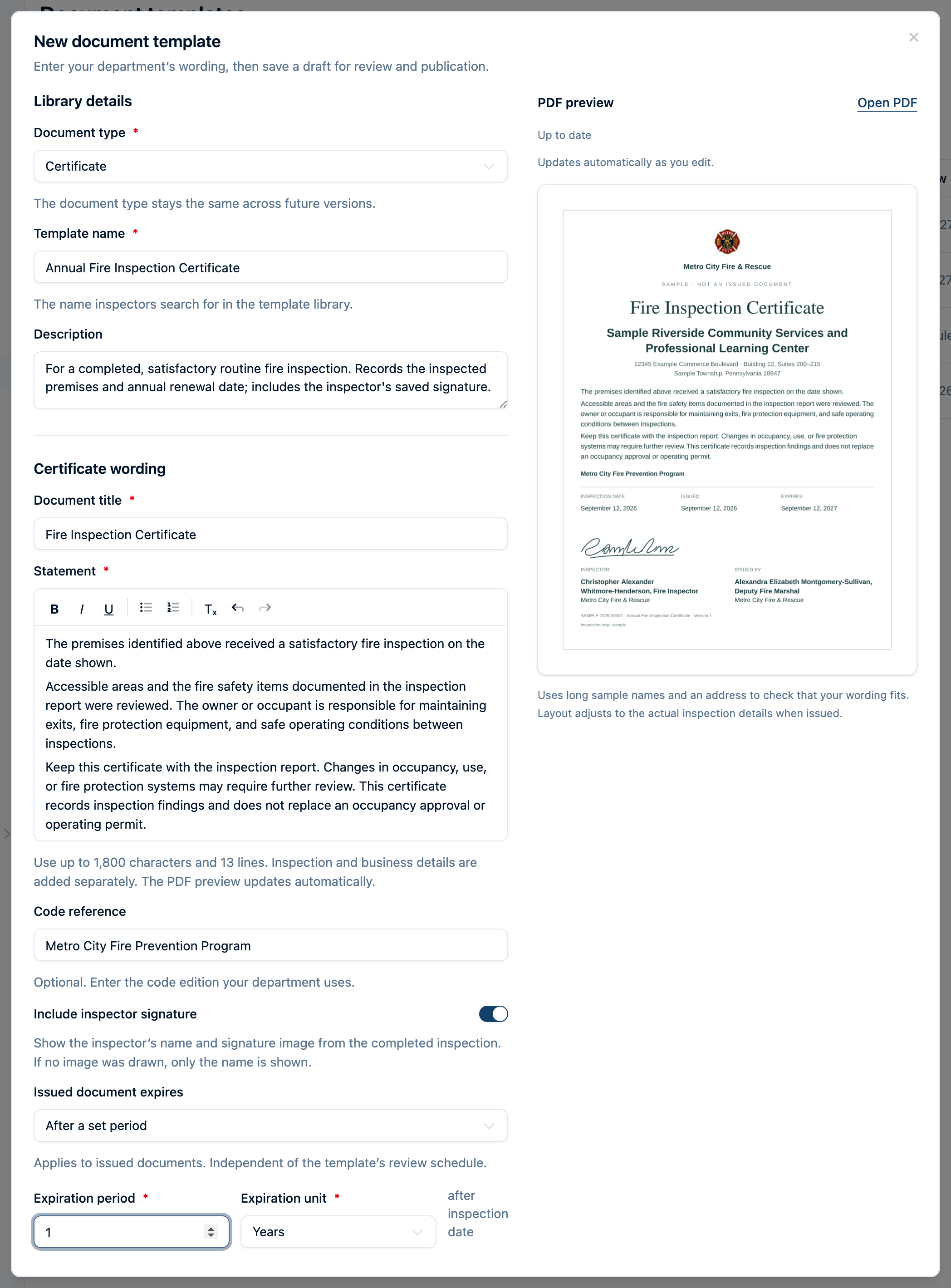
- Choose Certificate or Notice of violation under Document type. This choice stays the same for future versions of that template.
- Enter a Template name inspectors will recognize and a description of when to use it.
- Enter the Document title that appears on the PDF. Add your department's Statement for a certificate, or Introduction and optional Closing instructions for a notice. Use the editor to format the wording; inspection and property details are added separately.
- Add an optional Code reference. Turn on Include inspector signature if the document should show the inspector's name and the signature image saved when the inspection was completed. If no image was drawn, only the name appears.
- For a certificate, set Issued document expires: No expiration date, After a set period, or End of the inspection year. A set period runs from the inspection date.
- Review the automatically updated PDF preview and select Create draft. The template preview uses sample inspection details; you review the actual property's document when issuing.
Review and Publish
Saving a draft does not make it available for issuance. On the template page:
- Select Submit for review and choose the reviewers.
- A selected reviewer opens the template and selects Approve, or Request changes with a comment to return it to draft.
- After approval, an editor selects Publish version 1. Later releases show their next version number.
If your department has no separate reviewer, select yourself when submitting. Your own Approve action includes an explicit self-approval confirmation. Approval still needs the final Publish version step.
To change published wording later, select New version, edit and save the draft, and repeat review and publication. Inspectors continue to use the existing published version while its replacement is being prepared. Previously issued PDFs remain unchanged.
Set ownership, review reminders, and template availability
Under Ownership & review, choose an Owner responsible for keeping the wording current. A Review assignment can identify a person or group with an eligible reviewer; without an assignment, reminders go to the owner. Set a Review cycle and Next review date when you want periodic reviews.
These dates serve different purposes:
| Setting | What it controls |
|---|---|
| Issued document expires | The expiration date printed on a certificate. |
| Next review date | When the department should review the template's wording. An overdue review does not block issuance. |
| Available through | The last date inspectors can use the template to issue a new document. |
Use Mark reviewed after a periodic review of published wording. It records that review; it does not approve or publish a draft. Use Retire template when the template should no longer be used. Published versions and previously issued documents are retained.
Issue a Certificate
- Open the completed inspection from Inspections and find Issued documents.
- Select Issue document and choose a published certificate template.
- In Review document, check the PDF's property details, inspection date and result, wording, and expiration date when present. Use Open PDF preview for a larger view.
- Select Issue document to save the PDF with the inspection.
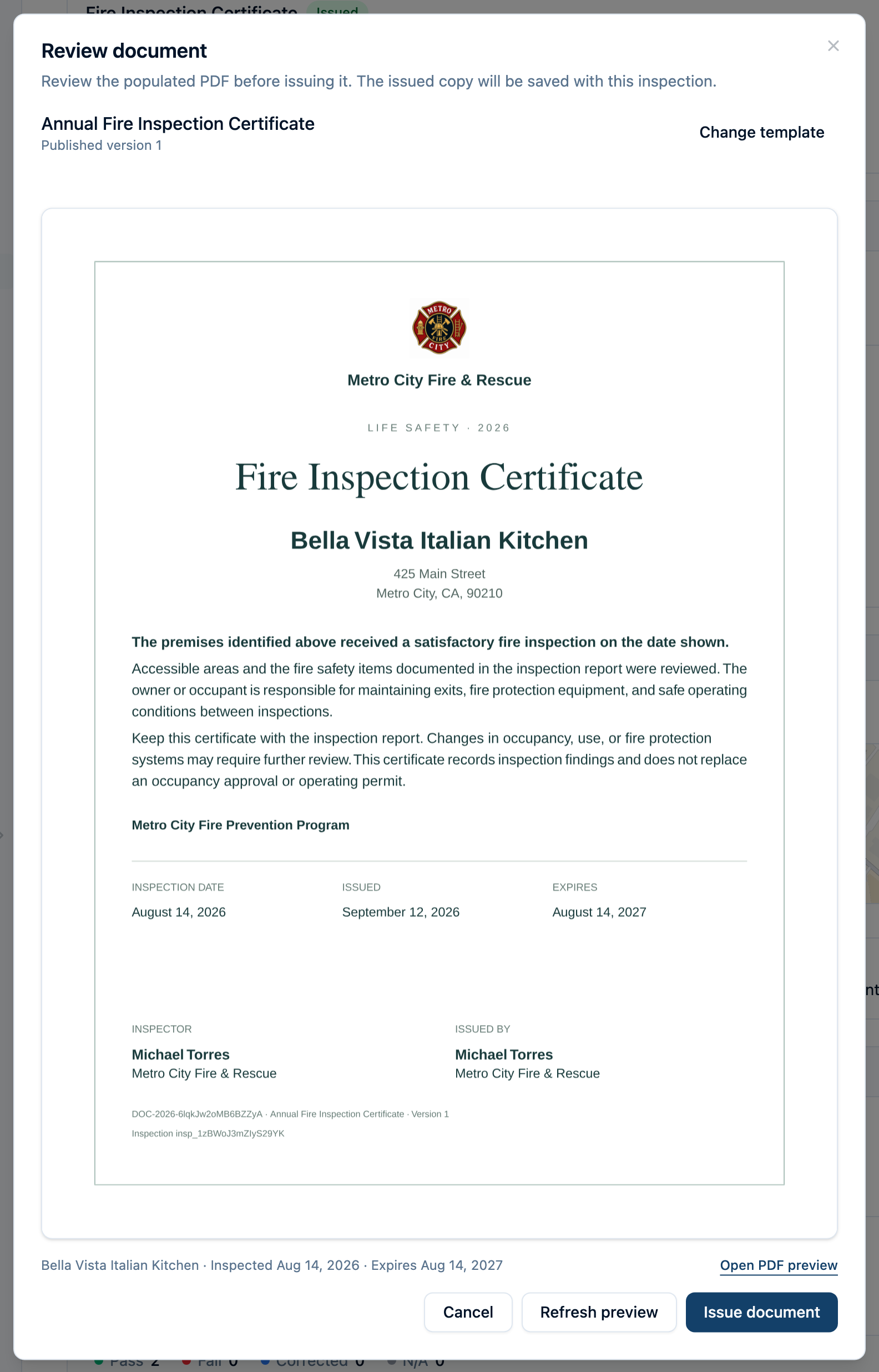
Issuing saves the document; it does not send an email. If the preview expires or a new template version is published while you are reviewing, select Refresh preview and check it again before issuing.
Prepare a Notice of Violation
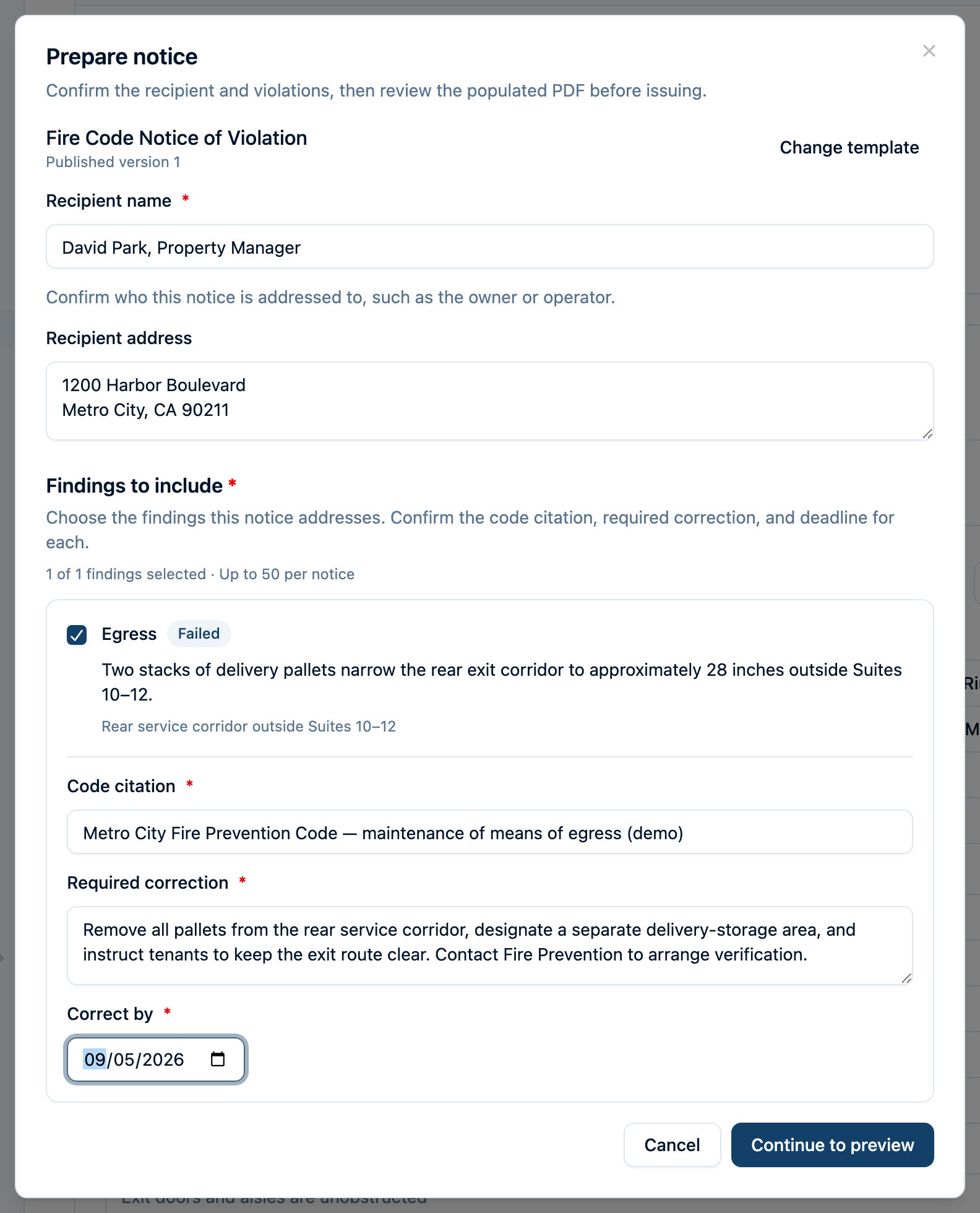
Start from the same Issued documents > Issue document action, then choose a Notice of violation template. The Prepare notice step asks you to confirm the details for this particular notice:
- Enter the Recipient name of the person or organization the notice addresses. Add a Recipient address if needed.
- Under Findings to include, select the inspection findings this notice addresses. At least one finding is required; the system does not automatically select findings for you.
- For each selected finding, complete Code citation, Required correction, and Correct by. For example, a blocked exit finding needs the applicable citation, a clear instruction to remove the obstruction and keep the exit clear, and the correction deadline you set.
- If a finding has photos, choose any you want under Photos to include (optional). Select a photo's preview to inspect it at full size, then use Include photo to add it. No photos are included by default.
- Select Continue to preview and review every page, including the photo appendix. Selected photos appear in full, without cropping, with their captions and violation numbers. Each violation points to its photographs. Use Edit notice details to change the wording or photo choices, then preview again.
- Select Issue document to save the notice. The issued PDF preserves the photos and wording you reviewed.
The notice's named recipient is part of the saved PDF. You choose the email recipients separately when sending it.
Email the Saved Document
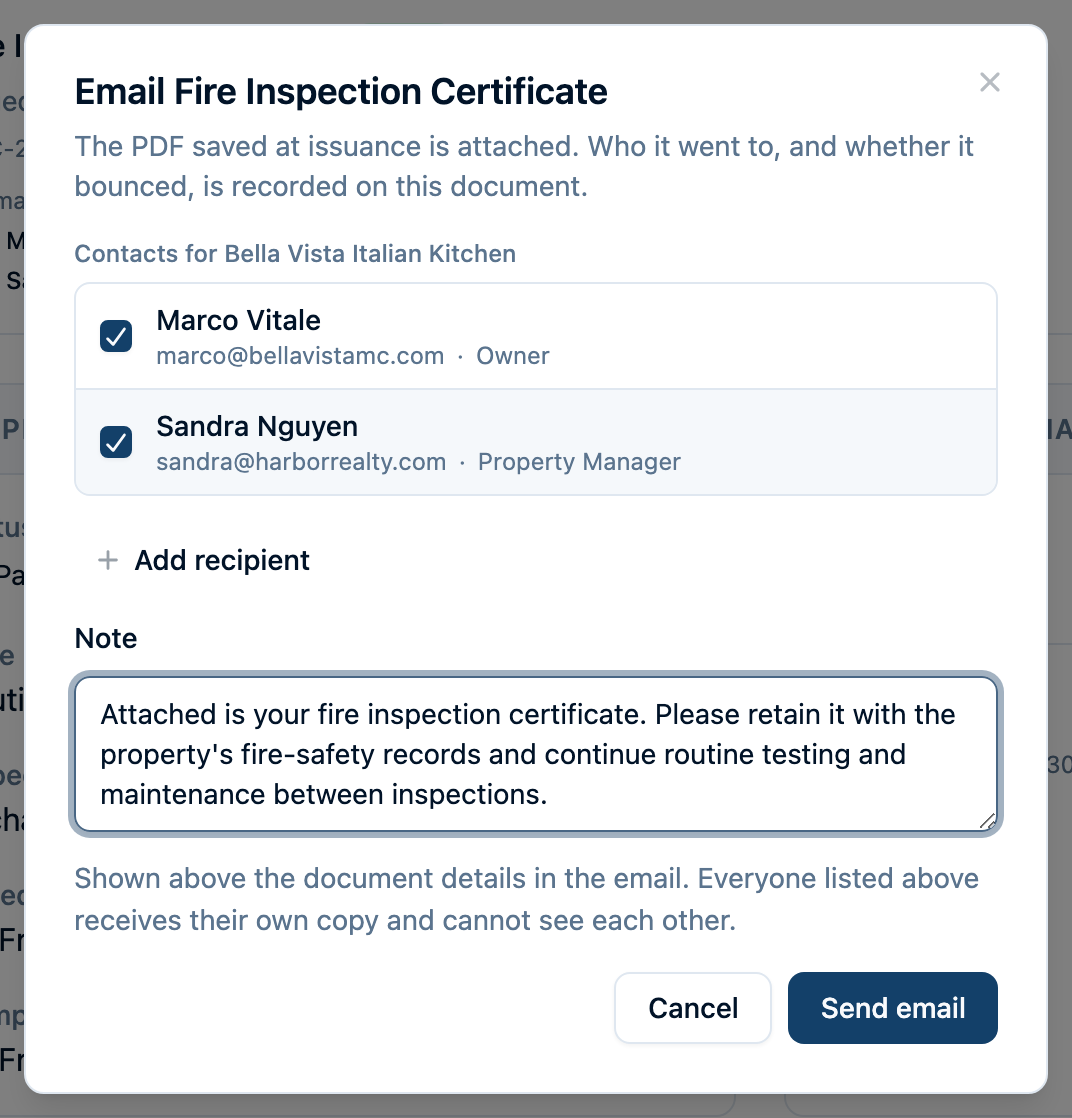
In Issued documents, select the document's Email button.
- Select the property's contacts, or use Add recipient to enter an email address and optional name. If the property has no contacts with email addresses, the dialog opens with a blank recipient row. You can send to up to five recipients at once.
- Add an optional Note of up to 500 characters, such as where to keep the certificate or how to contact the department about corrections.
- If offered, select Also save to this property's contacts to retain new named contacts for future use. This requires permission to update the property.
- Check the addresses and select Send email.
What the Recipient Receives
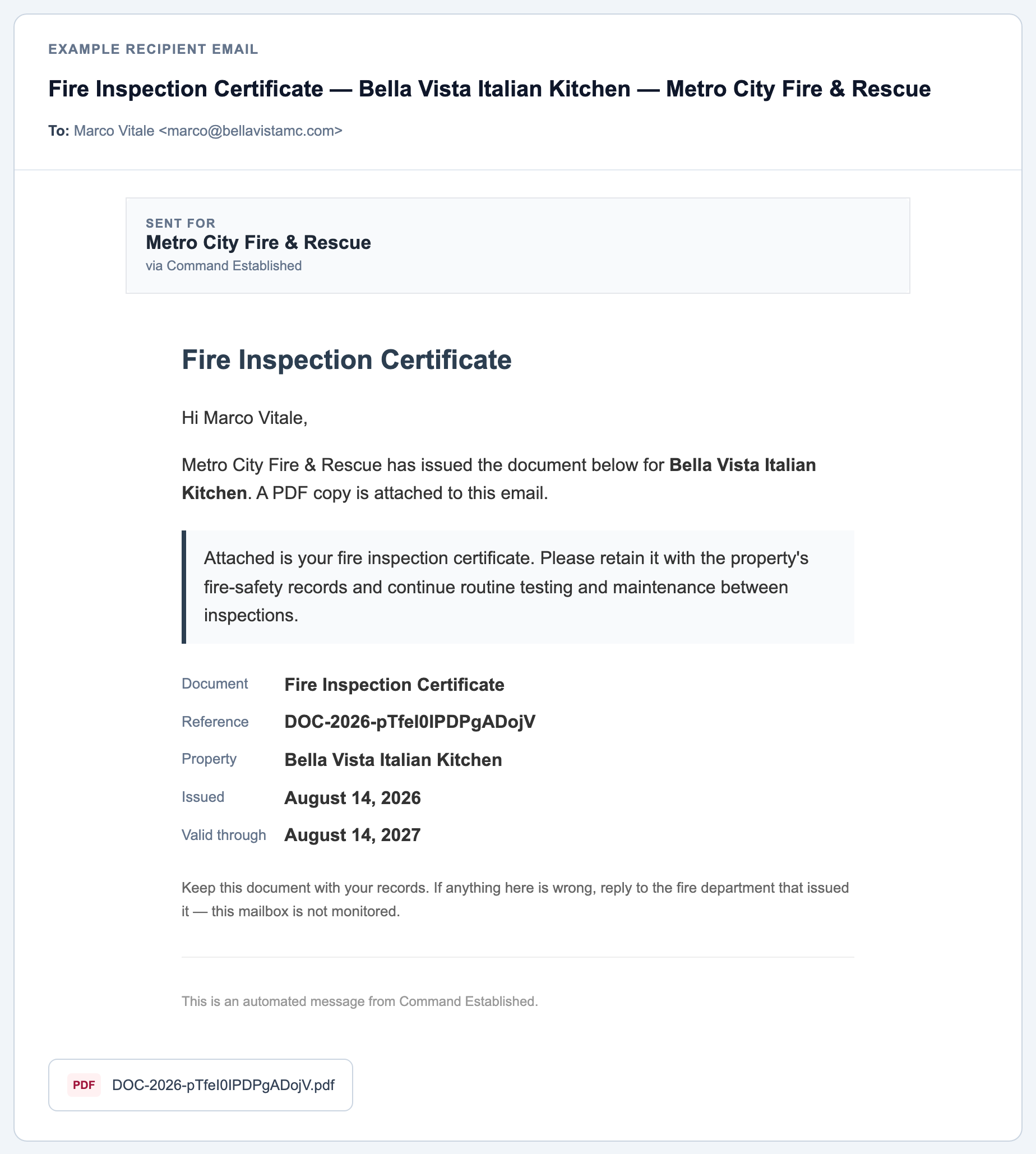
The email subject includes the document title, property name, and department name. The body includes a greeting, your optional note, and the document's title, reference number, property, issuance date, and expiration date when applicable.
The PDF attached to the email is the same copy saved at issuance. The recipient can open and keep it without signing in to Command Established or following a download link.
Check History, Download, or Void a Document
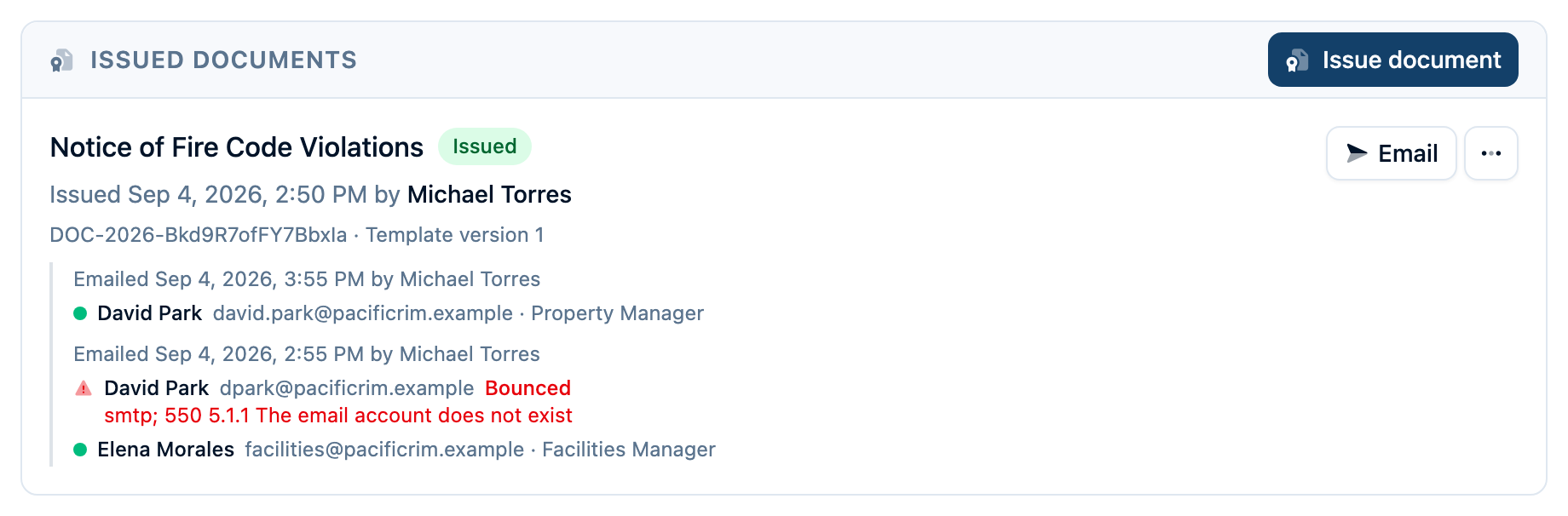
Return to Issued documents to see each document's number, template version, issuance details, and expiration when present. An Expired label means the certificate's expiration date has passed; the saved PDF remains available. Open the actions menu for Preview or Download PDF.
Email history records who sent each copy, when it was sent, and the recipients. Failed sends, bounces, and spam complaints show an explanation. Expand the history summary when there are several deliveries. Check failed addresses before using Email again; a successful send records acceptance for sending, not proof that someone opened the message.
To invalidate a document, open its actions menu, select Void, enter a reason, and confirm with Void document. The document is marked Voided, your name and reason are recorded, and the original PDF remains available. A voided document cannot be emailed again from Command Established. Voiding does not recall copies already sent; contact affected recipients and issue a replacement when needed.
Why is a template or document action missing?
- No published templates available: A template manager needs to finish review and publication. Retired templates and templates past Available through cannot be used for new documents.
- No Issue document button: Check that the inspection is completed, is not imported or archived, and that you have Create access to Issued Inspection Documents. Older inspections without a saved signing record cannot issue documents.
- No Email or Void action: Check Update access to Issued Inspection Documents. Voided documents cannot be sent again, and archived inspections cannot send documents.
- The PDF preview cannot be prepared: Read the field or layout error. A template manager can update and publish the wording, or you can choose another published template. Template edits do not change the saved inspection details.
For the broader inspection workflow, see Fire Inspection Management. For certificates issued through a permit application and approval workflow, see Permits: Setup, Applications & Payments.