
Setting Up Pay Rules for Payroll Reports
No two departments pay the same way. A career department may pay under the fire-protection overtime rules (often called "7(k)"), with members settling shift trades between themselves. An EMS agency may pay everyone by the hour, with overtime after a set number of hours a week. A combination department may do both, plus have volunteers who aren't paid at all.
Pay rules tell the payroll report which of these your department does. You set them once under Settings › Payroll, and every payroll report and CSV export follows them from then on.
Pay rules work only from your schedule: rotations, trades, time off, overtime and extra shifts, and paid duty crews. Calls and trainings logged in the Incidents and Training modules aren't counted. To pay for training time, enter it on the schedule as a Training exception.
What pay rules do (and don't do)
The payroll report counts hours, not dollars. It never knows anyone's pay rate. Pay rules decide:
- whose line a traded shift's hours go on;
- which hours to flag as past your overtime limit, or worked on a holiday, so you can pay them at the right rate;
- which time off is paid and which isn't;
- the minimum length and rounding of callbacks and extra shifts.
Flags never add hours. A member who worked 50 hours in a week with a 40-hour limit shows 50 paid hours and 10 over the OT limit. You pay 40 at the regular rate and 10 at the overtime rate, or however your contract says.
Who can change pay rules
Admins and Owners can, and so can anyone with update access to Payroll (see Understanding Permissions & Groups). Members who can only view payroll see the report, but not the settings page. On the payroll report, the Pay rules button in the top right goes straight to the settings page.
Before you start: set each member's personnel type
Overtime limits apply to members by personnel type: Career, Volunteer, Paid On-Call, Part-Time or Per-Diem. Each member's type is on their personnel record. A member whose type was never set counts as Type not set.
Check your roster before you set up overtime. If your hourly staff are all still "Type not set", an hourly overtime limit won't reach them.
Start here: what the report does today
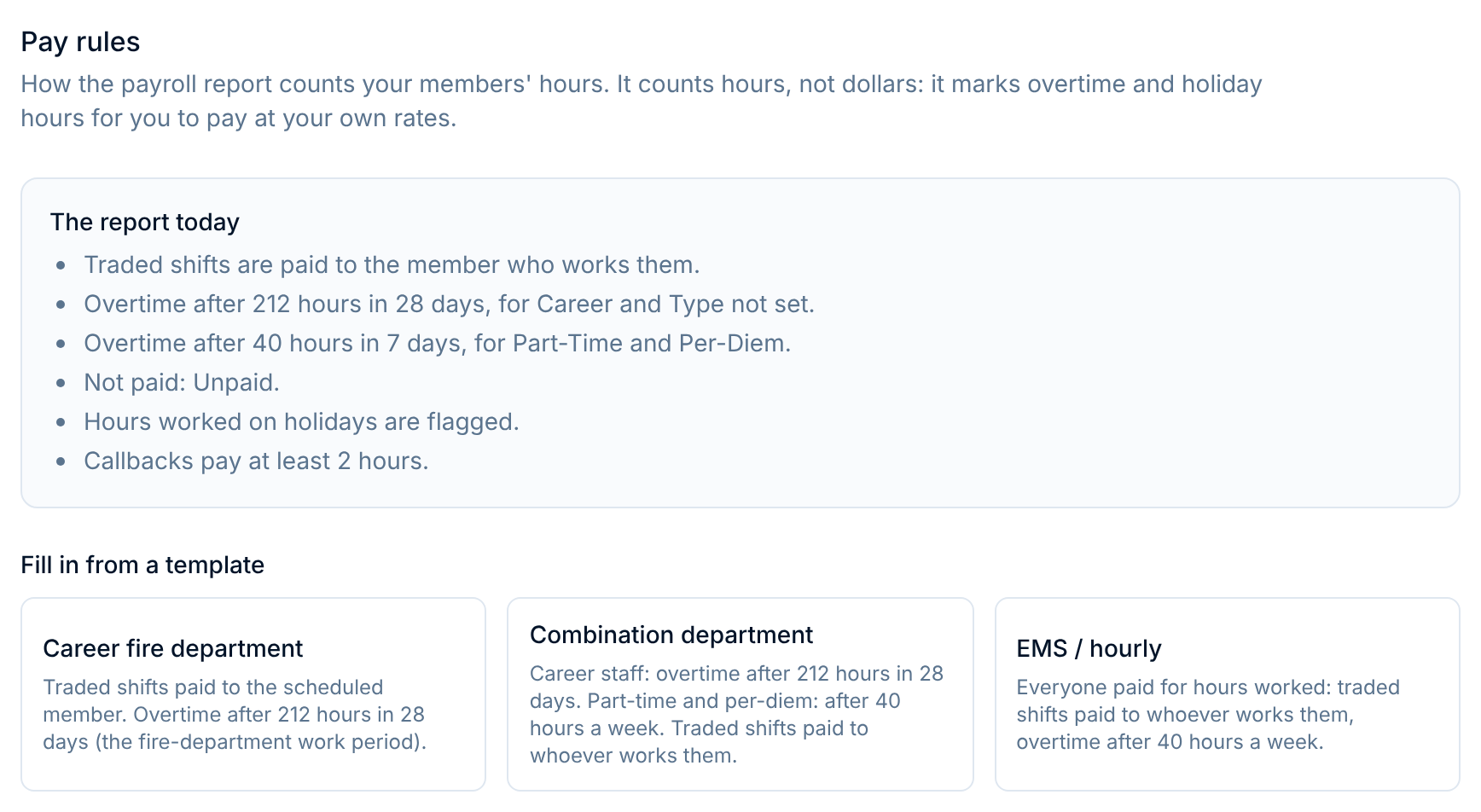
The page opens with The report today: the rules you've saved, in plain sentences. Read it after every change. If a sentence doesn't match how you actually pay, fix that rule.
Until a department saves its pay rules, the report keeps working the way it always has, and says so: "Pay rules aren't set up yet." Traded shifts are paid to the scheduled member, and only overtime entered on the schedule counts as overtime.
Templates
The three templates fill in the whole form as a starting point:
| Template | Traded shifts paid to | Overtime |
|---|---|---|
| Career fire department | The scheduled member | After 212 hours in 28 days, for Career and Type not set |
| Combination department | Whoever works the shift | Career and Type not set: after 212 hours in 28 days. Part-Time and Per-Diem: after 40 hours a week |
| EMS / hourly | Whoever works the shift | After 40 hours a week, for everyone |
All three also flag hours worked on holidays and leave "Unpaid" time off unpaid.
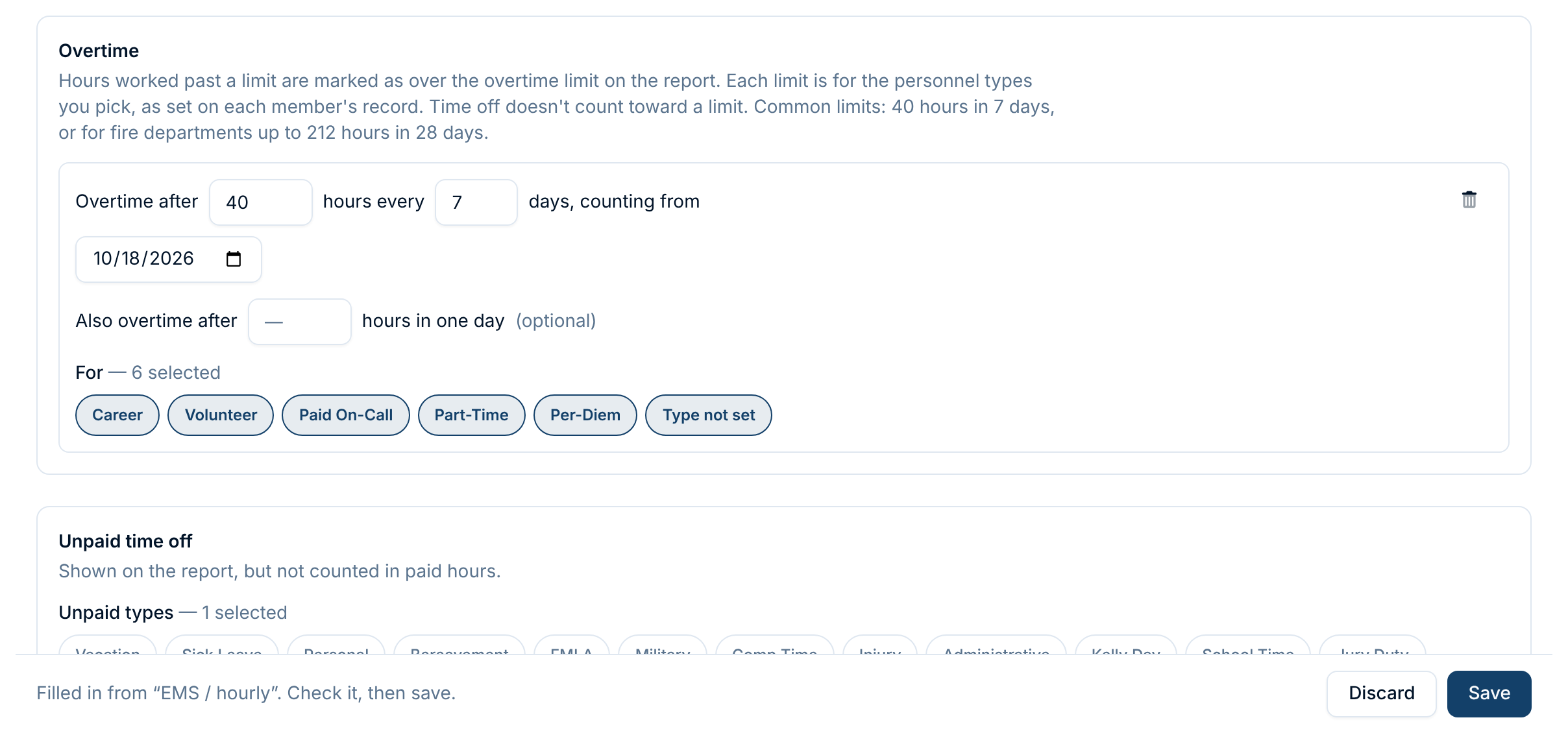
A template saves nothing on its own. It fills in the form, and the bar at the bottom of the page says "Filled in from 'EMS / hourly'. Check it, then save." Change anything that doesn't fit, then Save, or Discard to go back to your saved rules. Templates aren't remembered after you save, so the rules are yours to change.
Traded shifts
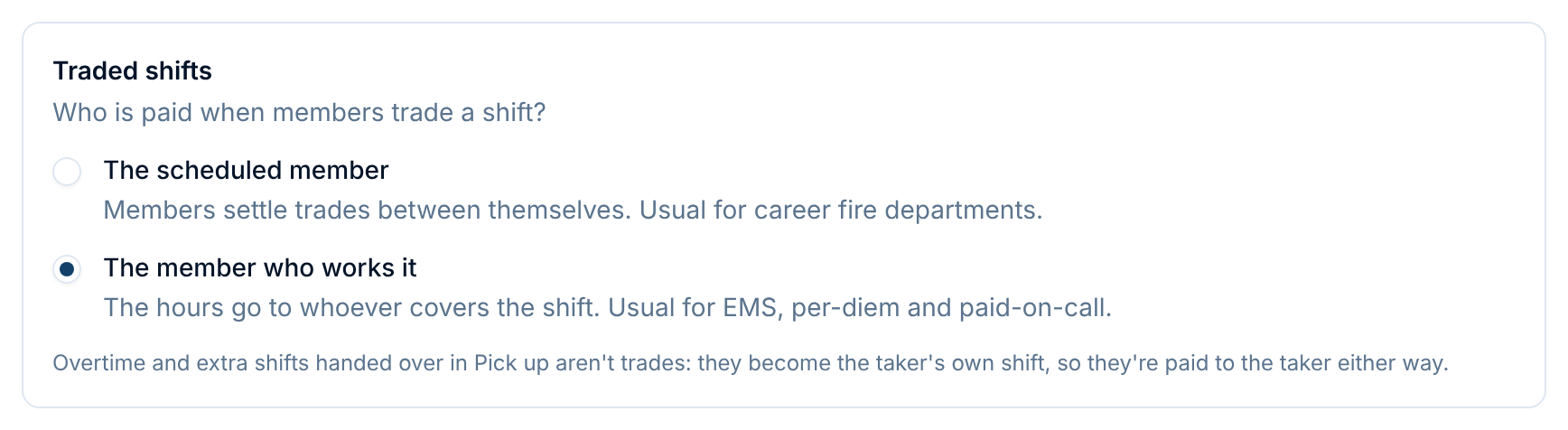
When two members trade a shift, who gets paid for it?
- The scheduled member. The hours stay on the line of the member the rotation scheduled, and members settle up between themselves. This is common in career fire departments, and federal rules allow it for public-safety employees. It keeps each member's pay predictable whatever they trade.
- The member who works it. The hours go to whoever actually covers the shift. This is usual for EMS, per-diem and paid-on-call staff paid for the hours they work.
Either way, both members' lines on the report show the trade: "Traded away: 24h · covered by Chris Lee" and "Covered: 24h · for Pat Morgan". Trades are never hidden.
Overtime and extra shifts handed over through Pick up aren't trades. The shift becomes the new member's own, so it's paid to them whichever option you choose.
Overtime limits
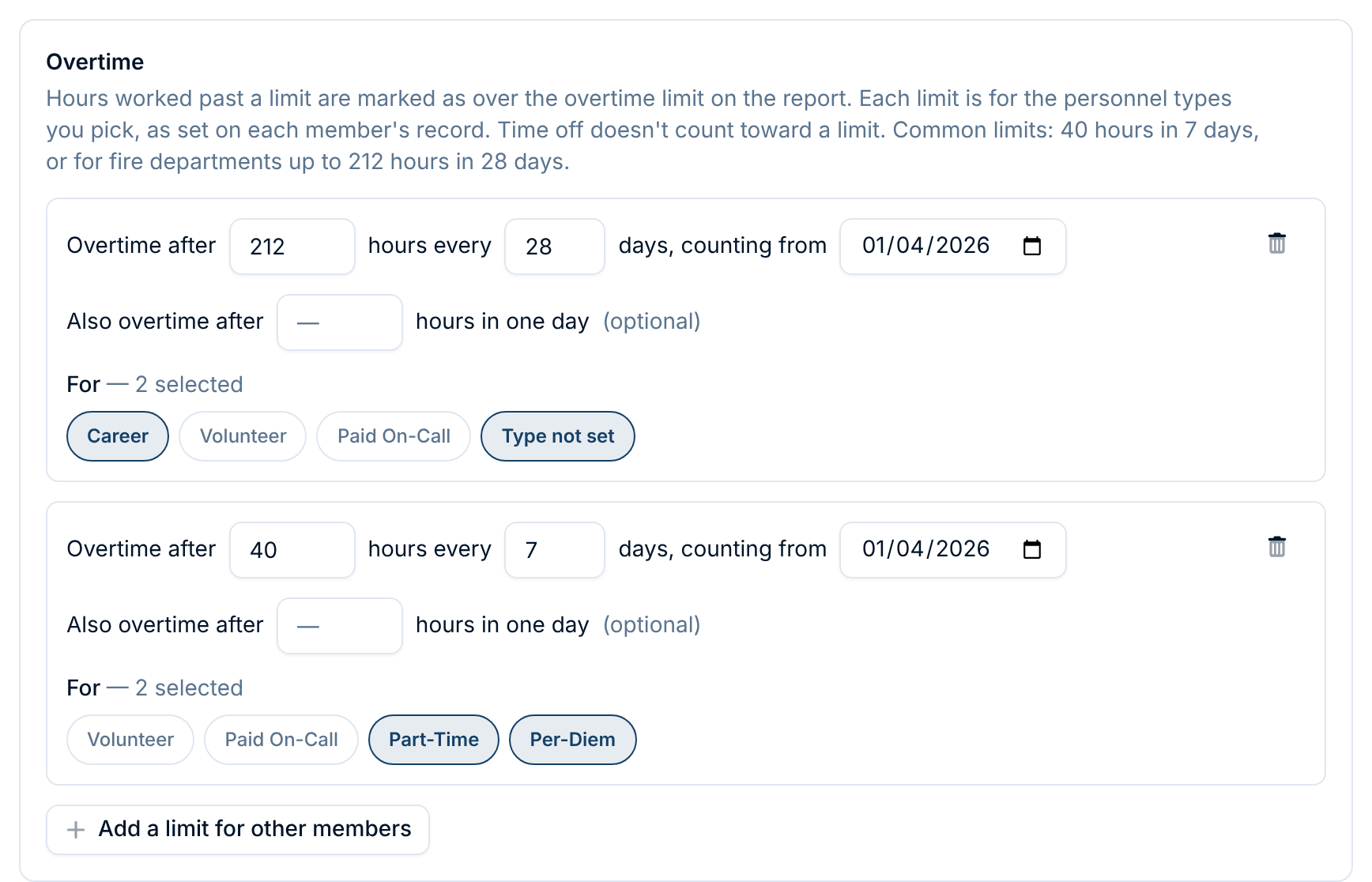
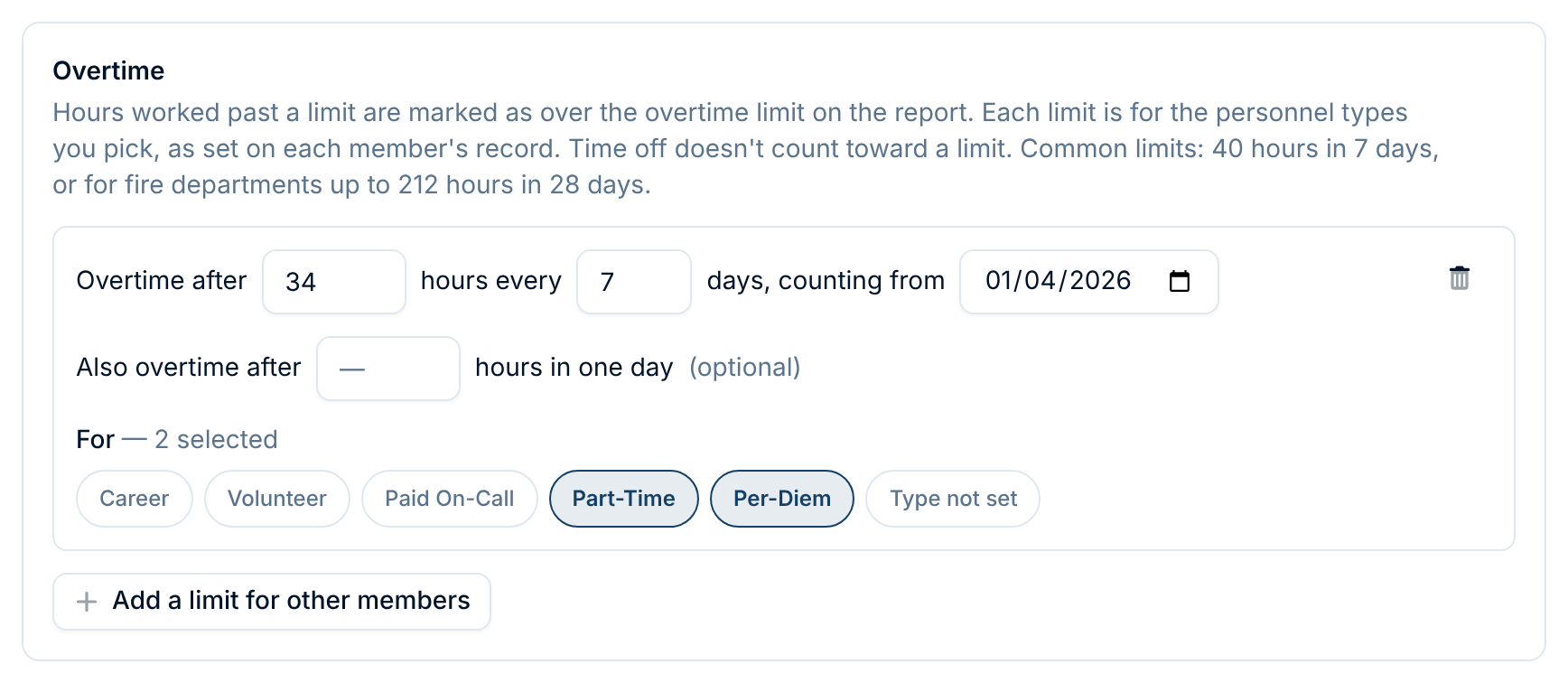
Each limit reads as a sentence: Overtime after [hours] hours every [days] days, counting from [date], for the member types you pick.
- Hours and days. The work period's length and how many hours it allows. A standard week is 40 hours in 7 days. Fire departments may use a work period of up to 28 days. 212 hours in 28 days is the usual federal limit for firefighters, and shorter periods scale it down (for example, 106 hours in 14 days).
- Counting from. The first day of any one work period. Periods run back to back from it, forward and back, so pick any date your periods actually started on, such as the Sunday your pay weeks begin. A report that starts partway through a period still counts the hours worked earlier in that period.
- Also overtime after … hours in one day (optional). A daily limit, for states and contracts that require one. Hours past it are overtime that day, and don't count again toward the period's limit.
- For. The member types the limit applies to. Each type can follow only one limit, so a type already used in another limit doesn't appear here. Types in no limit get no overtime flags. Only overtime entered on the schedule counts for them, which is right for salaried staff and volunteers.
You can add up to four limits. Use Add a limit for other members for each group of members paid differently.
What counts toward a limit: hours actually worked. That means rostered shifts, training, overtime and extra shifts, and paid duty-crew seats. Time off doesn't count, even paid time off, and neither does the padding a callback minimum adds. Administrative duty counts, because it's working time.
Unpaid time off
Choose the time-off types your department doesn't pay. They still show on the report, so you can see the absence, but they're left out of Paid hours. The built-in Unpaid type always starts out selected.
Holidays, callbacks and rounding
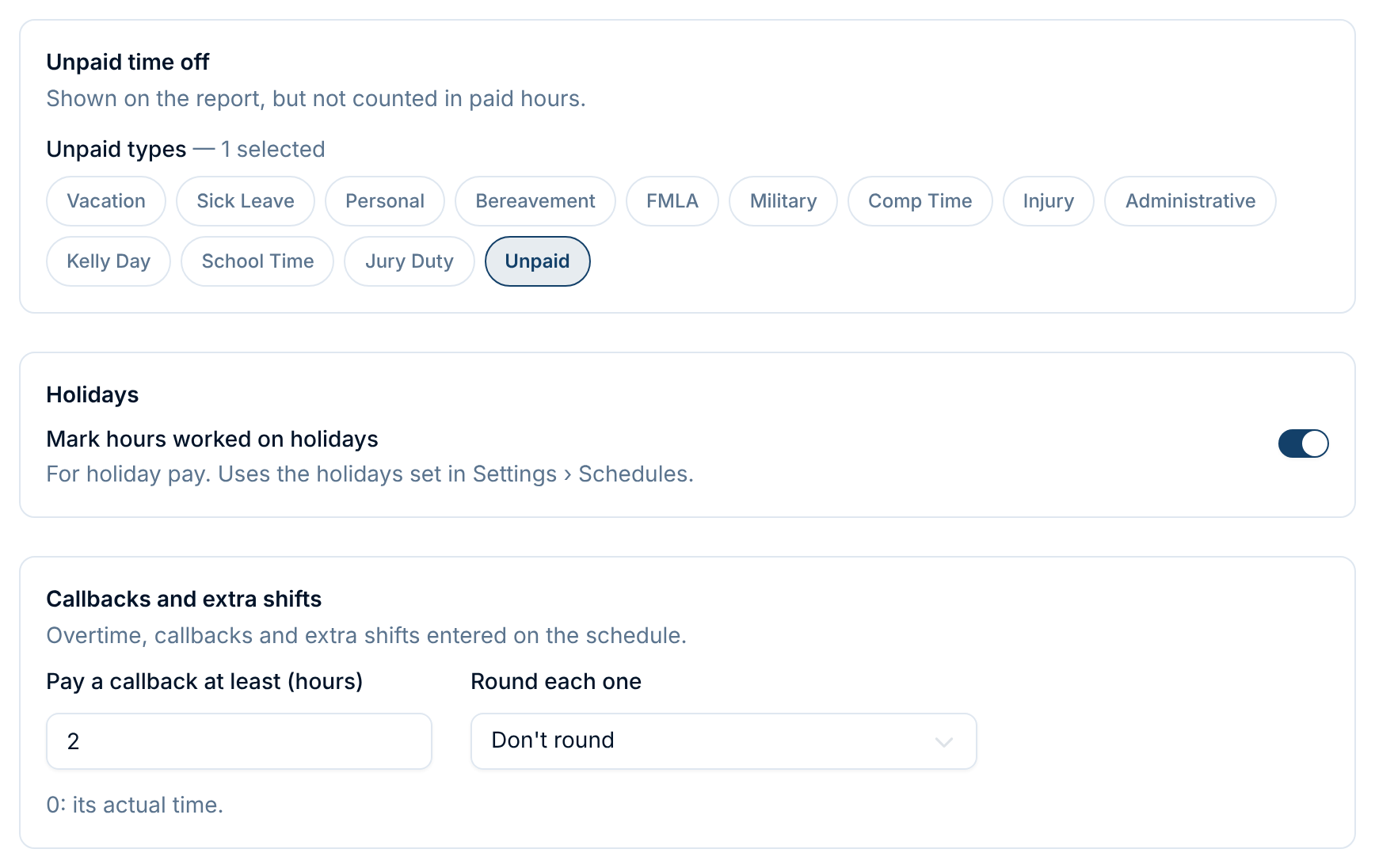
- Mark hours worked on holidays. Adds a Holiday hours flag for hours worked during the holidays you've set in Settings › Schedules, so you can pay holiday premium. Like the overtime flag, it doesn't add hours.
- Pay a callback at least (hours). A callback shorter than this is paid as this many hours. Use 0 to pay the time actually entered.
- Round each one. Rounds each overtime, callback or extra shift to the nearest 6, 15 or 30 minutes. Don't round pays the exact time.
Time-off columns
The Time-off columns section at the bottom of the page picks which time-off types get their own column on the report and in exports. The rest are added together as Other time off, so no hours go missing. This section saves as soon as you tick a box. Everything else on the page waits for Save.
Example: salaried, hourly and volunteer staff
Take an EMS agency with three kinds of staff:
- Salaried supervisors, who aren't paid overtime;
- Hourly medics, paid overtime after 34 hours a week;
- Volunteers, who aren't paid.
1. Set personnel types. Make the salaried staff Career, the hourly medics Part-Time (or Per-Diem, if that fits better) and the volunteers Volunteer.
2. Set the pay rules. Start from the EMS / hourly template, then change the limit to 34 hours every 7 days, counting from a Sunday your weeks begin on. Under For, leave only Part-Time and Per-Diem. Save.
3. Check The report today. It should now read:

On the payroll report:
- hourly medics show their paid hours, with anything past 34 hours in a week flagged as Over OT limit;
- salaried staff show their hours, never flagged;
- volunteers show any hours they were scheduled for, also never flagged.
Your payroll processor then applies each member's rate: the hourly rate to paid hours, the overtime rate to the flagged hours, and a salary regardless of hours.
Changing pay rules later
Pay rules apply to every report you run, including reports for past pay periods. If you change your overtime limit in June and then re-run March, March is counted under June's rules. Keep the CSVs you sent to payroll as your record of what was paid.
Related articles
- Running Payroll Reports: reading the report, the per-member timesheet, and exporting
- Duty Crews: putting a duty crew's seats on payroll
- Understanding Permissions & Groups: who can see and change payroll