
Allowances: Gear and Uniform Money for Each Member
Many departments give each member a set amount to spend each year — $100 for boots and gloves, $250 for uniforms. An allowance program tracks that money per person. Members see what they have left and submit receipts against it. The treasurer approves those receipts, and every balance updates on its own.
There are three parts to it:
- An administrator sets up the program — the amount, when the year starts, and who gets it.
- Members spend it by submitting a receipt and choosing their allowance.
- The treasurer approves each receipt by filing it to a budget line item, or declines it.
- Before you start: you need a budget
- Set up an allowance program
- For members: check your balance and use it
- For the treasurer: approve or decline receipts
- See everyone's balances and make adjustments
- Common questions
Before you start: you need a budget
A receipt counts as approved only once the treasurer files it to a line item in a budget. Without a budget, members can still submit receipts, but they stay Waiting in the treasurer's inbox indefinitely. They hold their amount, but the treasurer has nowhere to file them.
Don't otherwise use budgets? Create a small one just for allowances. It takes about a minute, and you never have to touch the rest of the Budgets module.
- Open Budgets and select Create Budget.
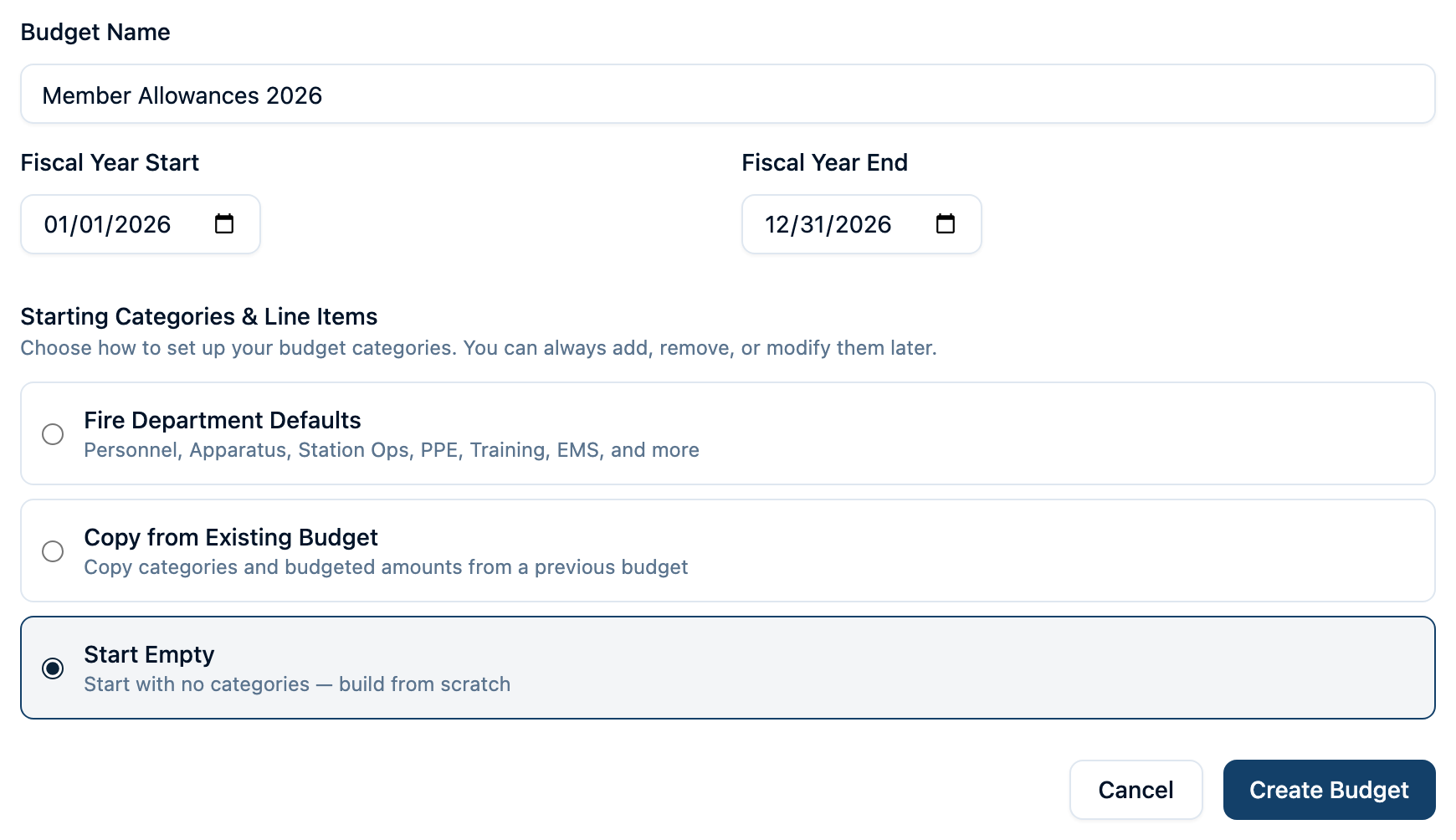
- Name it something like Member Allowances 2026. Set Fiscal Year Start and Fiscal Year End to match your allowance year — for a calendar-year allowance, January 1 to December 31.
- Choose Start Empty and select Create Budget.
- On the new budget's Overview tab, select Add Category and name it Allowances.
- On that category, select Add Line Item. Name it after your program, such as Gear allowance. For Budgeted Amount, enter the most the program can pay out in a year (the amount per person times the number of members), or 0 if you don't want to track it.
Each year, create the next year's budget the same way, or choose Copy from Existing Budget.
If your department already runs its budget in Command Established, skip this step. File allowance receipts to whatever line item already covers them, such as Turnout Gear or Uniforms.
Set up an allowance program
You need permission to create budgets.
- Open Budgets and select the Allowances tab.
- Select New program.
- Fill in the program:
- Name — what members will see, such as Gear allowance or Uniform allowance.
- Amount per person — how much each eligible member gets per year.
- Period starts — the month the allowance year begins. Choose January for a calendar year, or match your fiscal year (for example, July). Unused money expires at the end of each year and does not roll over.
- Ranks and Personnel type — who gets the allowance. Leave both empty to include everyone. Select one or more ranks or types to limit it; a member must match both if you choose some of each. The box below shows how many active members the program applies to, and how many of them don't have a login yet.
- Notes — what the money covers, such as "Boots, gloves, flashlights — not uniforms". Members see this when choosing an allowance.
- Select Create program.
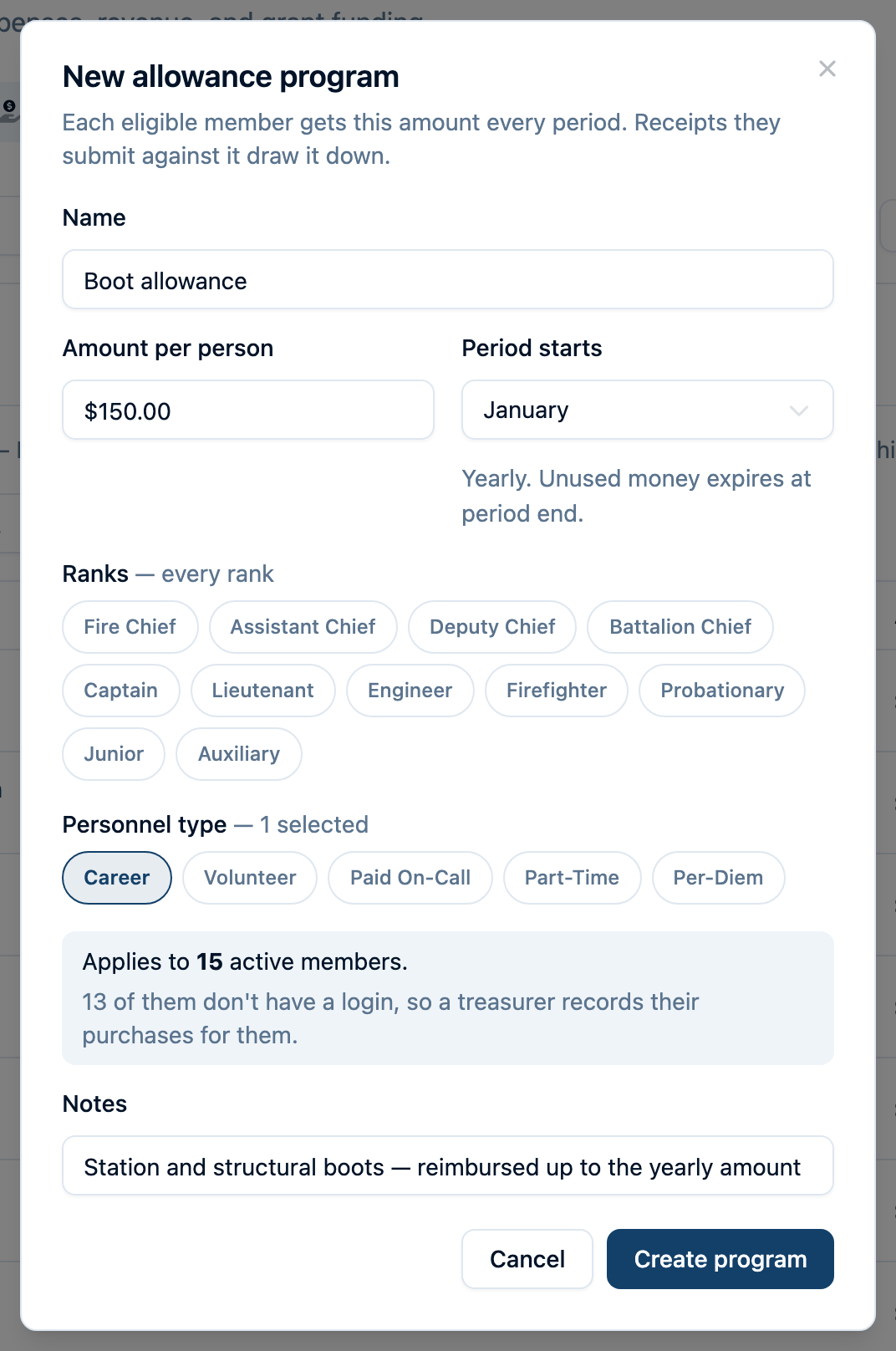
Every eligible member gets the full amount right away, and can start using it — you don't need to give them any extra permission. Members without a login can't submit receipts themselves, so a treasurer records their purchases for them. You can run several programs side by side — for example, a gear allowance for everyone and a uniform allowance for career staff.
Changing the amount later: select the program, then Edit program. A new amount applies from the current year onward; earlier years keep the amount members were actually given. The start month can't be changed once the program exists.
For members: check your balance and use it
Anyone the program applies to can use it. You just need to sign in with your own account, linked to your member record. If you don't see your allowance, ask an administrator to check that your account is linked.
Check your balance
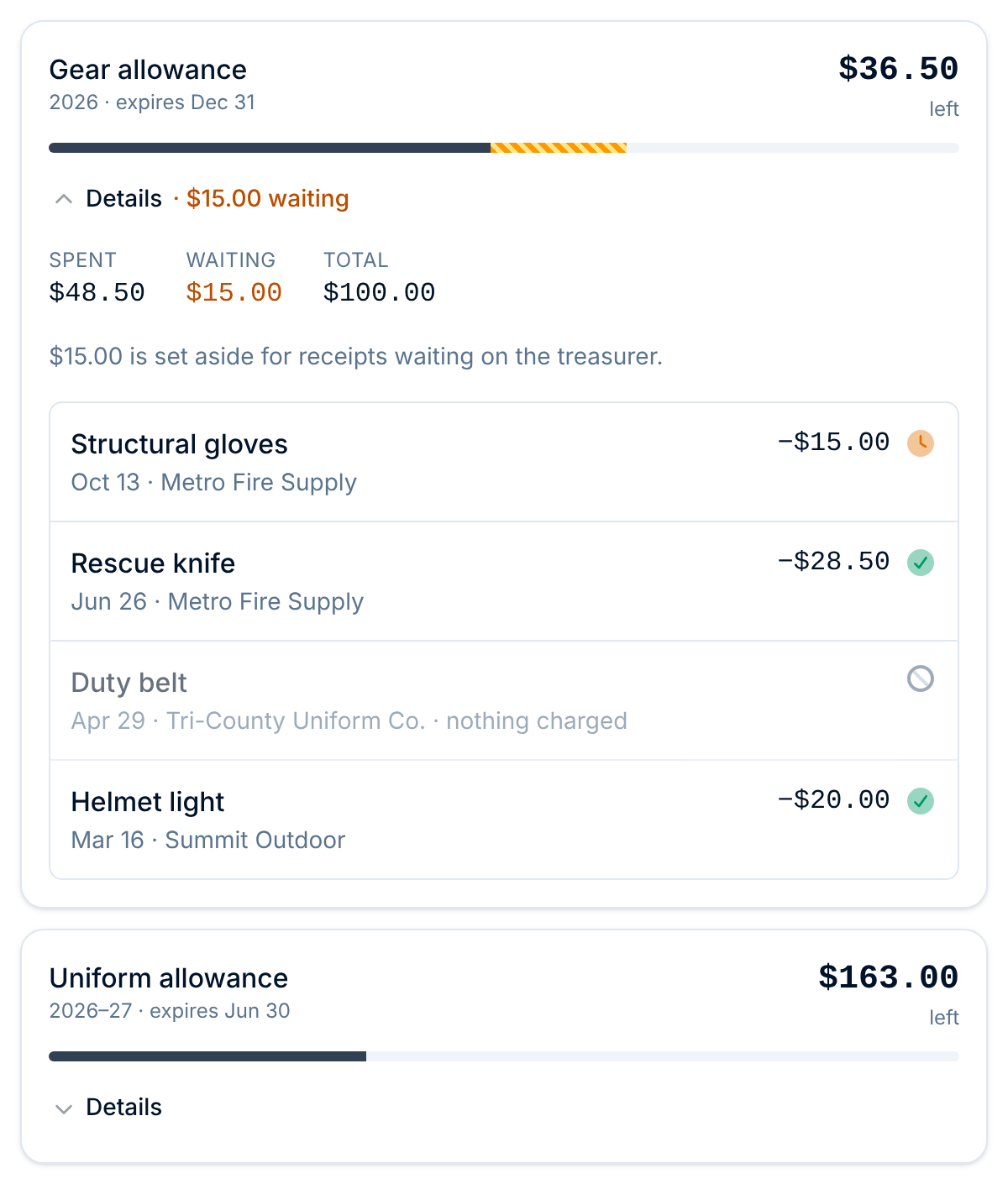
Open Budgets in the menu. Most members go straight to the Submit a receipt page. If you can also view budgets, select the Receipts tab, then Submit a receipt. Each allowance you're eligible for appears at the top as a card showing how much you have left. Select Details to see the rest:
- Spent — receipts the treasurer has approved.
- Waiting — receipts you've submitted that the treasurer hasn't approved yet. That money is set aside so you can't spend it twice. It shows as the striped part of the bar, and next to Details even while the card is folded.
- Total — your allowance for the year, including any adjustments.
Details also lists each receipt and adjustment. The icon beside each receipt shows where it stands: an amber clock while it's waiting, a green check once approved, or a gray ban if declined.
Spend it
- On the Submit a receipt page, open Charge to at the top of the form and choose the allowance instead of Department budget. Each option shows how much you have left.
- Select Add receipt and take a photo of the receipt or choose a file.
- Enter the Amount. It's required when you use an allowance.
- Read the line under the picker. It tells you how much the allowance covers. If the receipt costs more than you have left, the allowance covers what's left and you pay the difference.
- Submit the receipt.
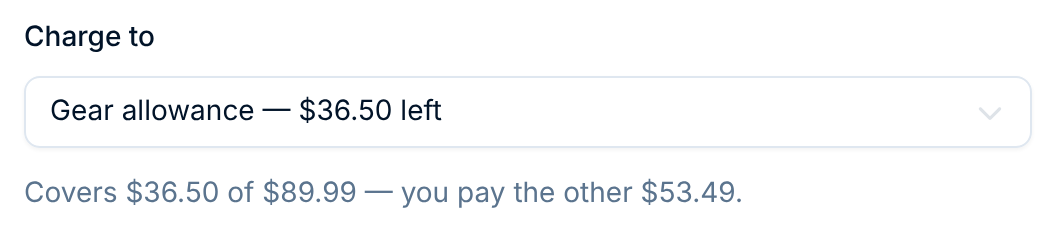
If your allowance is the only reason you can submit receipts, every receipt you send must be charged to it. Charge to offers only your allowances, and when you have only one it's chosen for you.
The amount is held right away and shows as Waiting on your card. When the treasurer approves it, it moves to Spent. If they decline it, the money is released and the receipt shows as Declined in your history, with their reason.
You can edit a receipt, or change which allowance it uses, until the treasurer files it.
For the treasurer: approve or decline receipts
You need permission to update budgets to file receipts, and permission to archive budgets to decline them.
Receipts members submit land in Budgets > Receipts. Receipts charged to an allowance show the program, the member, and how much they hold.
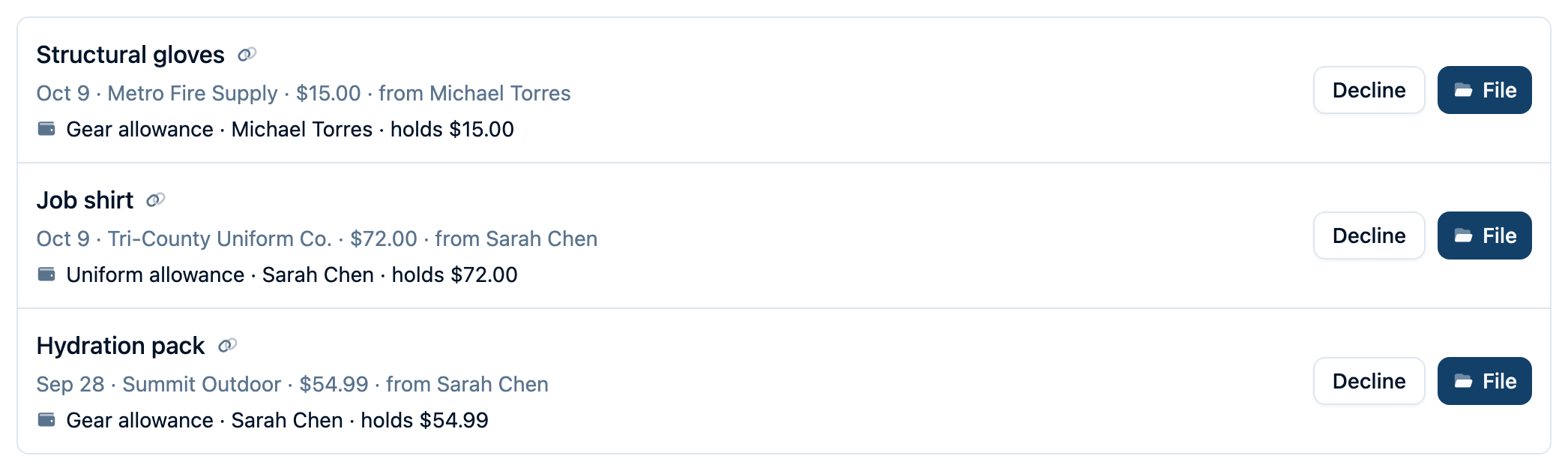
Watch for: an Another member's allowance tag means someone submitted a receipt against a different member's allowance. Check that it's intended before filing it.
Approve a receipt
- Select File on the receipt.
- Choose the Budget and Line item — your allowance line item, or whichever line item covers the purchase.
- Check the description, amount, date, and vendor against the receipt photo, and correct anything that's off.
- Check the Charge to allowance box. It shows which program and member the receipt is charged to, and how much it covers. You can change the program or member here; the amount it covers is worked out again when you save.
- Select File receipt.
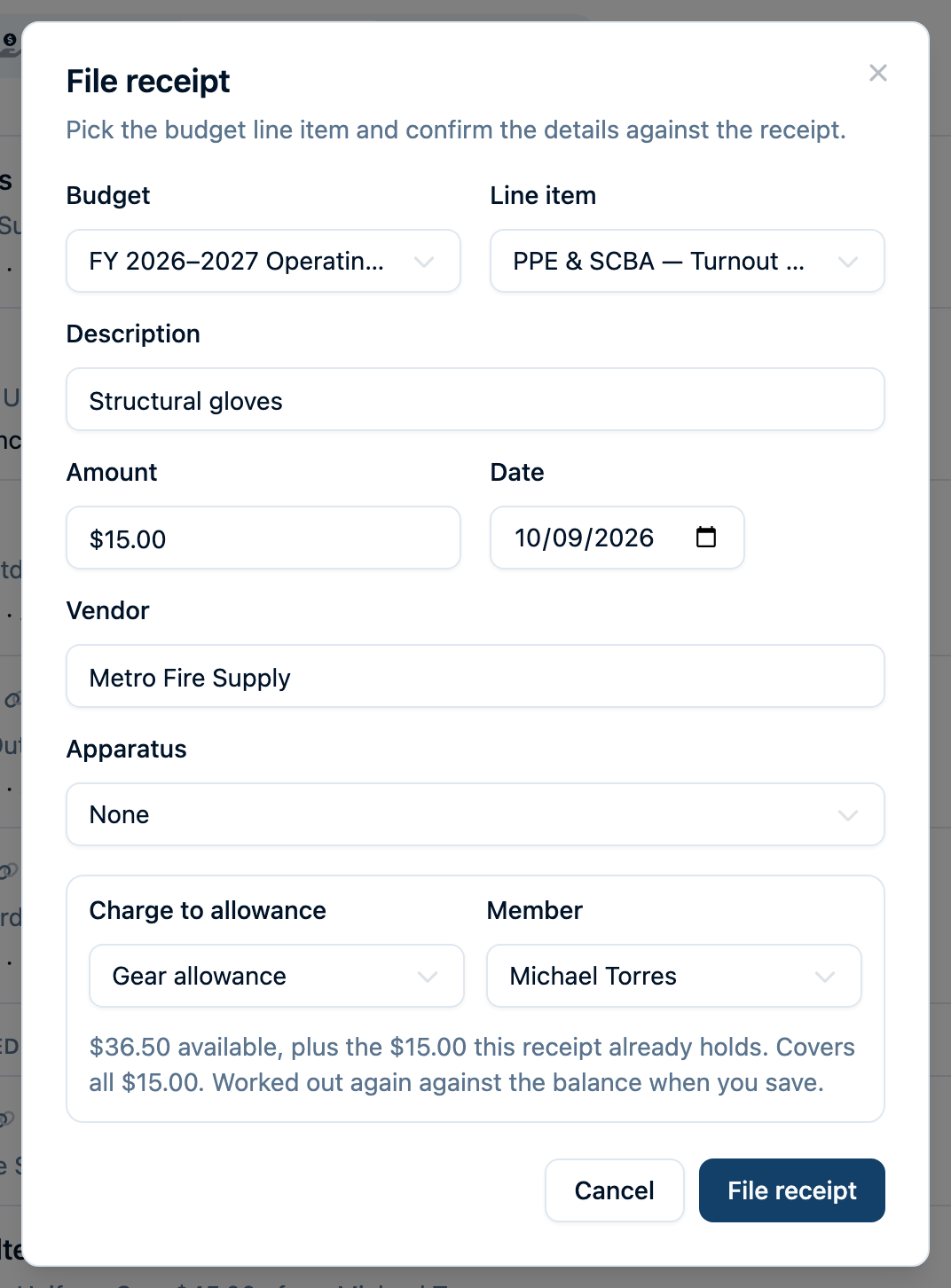
The charge moves from Waiting to Spent on the member's card, and the expense counts against the line item like any other.
Decline a receipt
Select Decline, give a short reason (for example, "Uniform items aren't covered by the gear allowance"), and confirm. The amount the receipt was holding goes back to the member, and they see the reason in their history.
Charge gear the department bought
Did the department buy something for a member directly? Add it as a normal expense on the budget, and under Charge to allowance, choose the program and the member. It's approved as soon as you save it.
See everyone's balances and make adjustments
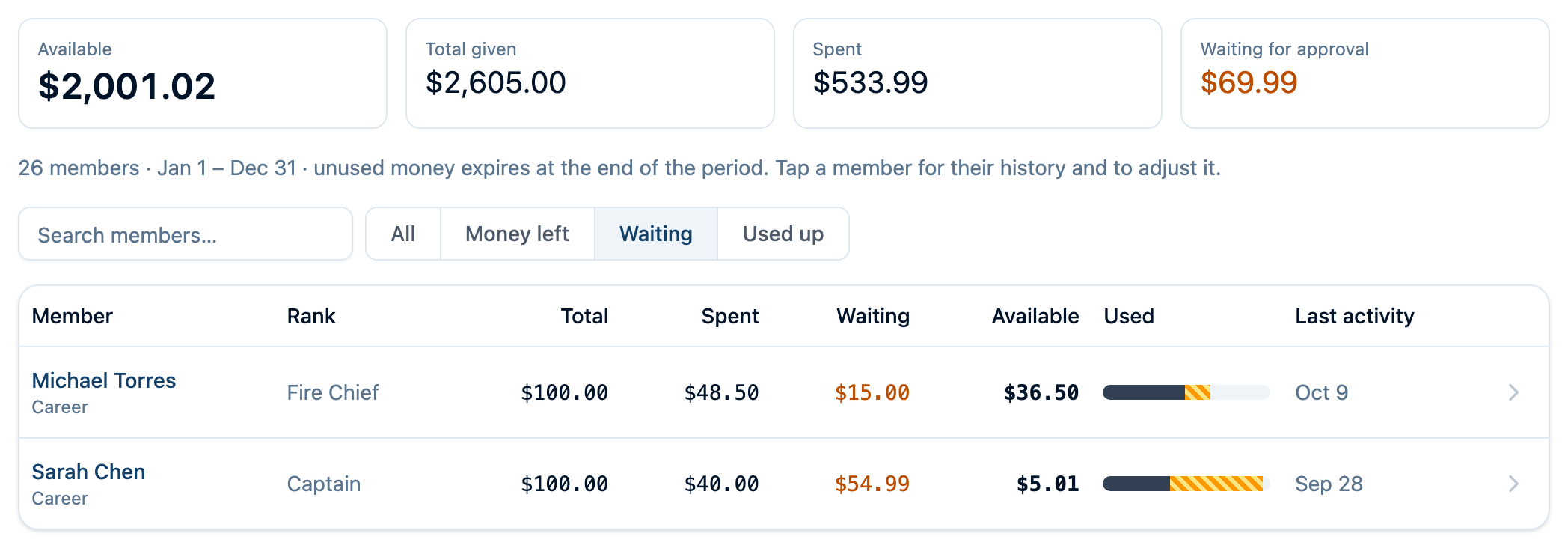
The Allowances tab shows one program and year at a time. Choose them from the two menus at the top.
- The four totals across the top show what's Available, the Total given, what's been Spent, and what's Waiting for approval across the whole department.
- The table lists every member with their total, spent, waiting, and available amounts.
- Use the filters to narrow the list: Money left, Waiting (receipts to approve), or Used up.
- Export downloads the list as a CSV file.
One member's history
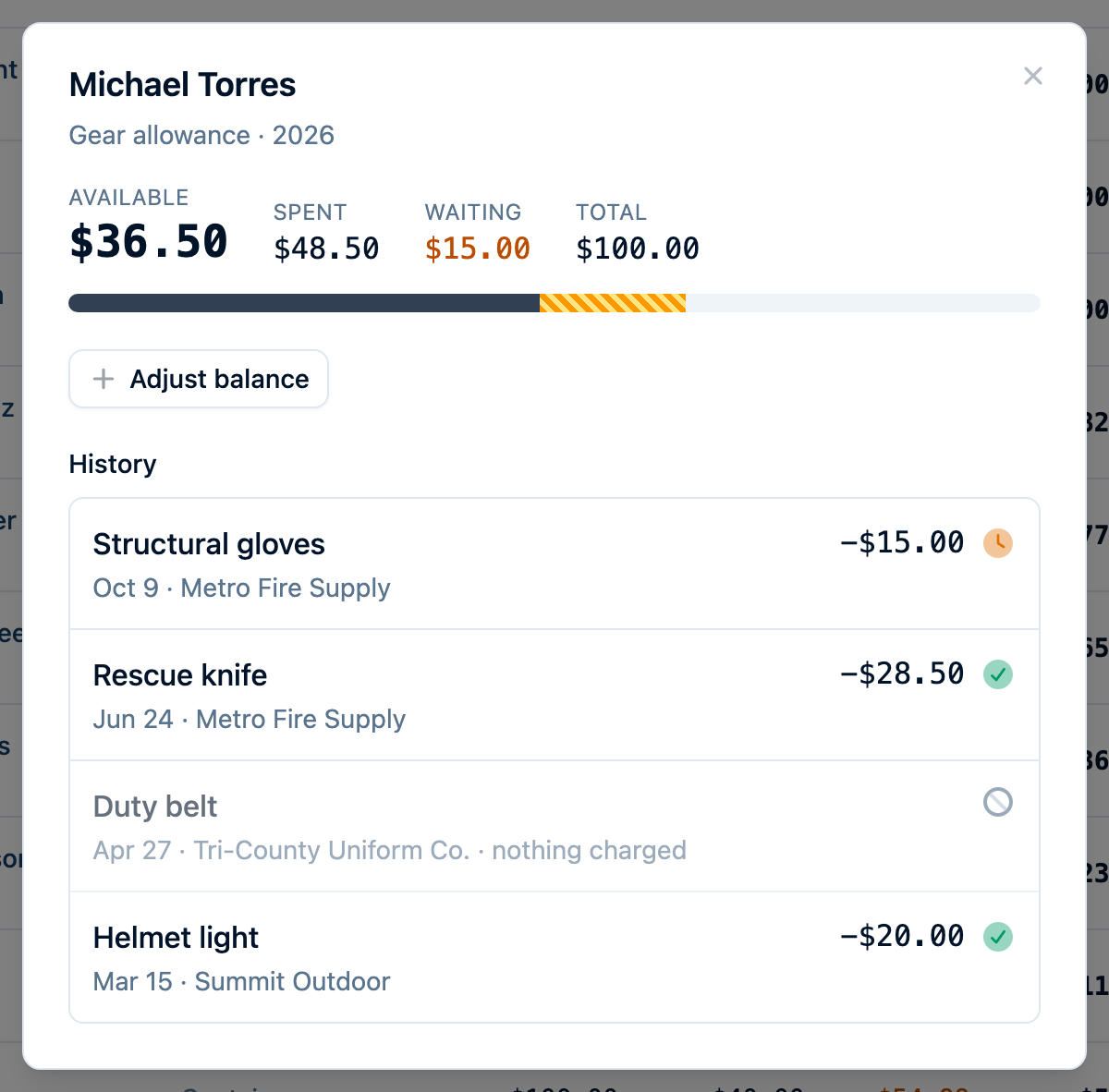
Select a member to open their history for the year: every receipt and every adjustment. Each receipt's icon shows its status — an amber clock while it's waiting on the treasurer, a green check once approved, and a gray ban if declined. Hover over the icon to see the status in words.
Adjust a balance
Need to give a member more, or take some back? For example: half the allowance for someone who joined mid-year, a refund for returned boots, or carrying over an unspent balance you've decided to honor.
- Open the member's history and select Adjust balance.
- Choose Give more or Take back.
- Enter the Amount and a Reason. The member sees the reason in their history.
- Check the new total shown below, then select Save adjustment.
An adjustment applies only to the year you're viewing. To undo one, remove it from the member's history.
Common questions
Does unused money carry over to next year? No. Each year starts fresh at the program's amount. To honor a carryover for one member, add it as an adjustment to their new year.
Who can see a member's balance? The member sees their own balances on the Submit a receipt page. Anyone with permission to view budgets can see everyone's balances on the Allowances tab.
A member can't see their allowance. They need their own login, linked to their member record, and they must be active and match the program's ranks and personnel types. The program dialog shows how many eligible members don't have a login.
A member isn't on the list. Only active members who match the program's ranks and personnel types are given the amount. Check their status and type on their personnel record, or edit the program. You can still charge receipts to, and adjust the balance of, a member who isn't eligible; they simply start the year at $0.
What happens if we archive a program? It stops taking new receipts. Its history and balances stay, and receipts already charged to it keep working.
The receipt was more than the member had left. Who pays the rest? The allowance covers what's left, and the member covers the difference. The receipt still records the full amount; only the covered part comes out of the allowance.
Related guides: Personnel Ranks · Permissions & Groups