
Bulk Certificate Upload with AI Parsing
Every department has the folder: a hundred PDFs from the state academy, photos of wallet cards, scanned course completions. Bulk upload turns that folder into certification records. Drop the files in, and Command Established reads each one, pulls out the name, dates, number, and issuing authority, figures out which member it belongs to, and queues it for a quick review before it goes on the record.
Typing certifications in by hand is the reason most departments' credential records are incomplete. The data entry is tedious, so it gets deferred, and then the one certification you needed proof of is the one nobody entered. Bulk upload removes the typing. Your job becomes checking the AI's work — a few seconds per certificate instead of a few minutes.
For a simple walkthrough of member uploads, review, and catalog best practices, start with Certificates: Upload, Review & Manage Definitions.
How Do I Upload a Batch of Certificates?
- Go to Training › Certifications. Admins see a Bulk upload button at the top of the page.
- Drag and drop up to 25 files onto the page, or click Choose files. Each file can be up to 25 MB. PDFs and images (JPG, PNG, WebP, HEIC) are what the AI can read; Word documents upload but can't be analyzed.
- Check the file list, then select Upload N files. Stay on the page until the uploads finish. You are then taken to Pending review, where analysis continues in the background; you can leave and come back.
Each file becomes one pending certification.

Tip: One certificate per file works best. A PDF containing several certificates stapled together is treated as a single document, and only one certificate's details come out of it.
What the AI Extracts
The parser reads what's actually printed on the certificate and leaves a field blank rather than guess:
- Certificate name and level (Firefighter I, EMT-Basic)
- Issuing authority and any accreditation noted (Pro Board, IFSAC, NREMT)
- Recipient name — used to match the certificate to a member of your roster
- Dates — completed, received, and expiration; if there's no printed expiration but the certificate states how long it's valid, the expiration is calculated from that
- Certificate number and course number
- Hours — used to pre-fill the optional training log
- Standard reference (for example, NFPA 1001)
- Instructor, training category, and topics — used to pre-fill the training record if you choose to log one
Each card shows how confident the AI was, as a percentage next to the AI-extracted heading. Treat a low number as a prompt to look at the document.
The Pending Approval Queue
Every uploaded (or self-submitted) certificate lands in the Pending review view on Training › Certifications. The whole review queue is admin-only. A pending certification that already has a member assigned shows on that member's Personnel › Certifications tab with a Pending status, but it doesn't become Active — and doesn't count for compliance — until an admin approves it.
Card states
- Analyzing — The file is uploaded and being read. The card shows just the filename; there's nothing to edit yet. A counter at the top shows how many are still in progress, and the list refreshes itself.
- Ready — Analysis finished. The card shows the member (or Unassigned), a Bulk import or Self-submitted badge, a chip describing the certificate type, the AI-extracted details, and Reject, Edit, and Approve buttons.
- Analysis failed — The file couldn't be read (an unsupported format, an unreadable scan, or a temporary problem). The card shows the reason. You can click Retry Analysis to try again on the unchanged file, or open Edit to view the document alongside the form, fill in the details yourself, and approve.

"Needs a member"
If the AI wasn't sure which member the certificate belongs to, the card shows a red Needs a member badge with the closest roster matches as buttons, each with a match percentage. Click one to assign, or use the Select a member… dropdown to pick anyone on the roster. Two members with similar names will usually come through as Needs a member — that's by design.

Type chips
Each ready card carries a chip describing what the AI did about the certificate's Type:
- Matched: [definition] — It's confident this is an existing definition in your catalog and has linked it. The card can be approved as-is.
- Suggested: [definition] — It found a likely definition but wants you to confirm. The suggestion is pre-selected when you open Edit.
- New type: [name] — Nothing in your catalog matched. It drafted a definition (name, issuing authority, standard, renewal period). Review it before choosing Add type & approve, or open Edit to adjust it or choose an existing type.
No chip means you'll choose the type in the approve modal.

Reviewing and Approving
Quick approve
The Approve button on a card approves the certification exactly as it stands. It is available when the card has a member, analysis has not failed or remained in progress, and the type is resolved. Check the document and details first. When a new type is proposed, the button reads Add type & approve: it accepts the displayed proposal and approves that certificate. Neither button logs training hours.
Adding a type approves only the certificate you selected. Other pending certificates proposing the same type still need their own approval. An existing definition with the same name and issuing authority is reused; accepting a proposal that matches a deprecated definition reactivates it. Open Edit if the proposed type duplicates a catalog entry with different wording.
When the button is greyed out, hover it for the reason, or look for the red Needs a member badge:
- "Choose a type first — open Edit to pick or create one" — A type is missing or only suggested. Open Edit to choose or confirm it.
- "Type is deprecated" or "Type no longer exists" — The linked definition was deprecated or archived since the upload; pick another in Edit.
- "Assign a member first" — Select the correct member before approving.
The approve modal
Click Edit to open Approve [certificate name]. From top to bottom:
- Member — Required. Pre-filled if the AI assigned one.
- Also log this as a training — See below.
- The certification form — Type, Status, Name, Issue Date, Expiration Date, Certification #, Hours, Issuing Authority, Description, pre-filled when those details were read. Correct anything the AI got wrong, and check the issue date even if it is filled in: it can fall back to the upload date. The uploaded file is visible on the queue card; when analysis failed, it also appears beside the approval form.
In the Type field, the Suggested group at the top lists the AI's candidates, with the top one already selected and the hint "Suggested match — change if wrong." When a new type was proposed, a panel above the field reads "No matching definition. Create '[name]'?" with a Create this definition on approve checkbox. Leave it checked and adjust the definition's name, issuing authority, and renewal months if needed; or click or pick an existing type to file it under something you already have. You can also type a name that isn't in the catalog and choose Use "…" (creates a definition).
Click Approve (or Approve & log training) to finish.

Also log this as a training
Many certificates represent a course the member sat through — hours that should count toward their training record and ISO totals. The Also log this as a training switch in the approve modal creates a completed training record for that member (and only that member) at the same time as the certification.
- It's on by default when the AI found hours on the certificate, and off otherwise.
- Hours are pre-filled from the certificate and required when the switch is on.
- Category, Topics, Date, and Training name use the available certificate details and defaults. Source initially defaults to State Academy. Verify all of them before saving.
- Turn the switch off if the course is already in the member's training record, so you do not log its hours twice.
The training is linked to the certification, so the member's ISO hours come from the training record.
Batch approve
For a large migration, approve in batches:
- Click Select matched to tick every card that has a member, finished analysis, and a linked type — or tick cards individually.
- Click Batch approve N.
A counter, N need a type, shows how many selected cards were held back because their type is only suggested or proposed. Review those individually with Edit or, for a correct proposal, Add type & approve. Batch approve accepts cards as they stand and never creates definitions or training records.
Keyboard shortcuts move things along: ↑/↓ move between cards, Enter approves the focused card and advances, S skips it.
Tip: Check the member and type before using Enter. A single confident member suggestion can be assigned and approved in one step; weaker or multiple matches require you to choose the member. On a card with a proposed new type, Enter also accepts that proposal.
Rejecting
Reject opens a dialog requiring a reason. The certification's status becomes Rejected and the reason is shown on its detail page. Give an actionable reason, such as “The expiration date is cut off. Please upload the complete card.” Contact the member through your usual department process if you need another document; rejection does not send an automatic notification.
What Happens After Approval
- The certification is approved and appears in the roster and the member's Certifications tab. It counts toward compliance program requirements for its definition while active and unexpired. An already-past expiration date displays Expired.
- If you left Create this definition on approve checked, the definition is created and linked. It carries an AI badge in the Definitions view when the name you approved matches the AI's proposed name, and you'll see "Created definition '[name]' — review it under Definitions."
- If Also log this as a training was on, the training record is created and linked.
- If the certificate has an expiration date, the member starts getting expiration reminders like any other certification.
Member Self-Submission
Members don't have to wait for an admin to collect their certificates. On their own personnel page, under the Certifications tab, a member selects Add Certification > Upload certificates.
- In Submit Certificates, select Add certificates (or Take Photo on a phone) or drag in up to 25 files, each no larger than 25 MB. Keep one certificate in each file.
- Check the list and select Submit N files. Stay in the dialog while the files upload and are analyzed. Each file shows its own progress or error.
- Successful files show Submitted for approval. Use Retry failed for unsuccessful files; files already submitted are kept. Select Done when finished.
- Each file creates its own pending certification, already assigned to the member and tagged Self-submitted in the review queue.
- Members without a file can choose Add Certification > Enter details and type the certificate in. It arrives in the queue the same way, tagged Self-submitted, with an optional photo attached.
Self-submissions use the same certificate reading and type matching as bulk uploads. Available dates, certificate number, hours, issuing authority, and type matches or proposals are filled in for review. The member is already assigned to the uploader. If the file cannot be read, it still enters the queue; an administrator opens Edit, enters the details from the document, chooses the Type, and approves.
See Upload your own certificate for member instructions, photo tips, renewals, and rejected submissions.
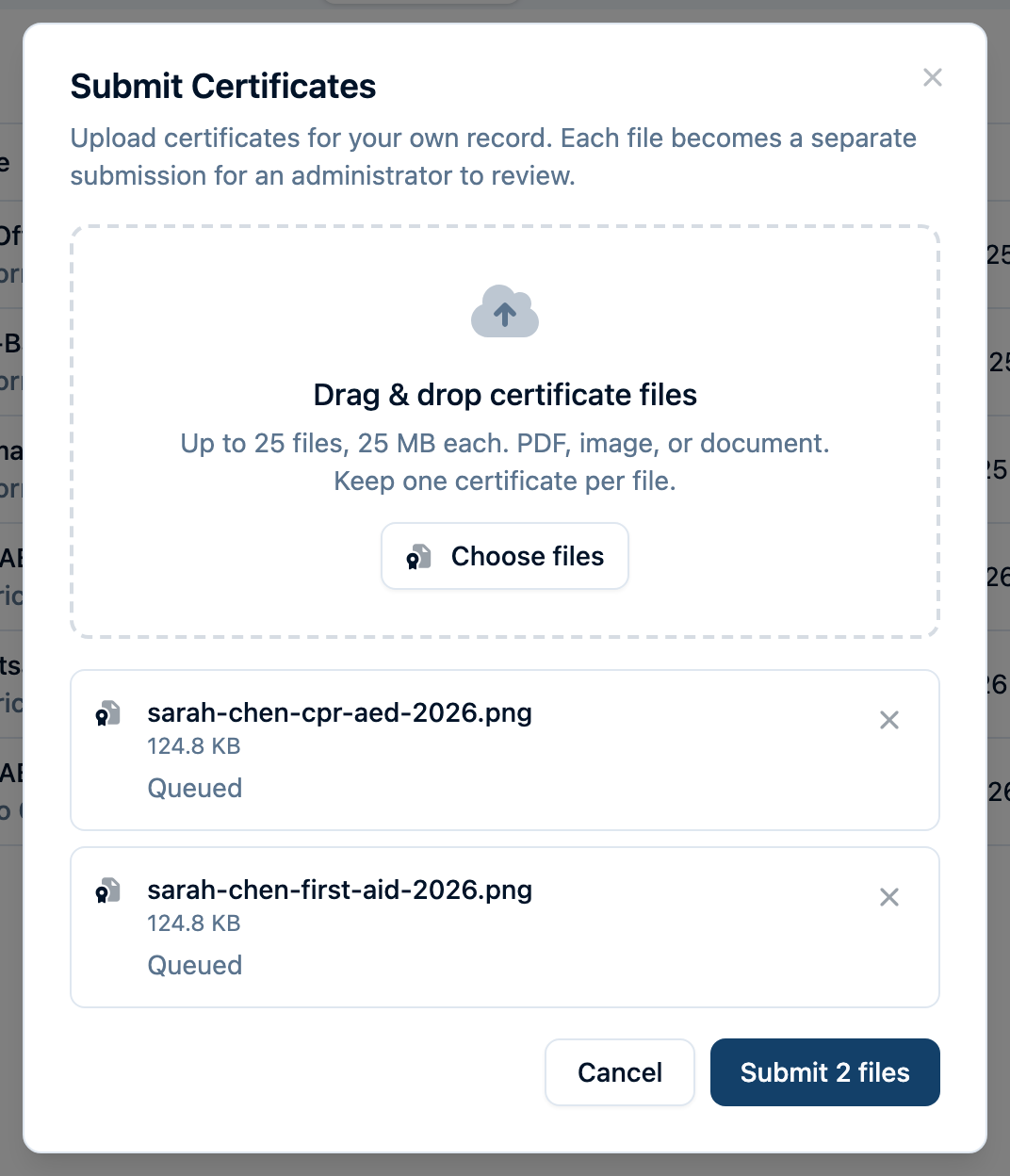
Tip: Announce self-submission at a drill night. Members photograph the wallet card with their phone, tap Add Certification > Upload certificates, and the training officer clears the queue once a week. It's the least painful way to keep records current between annual reviews.
Getting Started
- Clean up your Definitions view first. The AI matches against your catalog, so a tidy catalog means more Matched chips and fewer proposals. See Managing Definitions.
- Start with a batch of 10. Work through the queue and see how your certificates parse before committing a whole binder.
- Approve the Matched cards in a batch. Select matched, batch approve, done.
- Work the Suggested and Proposed cards individually. Confirm the type, decide whether to create the definition, and log the training hours where they matter.
- Share the member instructions. Members can use Add Certification on their own personnel page; no separate self-submission switch is needed.
Frequently Asked Questions
What file types can I upload?
PDF, JPG, PNG, WebP, and HEIC files are read by the AI. Word documents can be uploaded and attached, but can't be analyzed — those cards show "Analysis failed" and you enter the details by hand.
Do I have to stay on the page while files are analyzed?
For administrator Bulk upload, stay until uploading finishes; analysis then continues in Pending review, and you can leave and return later. For member Submit Certificates, keep the dialog open until the selected files finish uploading and being analyzed. Each successful file shows Submitted for approval.
Why is the Approve button disabled on a card?
Hover it for the reason. If the type is only suggested or missing, open Edit and choose it. A proposed new type has a separate Add type & approve action. A card may also need a member assigned, a different active type, or manual review after failed analysis.
Does batch approve create definitions or training records?
No. Batch approve accepts cards exactly as they stand. Use Add type & approve to accept a correct proposal for one certificate, or open Edit to adjust the definition or log a training.
The AI got a date wrong. What do I do?
Click Edit, correct the field, and approve. The uploaded document and pending record are already saved, but the certification does not become active until approval.
Can members upload their own certificates?
Yes. From their own personnel page's Certifications tab, members choose Add Certification > Upload certificates to submit up to 25 files together, or Enter details to type one in. Each becomes a separate record in Pending review, tagged Self-submitted.
Who can see the AI-extracted details and the uploaded file?
Admins and members with the certification-document permission can see them for anyone; every member can see them on their own certifications. See Certifications: Permissions.